
This applies specifically when Avoma's Notetaker joins your Google Meet call as a bot participant to record and transcribe the session.
It does not affect Google Meet’s native recording. If your organization records directly through Google Meet rather than through a bot, this flag and the steps below do not apply.
Why the Notetaker shows under "potential risks"
If you see Avoma's AI Notetaker listed under a "with potential risks" label in your Google Meet participant panel, this is not a cause for concern. This label is a standard part of Google Meet's security model, which now requires hosts to review and approve automated attendees before they are admitted.
Avoma's Notetaker is a trusted, secure bot that joins your meetings solely to capture notes and transcripts on your behalf. The "potential risk" flag does not reflect any actual threat. It is applied uniformly by Google to any non-human participant that requests entry.
Note: This behavior is expected and is the result of a Google Meet security update, not an issue with Avoma. Your meeting data remains private and is handled in accordance with Avoma’s security and compliance standards.
How to admit Avoma's Notetaker when the Admit button is not visible
In some cases, the standard "Admit" button may not appear directly next to the Notetaker in the waiting room. This is part of the same Google Meet security update. Use the steps below to admit the Notetaker and begin your recording session.
Step 1: Open the Participants panel in your Google Meet session.
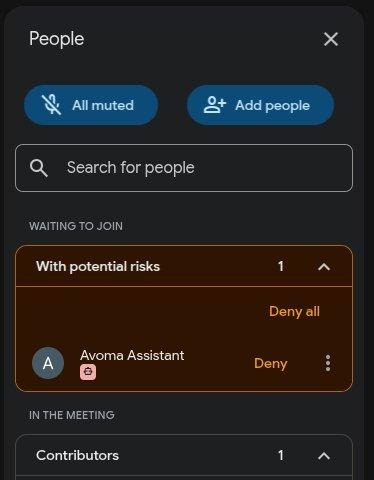
Step 2: Scroll down to the "With potential risks" section. Avoma's Notetaker will be listed there, labeled "Appears to be a bot."
|
Google Meet — Avoma Assistant listed under "With potential risks" in the Participants panel |
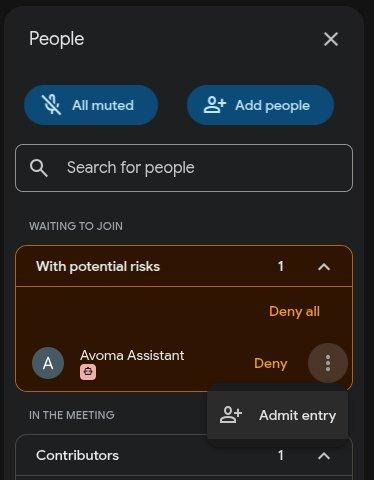
Step 3: Click the three-dot menu (⋮) next to the Avoma Notetaker entry.
Step 4: Select "Admit entry" from the dropdown.
|
Google Meet — Click the three-dot menu next to Avoma Assistant and select “Admit entry” |
Step 5: The Notetaker will join the call and begin capturing notes automatically.
If you have any questions, contact our team at help@avoma.com