---
title: How to set up automated alerts for Slack and Email in Avoma
description: Learn how to create automated Slack and email alerts in Avoma to track meeting moments, risks, or keywords and act fast.
image: https://help.avoma.com/hubfs/Avoma%20-%20Help%20center.webp
---
[Skip to content](https://help.avoma.com/automated-alerts-for-slack-and-email#main-content)
English
Show submenu for translations

- [Blog](https://www.avoma.com/blog)
- Product
Show submenu for Product
- [AI Meeting Assistant](https://www.avoma.com/ai-meeting-assistant)
- [Scheduler and Lead Router](https://www.avoma.com/scheduler-lead-router)
- [Conversation Intelligence](https://www.avoma.com/conversation-intelligence)
- [Revenue Intelligence](https://www.avoma.com/revenue-intelligence)
- [Schedule a Demo](https://www.avoma.com/demo)
Open main navigation
Close main navigation
- [Blog](https://www.avoma.com/blog)
- Product
Show submenu for Product
- [AI Meeting Assistant](https://www.avoma.com/ai-meeting-assistant)
- [Scheduler and Lead Router](https://www.avoma.com/scheduler-lead-router)
- [Conversation Intelligence](https://www.avoma.com/conversation-intelligence)
- [Revenue Intelligence](https://www.avoma.com/revenue-intelligence)
- [Schedule a Demo](https://www.avoma.com/demo)
- English
Show submenu for translations
- [Home](https://www.avoma.com/)
[Home](https://www.avoma.com/)
How can we help you today?
- There are no suggestions because the search field is empty.
1. [Avoma Help Center | Documentation, Guides & Support](https://help.avoma.com/?hsLang=en)
2. [Integrations](https://help.avoma.com/integrations?hsLang=en)
3. [Collaboration](https://help.avoma.com/integrations?hsLang=en#collaboration)
# How to set up automated alerts for Slack and Email in Avoma
## Learn how to create automated Slack and email alerts in Avoma to track meeting moments, risks, or keywords and act fast.
Stay on top of key meeting moments with Avoma alerts. Avoma alerts are automated notifications that inform you in Slack or by email when specific keywords, phrases, or risk signals appear in your meetings. You do not need to manually review entire transcripts because you get only what matters, when it matters.
#### **Prerequisites**
#### Before setting up alerts, make sure:
- Your **Slack integration** is connected if you want to send alerts to Slack.
- You have permission in Avoma to create alerts.
- The meetings you want to monitor are visible to your **organization** or set to the public.
Learn how to connect Slack - **[here](https://help.avoma.com/slack-integration-setup-guide?hsLang=en).**
### **How to Create an Alert**
To create a new alert in Avoma:
1\. Go to **meetings \> alerts** in your Avoma account.
2\. Click **create alert**.
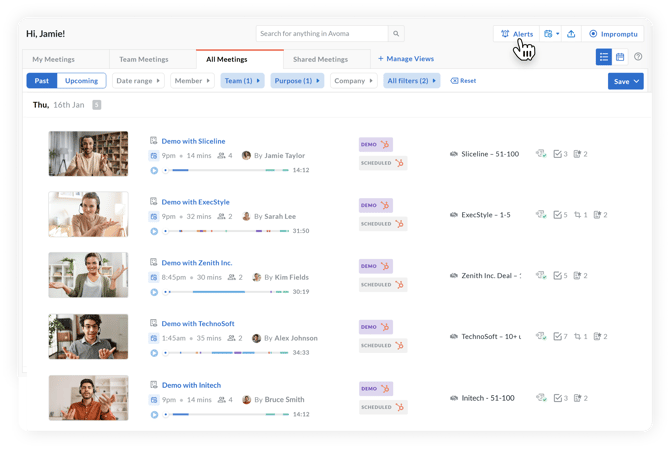
**3. Name your alert** clearly so you can identify its purpose later.
4\. Set the **visibility** to private or share it with your entire organization.
.png?width=670&height=449&name=Alerts%20for%20Slack%20screen%2002%20(1).png)
5\. Add **keywords or phrases** you want Avoma to track in conversations.
6\. Apply filters like **team**, **deal stage**, **conversation purpose**, or **speaker type** to refine when the alert triggers (Optional) .
7\. Choose how often you want notifications, such as **instant** or **daily summary**.
-png.png?width=670&height=675&name=Alerts%20for%20Slack%20screen%2003%20(2)-png.png)
8\. Select where to send the alert, either to a Slack channel or to email recipients.
💡 *Note: To send alerts to a private Slack channel, tag the Avoma bot in the channel and invite it when prompted.*
### **Sending alerts to private channels**
By default, Avoma can post alerts to public channels. To send them to a private channel, just invite the Avoma bot in:
1. In Slack, go to the private channel.
2\. Tag **@Avoma**.
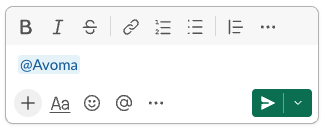
3. Slack will prompt you to invite the app—click **Add them**.
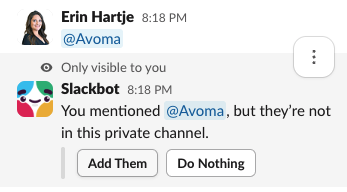
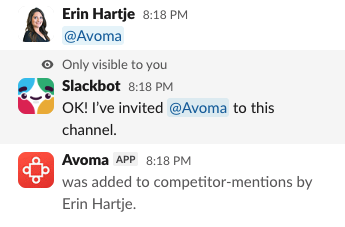
4. Wait 15 to 30 seconds, then refresh Avoma. The channel will now appear as an option when setting up alerts.
### **What is included in Slack and email alerts**
Both Slack and email notifications include:
- Meeting subject, time, and duration
- Host and participants
- Any linked CRM details (company, contact, deal)
- Matched keyword snippet
- AI-generated key takeaways (when available)
Email notifications also show **who created the alert** so recipients know the source.
### **Managing your alerts**
You can review, edit, or delete your alerts anytime from **meetings \> alerts** in Avoma.
### **Need Help?**
If you have any questions or need assistance setting up alerts, please contact our team at **help@avoma.com**.
- [Avoma Configuration (Admins)](https://help.avoma.com/avoma-configuration-admins?hsLang=en#main-content)
- [Authentication](https://help.avoma.com/avoma-configuration-admins?hsLang=en#authentication)
- [User and access management](https://help.avoma.com/avoma-configuration-admins?hsLang=en#user-and-access-management)
- [Recording, privacy, compliance](https://help.avoma.com/avoma-configuration-admins?hsLang=en#recording-privacy-compliance)
- [Integrations & tool connections](https://help.avoma.com/avoma-configuration-admins?hsLang=en#integrations-tool-connections)
- [Billing and license management](https://help.avoma.com/avoma-configuration-admins?hsLang=en#billing-and-license-management)
- [Meeting Assistant configuration](https://help.avoma.com/avoma-configuration-admins?hsLang=en#meeting-assistant-configuration)
- [Conversation Intelligence configuration](https://help.avoma.com/avoma-configuration-admins?hsLang=en#conversation-intelligence-configuration)
- [Revenue Intelligence configuration](https://help.avoma.com/avoma-configuration-admins?hsLang=en#revenue-intelligence-configuration)
- [Adoption, usage, and ROI](https://help.avoma.com/avoma-configuration-admins?hsLang=en#adoption-usage-and-roi)
- [Lead routing configuration](https://help.avoma.com/avoma-configuration-admins?hsLang=en#lead-routing-configuration)
- [Avoma Configuration (Members)](https://help.avoma.com/avoma-configuration-members?hsLang=en#main-content)
- [AI Meeting Assistant](https://help.avoma.com/avoma-configuration-members?hsLang=en#ai-meeting-assistant)
- [Avoma Quick Start](https://help.avoma.com/avoma-quick-start?hsLang=en#main-content)
- [Getting started videos](https://help.avoma.com/avoma-quick-start?hsLang=en#getting-started-videos)
- [Preparing for a Meeting](https://help.avoma.com/preparing-for-a-meeting?hsLang=en)
- [Avoma Scheduler](https://help.avoma.com/avoma-scheduler?hsLang=en)
- [Using Avoma During a Meeting](https://help.avoma.com/using-avoma-during-a-meeting?hsLang=en)
- [After Meeting Workflows](https://help.avoma.com/after-meeting-workflows?hsLang=en#main-content)
- [Meeting notes sync to CRM](https://help.avoma.com/after-meeting-workflows?hsLang=en#meeting-notes-sync-to-crm)
- [Conversation Insights](https://help.avoma.com/conversation-insights?hsLang=en)
- [Revenue Intelligence](https://help.avoma.com/revenue-intelligence?hsLang=en#main-content)
- [CRM Field Mapping and Updates](https://help.avoma.com/revenue-intelligence?hsLang=en#crm-field-mapping-and-updates)
- [Forecast](https://help.avoma.com/revenue-intelligence?hsLang=en#forecast)
- [AI Win loss Analysis](https://help.avoma.com/revenue-intelligence?hsLang=en#ai-win-loss-analysis)
- [Integrations](https://help.avoma.com/integrations?hsLang=en#main-content)
- [CRMs](https://help.avoma.com/integrations?hsLang=en#crms)
- [Conferencing](https://help.avoma.com/integrations?hsLang=en#conferencing)
- [Dialer](https://help.avoma.com/integrations?hsLang=en#dialer)
- [Calendar](https://help.avoma.com/integrations?hsLang=en#calendar)
- [Collaboration](https://help.avoma.com/integrations?hsLang=en#collaboration)
- [Zoom](https://help.avoma.com/integrations?hsLang=en#zoom)
- [FAQs](https://help.avoma.com/faqs?hsLang=en)
- [Best Practices](https://help.avoma.com/best-practices?hsLang=en)
- [Quick Hit Feature Videos](https://help.avoma.com/quick-hit-feature-videos?hsLang=en)
- [Pricing Questions](https://help.avoma.com/pricing-questions?hsLang=en#main-content)
- [Trial](https://help.avoma.com/pricing-questions?hsLang=en#trial)
- [Add-Ons](https://help.avoma.com/pricing-questions?hsLang=en#add-ons)
- [Base Subscription Plans](https://help.avoma.com/pricing-questions?hsLang=en#base-subscription-plans)
- [Security](https://help.avoma.com/pricing-questions?hsLang=en#security)
- [AI Meeting Assistant](https://help.avoma.com/ai-meeting-assistant?hsLang=en)
- [Meeting Collaboration](https://help.avoma.com/meeting-collaboration?hsLang=en)
- [What's New](https://help.avoma.com/whats-new?hsLang=en)
- [Troubleshooting Call Issues](https://help.avoma.com/troubleshooting-call-issues?hsLang=en)
- [Coaching](https://help.avoma.com/coaching?hsLang=en)
- [Avoma extension](https://help.avoma.com/avoma-extension?hsLang=en)
[](https://help.avoma.com?hsLang=en)
Avoma Help Center
[mailto:help@avoma.com](mailto:help@avoma.com)
Copyright © 2025, Avoma, Inc.
```json
{
"@context" : "https://schema.org",
"@type" : "VideoObject",
"caption" : {
"@type" : "MediaObject",
"contentUrl" : "https://help.avoma.com/media-transcripts/149102790052/en.vtt",
"inLanguage" : "en",
"name" : "en Captions"
},
"contentUrl" : "https://6266760.fs1.hubspotusercontent-na1.net/hubfs/6266760/AVOMA%20ALERTS%20-%20AUDIO%20ONLY%2c%20NO%20TEXT.mp4",
"dateModified" : "2025-11-04T06:28:23.452Z",
"duration" : "PT39.01S",
"height" : 1080,
"name" : "AVOMA ALERTS - AUDIO ONLY, NO TEXT",
"thumbnailUrl" : "https://6266760.fs1.hubspotusercontent-na1.net/hubfs/6266760/AVOMA%20ALERTS%20-%20AUDIO%20ONLY%2c%20NO%20TEXT.mp4/medium.jpg",
"uploadDate" : "2023-12-08T13:17:24.071Z",
"width" : 1920
}
```