
This guide outlines the steps for setting up Google Cloud Recording
Connect Google Meet with Avoma
To set up Google Meet recording integration in Avoma, please follow the steps outlined below. This configuration allows you to record your Google Meet meetings seamlessly, eliminating the need for a bot.
- Enable Google Meet recording in Google Workspace
- Connect Google Calendar in Avoma
- Connect Google Meet to Avoma (must be done by each user)
For optimal recording results, we recommend downloading and installing Avoma's Chrome Extension. This extension ensures you won't accidentally miss any recordings, as it automatically starts recording meetings based on your predefined settings.
Enable Google Meet recording in Google Workspace
Please check the complete list of supported Google Workspace editions which support this feature before continuing.
Ignore this step if you already have Google Meet recording turned on for your organization.
- Sign in with an administrator account to the Google Admin console.
- Go to Menu > Apps > Google Workspace > Google Meet.
Requires having the Service Settings administrator privilege.
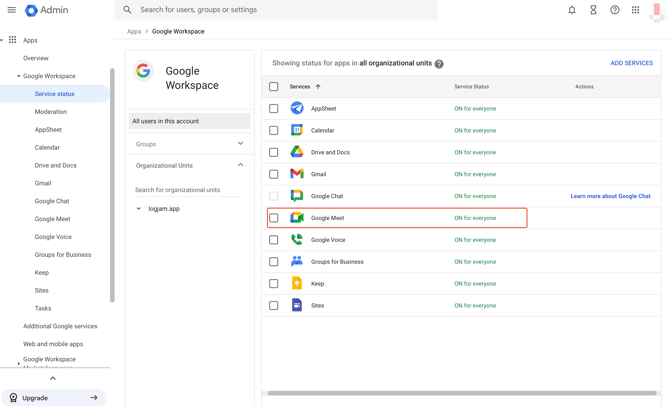
- Click Meet video settings.
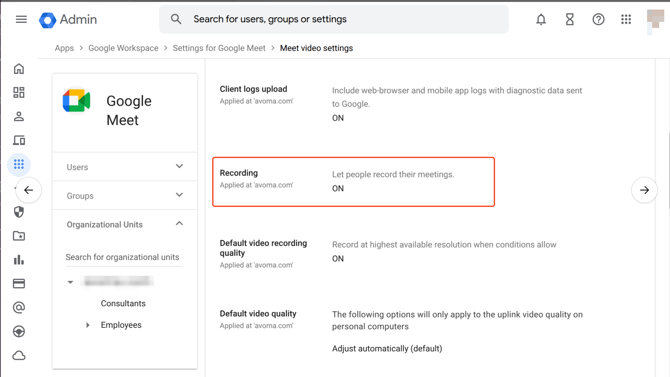
- Click Recording and check or uncheck the Let people record their meetings box.
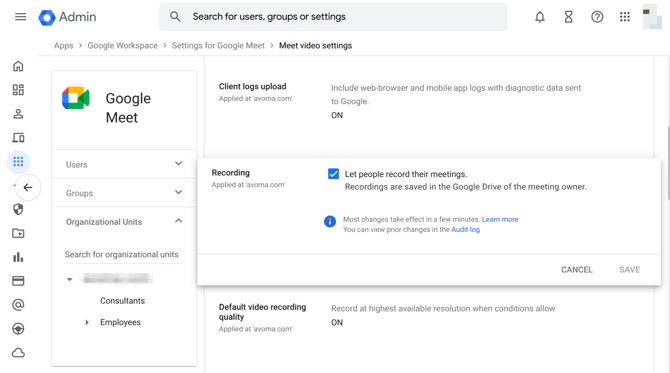
-
Click Save
For more advanced options and settings follow google help article
Connect Google Calendar in Avoma
Ignore this step if your calendar is already connected to Avoma
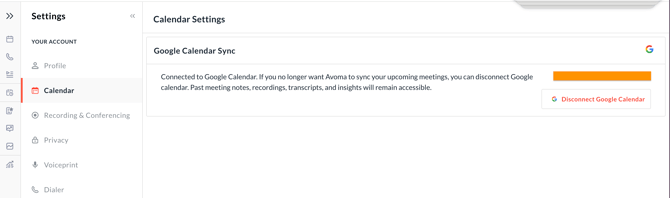
- Connecting to Google Calendar: In Avoma, click on Settings at the bottom left of your screen, and then click on the Calendar setting.
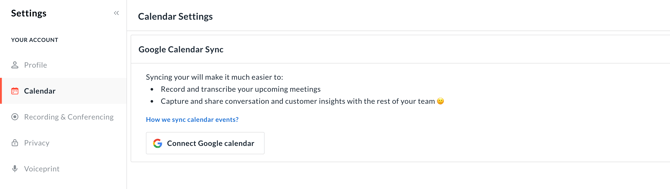
2. You will be redirected to Google Authentication page "Sign in with Google" and allow calendar access
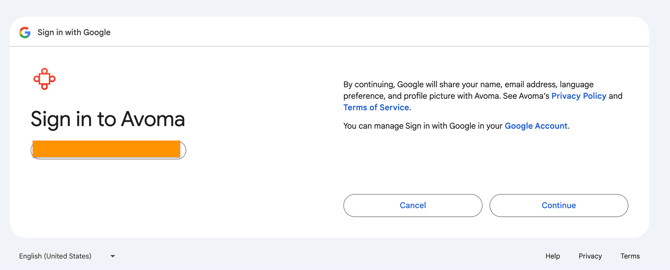
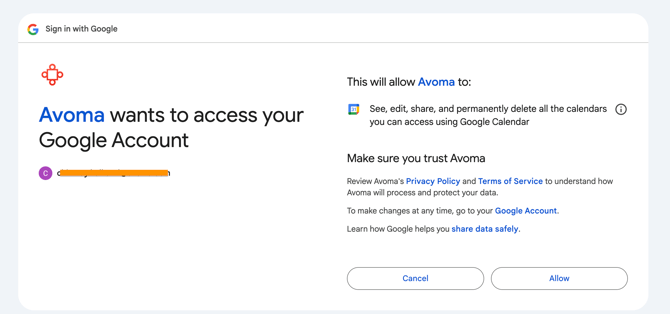
3. Once done, you will see that calendar is successfully connected
Connect Google Meet to Avoma
This is required to be done by every user intending to recording meeting via Google Meet integration
- Click on Settings at the bottom left of your screen.
- Click on Recording & Conferencing.
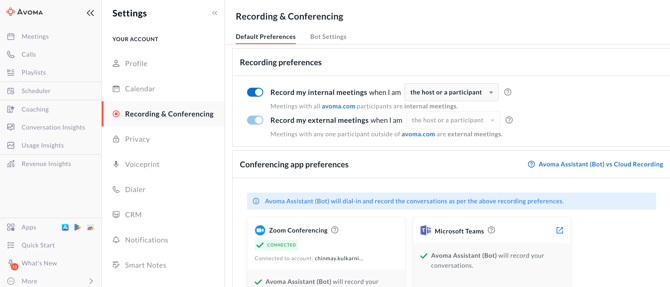
- Click on Connect for the Google Meet option.
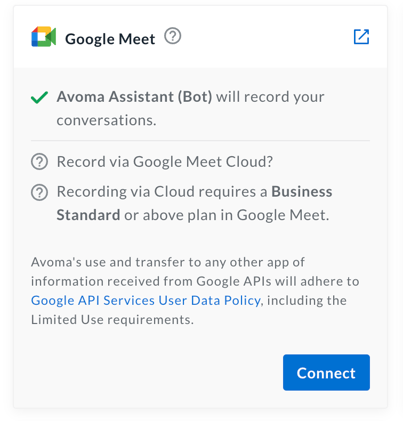
- You will be redirected to Google authentication page in another window
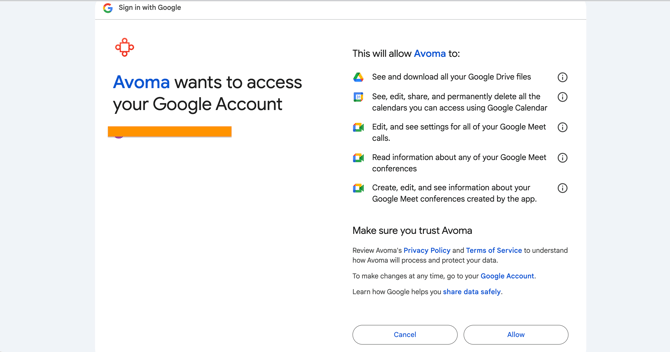
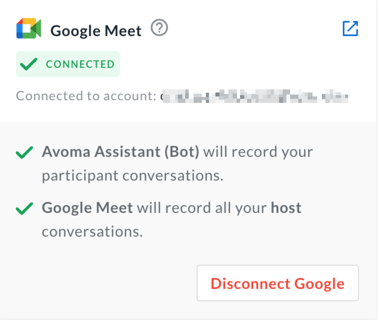
- After selecting "Allow", the authentication is done and you will be redirected to the "Recordings & Conferencing" page
What's next
Learn how to actually capture your meetings in real time by following the guide Recording a meeting via Google Meet, which explains how to start and manage recordings once your Google Meet integration is set up.