
This article explains how to configure bi-directional CRM field sync between Avoma and HubSpot so insights like pain points, next steps, and competitors appear directly on deals, contacts, and companies. It’s written for Avoma admins and RevOps / Sales Ops teams responsible for CRM configuration. Use this when you want Avoma insights to reliably flow into HubSpot—and, where supported, HubSpot data to sync back into Avoma.
Before you beginMake sure the following requirements are met before you start:
|
1. Open HubSpot configuration in Avoma
- In Avoma, go to Settings → CRM → Configure → HubSpot.
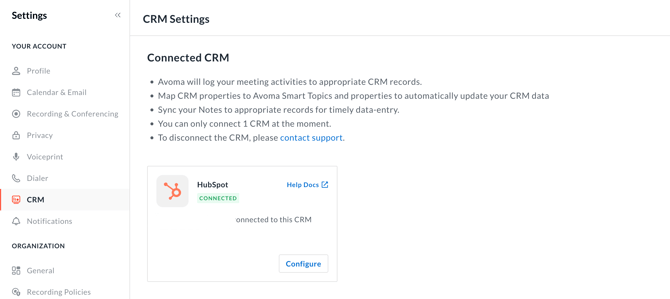
- You’ll land on the Notes tab by default.
Note: The HubSpot configuration page has five tabs:
- Notes
- Objects
- Contacts
- Forecasts
- Advanced Settings
2. Configure meeting and call notes sync
2.1 Enable automatic HubSpot Meeting creation (optional)
- In the Notes tab, stay at the Organization level.
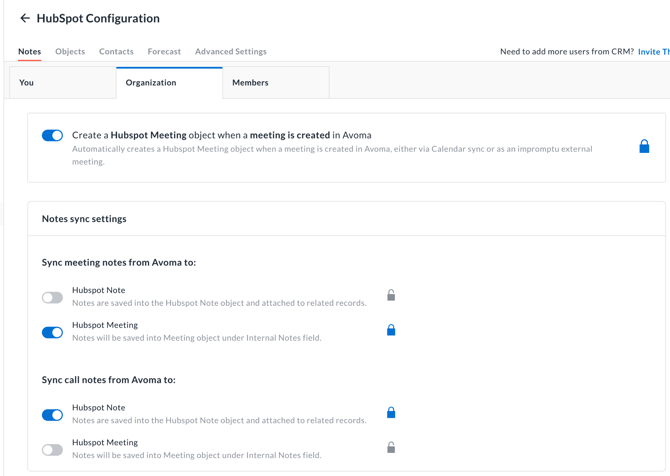
- Toggle Create a HubSpot Meeting object when a meeting is created in Avoma to On.
When enabled, Avoma automatically creates a corresponding HubSpot Meeting whenever a meeting is logged in Avoma (via calendar sync or manual entry).
2.2 Configure meeting notes sync
- Under Sync meeting notes from Avoma to, choose where Avoma should write meeting notes:
- HubSpot Note – saves notes as standard HubSpot Notes attached to related records.
- HubSpot Meeting – saves notes to the Meeting object under Internal Notes.
- Toggle On for your preferred destination.
2.3 Configure call notes sync
- Under Sync call notes from Avoma to, select the destination:
- HubSpot Note – saves calls as HubSpot Notes.
- HubSpot Meeting – attaches notes to the related Meeting’s Internal Notes.
- Toggle On for the preferred option.
2.4 Review and customize member-level settings
- Switch to the Members view within the Notes tab.
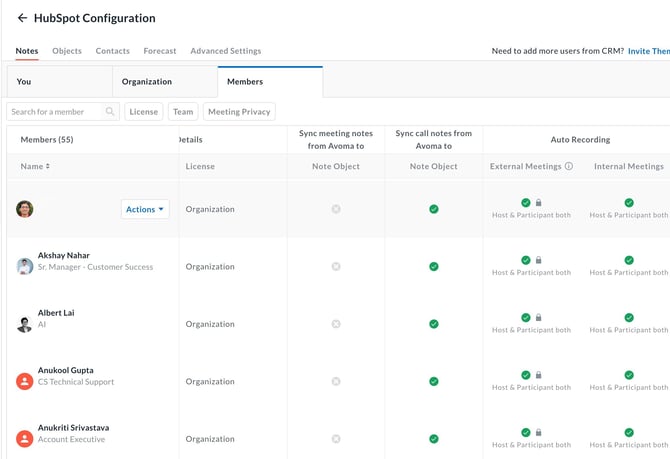
- Search or filter members by License, Team, or Meeting Privacy.
- Hover over a member’s name and click Actions → Edit CRM notes sync settings.

- Adjust individual note sync preferences as needed.
3. Configure HubSpot object field mapping
3.1 Open object configuration
- Go to the Objects tab.
- Select the HubSpot object you want to configure:
- Deal
- Company
- Contact
- Task
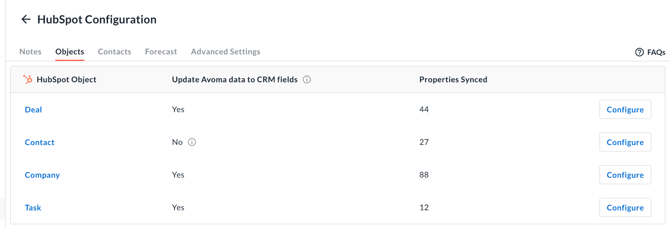
Note: Avoma supports Smart Category mapping only at the Deal and Company levels.
- Click the object to open its property mapping table.
You’ll see columns including:
- HubSpot Property – property name in HubSpot
- Avoma Property – mapped Smart Category (if any)
- Sync Direction – Inbound, Outbound, or Bidirectional
- Access Permissions – who can edit the property
- Imported by – Avoma admin who imported it
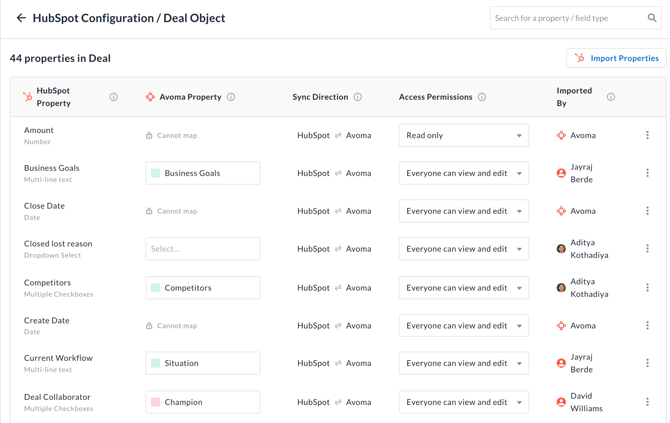
3.2 Understand sync direction rules
Sync direction is set automatically based on how the property is mapped:
- If a HubSpot property is mapped to an Avoma Smart Category
→ Sync direction is Outbound (Avoma → HubSpot). - If a HubSpot property is read-only
→ Sync direction is Inbound (HubSpot → Avoma). - If the property is editable and not mapped to a Smart Category
→ Sync direction is typically Bidirectional (Avoma ↔ HubSpot).
3.3 Map common Smart Categories
- In the Avoma Property column, click the dropdown next to a HubSpot property.
- Map common examples such as:
- HubSpot multiline text Next Steps → Action Items Smart Topic
- Custom Pain Points property → Pain Points Smart Category
- Competitor dropdown → Competitors Smart Category
- Repeat for each property you want Avoma to update.

3.4 Import additional HubSpot properties (if needed)
If a HubSpot property doesn’t appear in the table:
- Click Import Properties.
- Select the HubSpot properties you want to bring into Avoma.
- Click Import.
Imported properties appear immediately and can be mapped to Smart Categories and used in Revenue Insights.
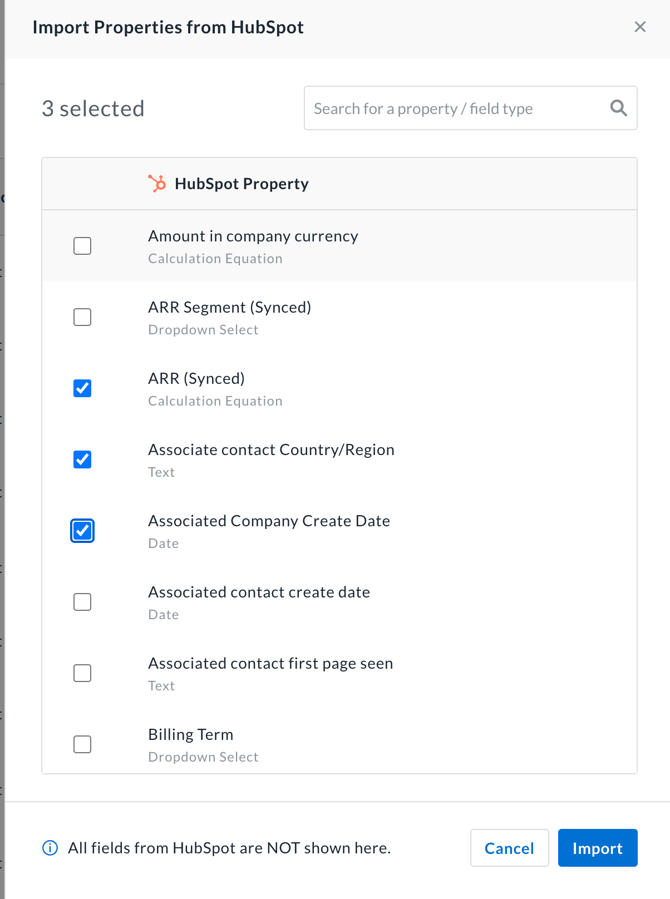
3.5 Save mappings and start syncing
- Review all mappings and sync directions.
- Click Save Changes & Start Syncing.
To discard changes made during the current session, click Cancel Changes.
4. Configure automatic contact creation
- Open the Contacts tab.
- Turn on Automatically create CRM contacts from external meeting participants.
4.1 Define contact creation rules
- Under Create a CRM contact if, select a HubSpot property (for example, Team).
- Choose a condition (for example, is any of).
- Select one or more values (for example, Sales, Customer Success).
- (Optional) Click + And to add more conditions.
- (Optional) Click + New rule to add another rule group.
Only meetings that match these rules will create new HubSpot contacts.
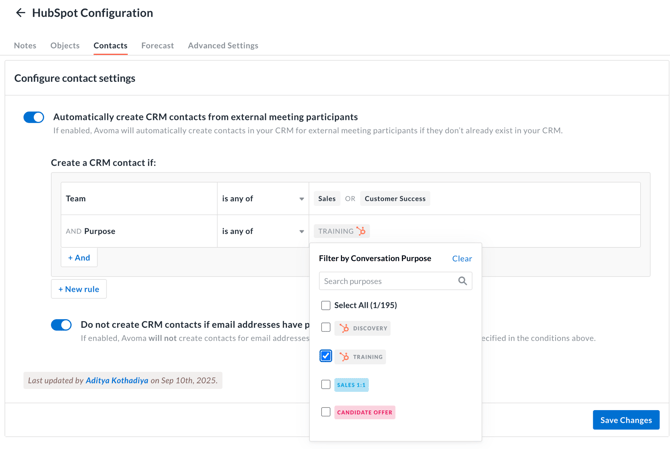
4.2 Exclude public email domains
- Turn on Do not create CRM contacts if email addresses have public email domains.
- Review the linked list of supported public domains.
When enabled, contacts using domains like Gmail or Yahoo will not be created unless allowed by your rules.
5. Review forecast and advanced settings
5.1 Forecast settings
Open the Forecasts tab to control how revenue forecasts are calculated and displayed. Defines the primary timeframe (for example, Monthly) used for forecasting and reporting.
Learn more about Forecast settings here.
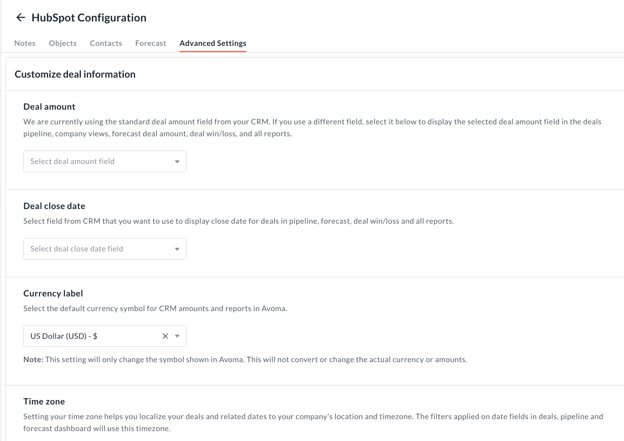
5.2 Advanced settings
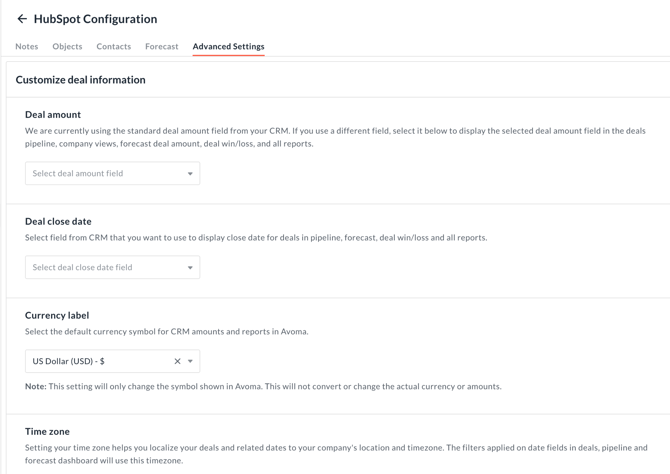
Open the Advanced Settings tab to customize deal data usage across Avoma.
- Deal amount
Choose which HubSpot field represents deal value in pipelines, forecasts, and reports. - Deal close date
Select the CRM date field used as the close date. - Currency label
Set the currency symbol shown in Avoma (display-only; no conversion). - Time zone
Controls how deal dates and time-based filters are displayed.
Tips
- Start with Deal and Company mappings first—they drive the most visible insights in pipelines and forecasts.
- Use multiline text properties in HubSpot for Smart Categories like Pain Points and Next Steps to avoid truncation.
- Limit bidirectional fields to those with clear ownership to prevent conflicting updates.
Troubleshooting and FAQs
Why aren’t Avoma insights appearing in HubSpot deals?
This is usually a mapping or permission issue.
- Confirm the property is mapped to a Smart Category.
- Check that the sync direction is Outbound.
- Verify the HubSpot property is editable.
- Ensure Save Changes & Start Syncing was clicked.
If the issue persists, reconnect the HubSpot integration and retry.
Why can’t I see a HubSpot property in the mapping table?
This is expected for properties not yet imported.
- Click Import Properties.
- Confirm you have admin access to that property in HubSpot.
- Refresh the page after importing.