
This article explains how sales leaders, RevOps, and managers can customize Deal views in Avoma's Revenue Intelligence dashboard.
Custom deal views help you focus on the right pipeline segments, surface the most relevant CRM fields, and review deal health efficiently during pipeline, forecast, and deal review meetings.
Before you begin
|
Step-by-step
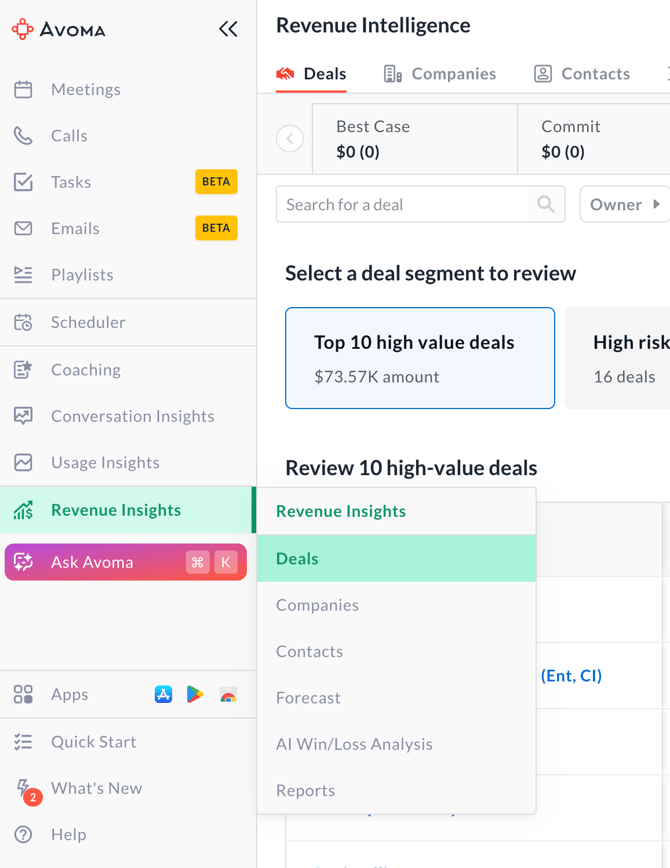
1. Open Deals in Revenue Intelligence
- Go to Revenue Intelligence.
- Click Deals from the top navigation.
2. Pipeline summary tabs
At the top of the Deals view, you can see pipeline summary tabs that you can customize:
- Best case
- Commit
- Closed Lost
- CM Open Pipeline
- Closed Won
- Next Month Pipeline
Reorder these tabs to match how you run pipeline or forecast reviews.
3. Manage Deal Views
- In the top-right corner, click + Manage Views.
- Choose one of the following:
- Create a new view to define a custom deal view
- Edit an existing deal view
Deal views control which deals appear, how they are grouped, and what data is shown.
4. Configure filters for the deal view
Use filters to define which deals are included in the view. Common filters include:
- Deal Pipeline
- Deal stage now
- Deal Status
- Close Date
- Owner
All selected filters apply together.
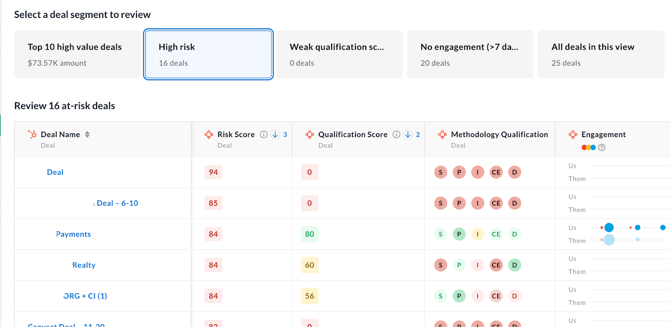
5. Select a deal segment to review
Below the filters, use Select a deal segment to review to focus on specific types of deals:
- Top 10 high value deals
- High risk
- Weak qualification score
- No engagement (>7 days)
- All deals in this view
Deal segments are predefined and automatically update based on your filters and CRM data.
6. Review deal details and deal health
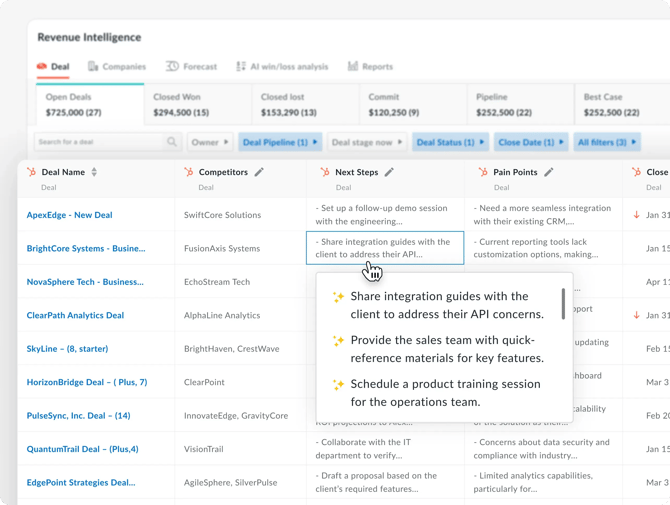
When you select a deal segment, a review table appears below.
In this review section:
- Hover over a deal’s Risk Score to see contributing risk factors.
- Hover over a deal’s Qualification Score to understand qualification signals and gaps.
- Click the Deal Name to open the full deal view, where you can review complete deal health, including risk indicators, qualification status, engagement, and all synced CRM details.
7. Customize table columns
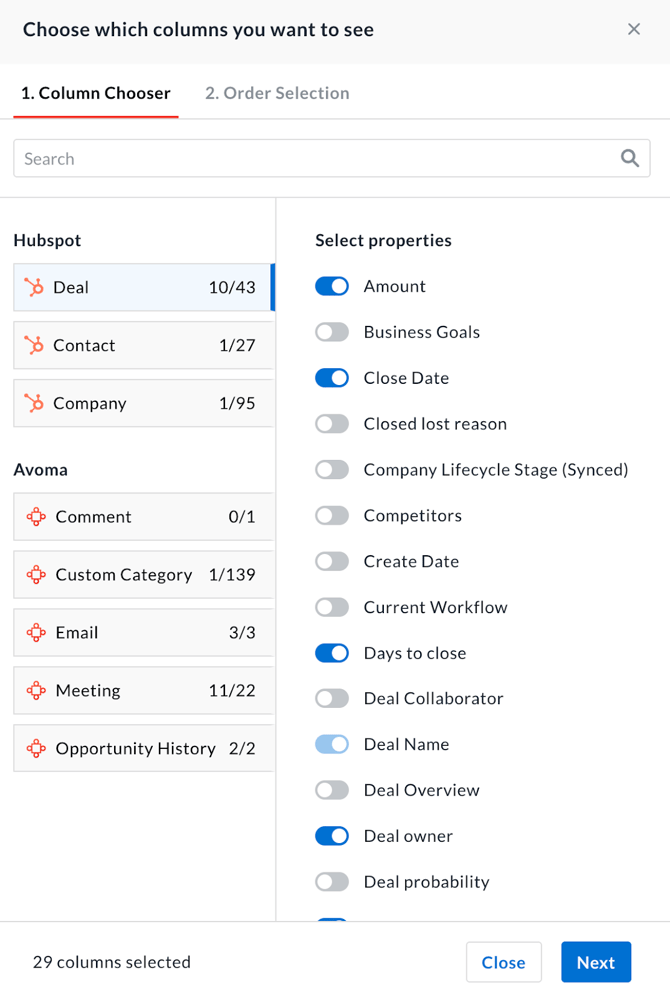
In the deal review table:
- Use the column selector in the table header to add, remove, or reorder columns.
- Choose from CRM-synced fields such as:
- Deal Name
- Company
- Amount
- Risk Score
- Qualification Score
- Methodology Qualification
- Engagement
- Close Date
- Deal Stage
- Additional CRM deal fields
Column configuration is saved per deal view.
8. Save the deal view
- Click Save.
- Give the view a clear, descriptive name (for example, Closed Lost – High Risk Deals).
- Reuse the view during recurring reviews or share it with your team, if enabled.
After deals: Review companies in Revenue Intelligence
Once you’ve finished reviewing deals, you can switch to the Companies tab to review account-level health.
1. Open the Companies tab
- In Revenue Intelligence, click Companies.
The Companies view shows a list of companies with details pulled directly from your CRM, including:
- Engagement activity
- Associated deals
- Churn or risk indicators
- Additional account-level CRM fields
This view helps you understand overall account health beyond individual deals.
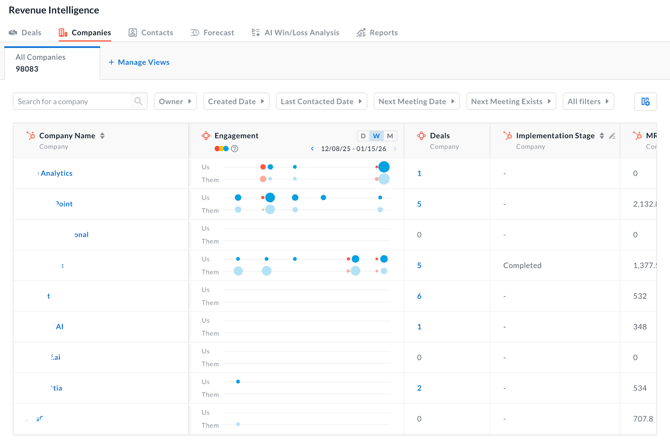
10. Filter companies
Use filters to narrow down the companies you want to review. Common filters include:
- Owner
- Created Date
- Last Contacted Date
- Next Meeting Date
- Next Meeting Exists
- All filters
Filters help you prioritize accounts that need follow-up, are at risk, or are actively engaged.
Tips
- Use Deal views for pipeline and forecast inspections.
- Use Company views to understand long-term account health and engagement.
- Review companies with no upcoming meetings to prevent account risk.
Troubleshooting and FAQs
Why don’t I see engagement or risk data for a company?
This usually relates to CRM data or permissions.
- Confirm engagement data exists in the CRM.
- Check field-level permissions.
- Allow time for the latest sync to complete.
If issues persist, contact your RevOps or system administrator.
What’s next
-
Configure your deal methodology to ensure qualification and risk signals align with your sales process.
-
Verify your CRM sync and field-level permissions so all required deal and company data is available in Revenue Intelligence.
-
Customize Deal and Company Quick Views to surface the most important fields during pipeline and account reviews.