
Global Ask Avoma is an AI-powered assistant that lets you ask questions about your organization’s data in plain language. Instead of manually searching through meetings, deals, or emails, you type a question and Avoma surfaces an accurate, evidence-based answer.
It works across your entire organization’s data including meeting transcripts, email threads, revenue intelligence, playlists, and external web sources, giving you a single place to get answers without switching tools.
|
Before you begin
|
Key sections
- The Global Ask Avoma interface
- What Global Ask Avoma can access
- How to use Global Ask Avoma
- Suggested prompts
- Prompt Library
- Scheduled prompts
The interface
When you open Global Ask Avoma from the left-hand navigation, the left panel shows two sections:
- Scheduled — recurring reports you’ve set up to run automatically on a schedule.
- Chats — your previous and active conversations with Ask Avoma, grouped by recency.
The main area shows a personalized greeting, suggested prompts tailored to you, and a chat input at the bottom. The chat input includes:
- Prompt Library — a link to browse and run saved prompts.
- Microphone icon — click to speak your question instead of typing, using voice dictation.
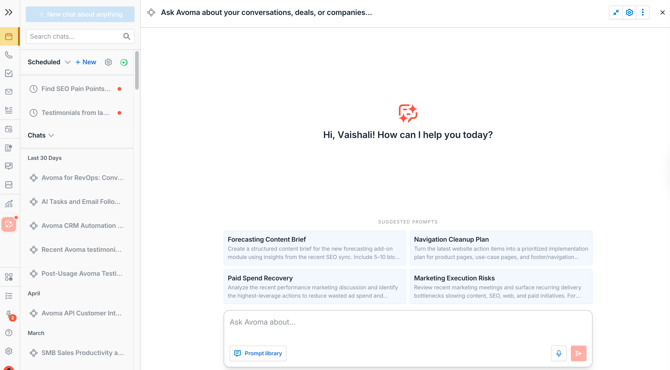
Global Ask Avoma — left panel showing Scheduled and Chats sections
What Global Ask Avoma can access
Global Ask Avoma draws on multiple data sources when answering your questions:
|
Source |
What you can ask about |
|---|---|
|
Meetings & transcripts |
Themes, objections, action items, customer feedback, and patterns across calls. |
|
Emails |
Customer communication, open follow-ups, and account activity — independent of any deal or account. |
|
Revenue intelligence |
Deal health, pipeline risk, close rates, and engagement patterns across opportunities. |
|
Playlists |
Summaries and insights across clips in a curated call library. |
|
Web |
External context: competitor information, industry trends, and market benchmarks. |
Note: Meeting-level and deal-level queries in Avoma use separate tools and are unaffected by changes to Global Ask Avoma.
How to use Global Ask Avoma
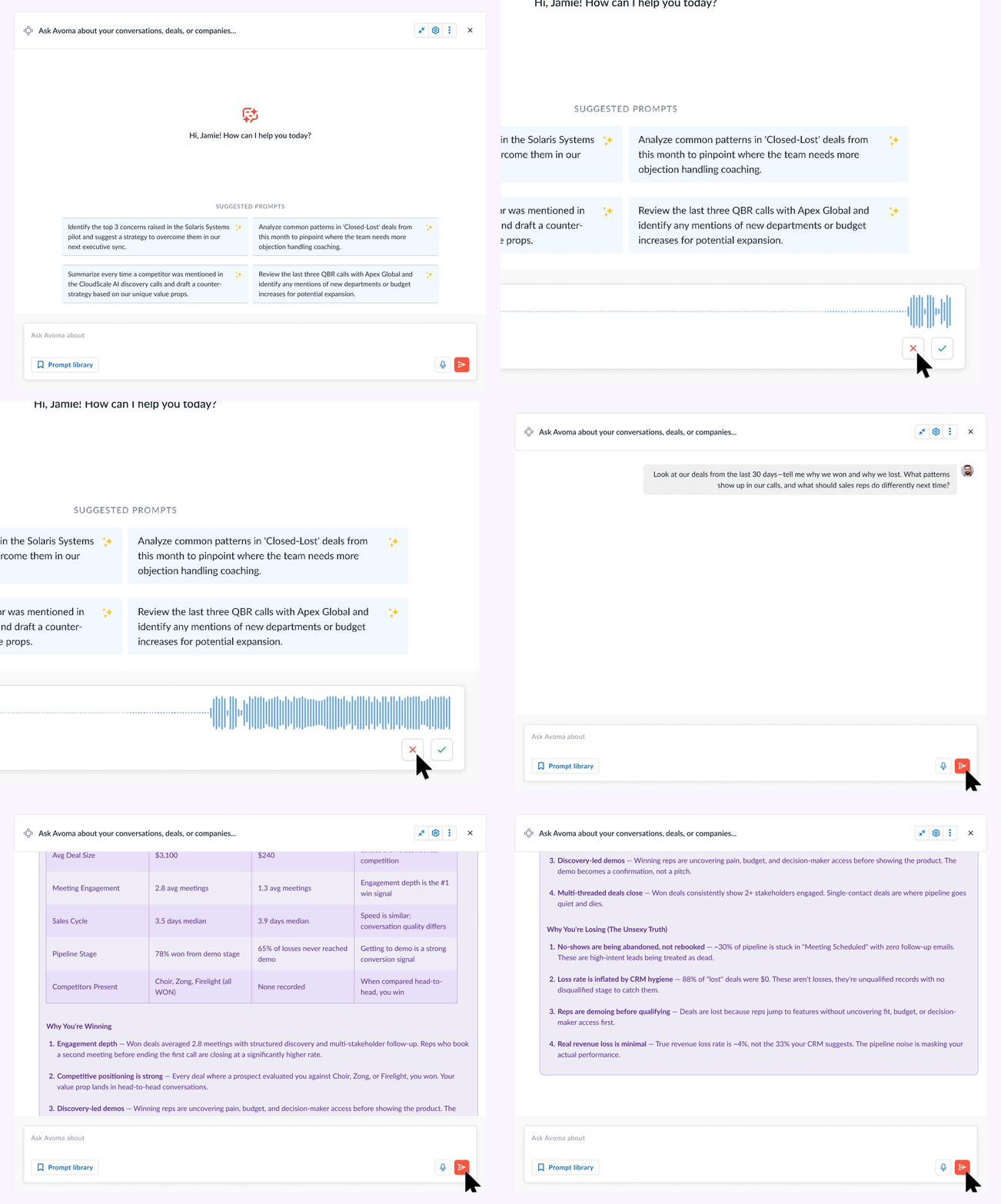
- Open Global Ask Avoma from the left-hand navigation.
- Click a suggested prompt to run it, or type your own question in the chat input.
- To speak your question instead of typing, click the microphone icon — see Using voice dictation below.
- Review the response. Answers are grounded in your actual data, with web context added automatically when relevant.
- Ask follow-up questions in the same thread. Ask Avoma maintains context across a long session.
- Find previous conversations in the Chats section of the left panel.
%20(1).gif?width=670&height=537&name=Rev%20Ask%20Avoma%20(1)%20(1).gif)
Tip: For broad, organization-level questions use Global Ask Avoma. For questions about a specific meeting or deal, use the meeting-level or deal-level query tools in those views.
Using voice dictation
Instead of typing, you can speak your question directly into Ask Avoma using the microphone icon in the chat input.
- Click the microphone icon in the chat input to start recording. A live audio waveform confirms your voice is being captured.
- When you finish speaking, choose how your input is used:
- Summary — Avoma AI condenses your spoken input into a concise question.
- Transcript — your words are inserted exactly as spoken.
- If microphone access is not enabled, Ask Avoma will guide you to allow it in your browser settings.
- If a recording error occurs, you’ll see options to retry, dismiss, or insert any text that was captured.
Suggested prompts
When you open Global Ask Avoma, you’ll see a set of suggested prompts on the main screen. These are personalized to you based on your organization’s data and are designed to help you get started quickly.
- Click any suggested prompt to run it immediately.
- Use a suggested prompt as a starting point and edit it before sending.
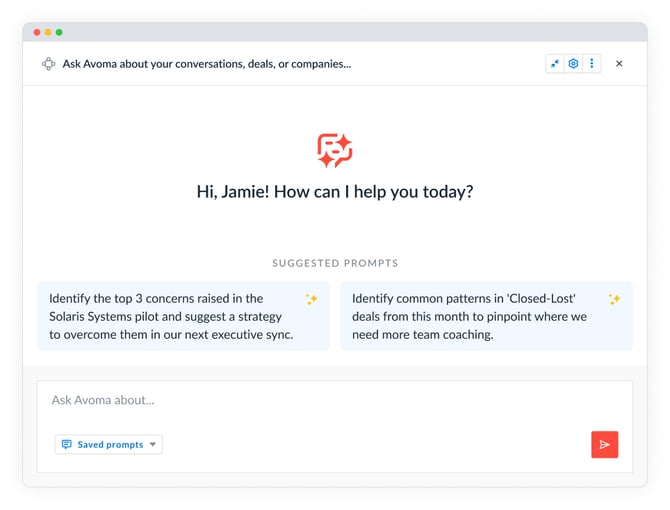
Tip: Suggested prompts refresh over time as your data changes. If you’re not sure what to ask, check the suggestions first.
Prompt Library
The Prompt Library is a central place to discover, run, and manage prompts. It contains prompts you’ve created, prompts shared by your teammates, default prompts built into Avoma, and prompts organized into collections by team or use case.
You can access the Prompt Library two ways:
- From the chat window — click Prompt Library at the bottom of the chat input.
- From Settings — go to Settings → Prompt Library.
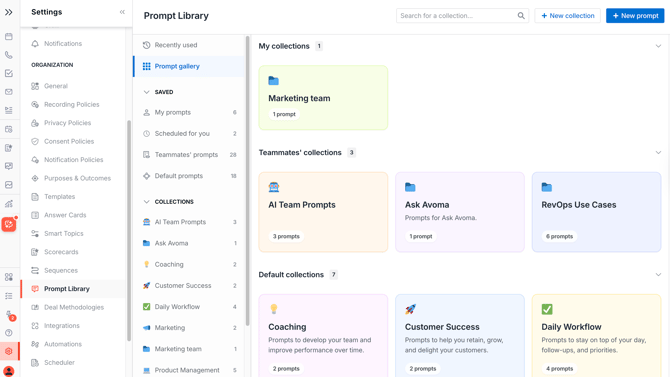
For full details on using and creating prompts, see the Prompt Library article.
Scheduled prompts
Scheduled prompts let you automate recurring Ask Avoma reports.
Set a question on a schedule and the report is delivered to your Ask Avoma feed automatically — daily, weekly, or on a custom cadence.
- Scheduled reports appear in the Scheduled section of the left panel.
- A notification badge appears when a new report is ready.
- Each report opens as a fresh chat thread you can continue in.
- Reports can also be delivered to Slack, Microsoft Teams, or email.
For full details on creating and managing schedules, see the Scheduled prompts article.
What’s next
- Prompt Library — discover, create, and organize prompts
- Scheduled prompts — automate recurring reports
If you have any questions, contact our team at help@avoma.com