
AI scorecards help you evaluate customer conversations based on specific rules and AI-generated scoring. This article is for admins or operators who want to standardize quality reviews without manual scoring.
Before you begin
|
Step-by-step
1. Open Scorecard settings
- Go to Settings.
- Select Scorecards.
- On the Scorecard settings page, review the two sections:
- AI scorecards
- Manual scorecards

2. Start a new AI scorecard
- Click Create new scorecard (top right).
- Choose AI scorecards.
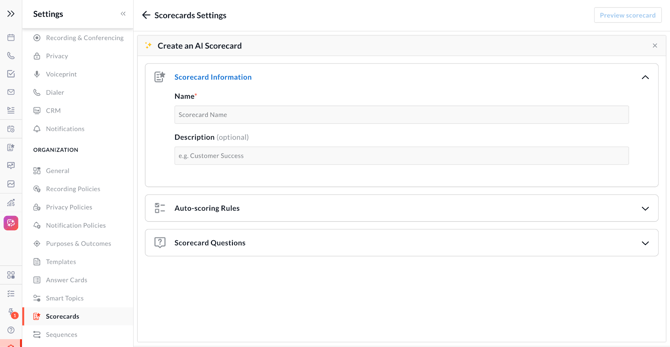
3. Add scorecard details
- Enter a Scorecard name.
- Add a short description explaining what the scorecard evaluates.
Keep descriptions brief and outcome-focused (for example, “Evaluates call quality and objection handling”).
4. Set auto-scoring rules
- In Auto scoring rules, select:
- A Condition
- An Operator
- A Value
- Use the dropdowns to choose from the available options.
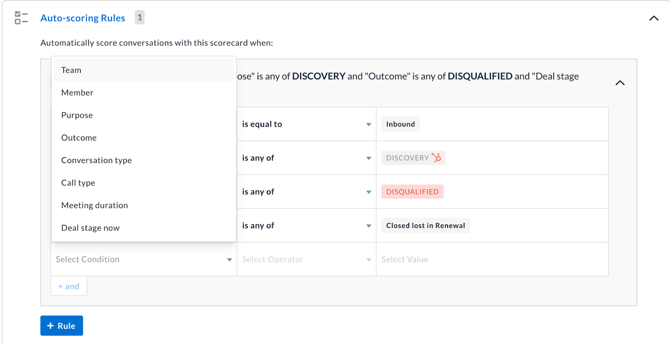
These rules determine when the AI scorecard is applied.
5. Add scorecard questions
You must add at least one question to create an AI scorecard.

- Click Add question.
- Choose one of the following:
- Import from library
- Add your question
- Import from library
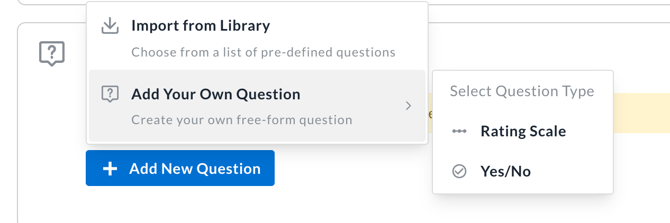
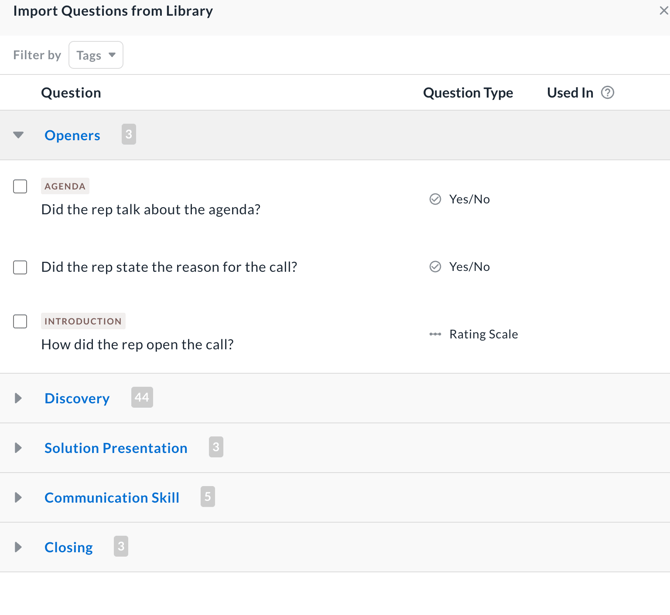
Option A: Import questions from the library
1. Select questions from the available sections.
2. Click Import to add them to your scorecard.
 Option B: Add your own question
-
- Rating scale
- Yes / No
- For Rating scale:
-
- Click the empty question field and enter your question.
-
- Review the Examples of valid questions shown on the right for guidance.
- Click Generate answers with AI to automatically create answers and scoring.
- Review the generated answers and edit them as needed.
Note: You must add at least one rating option to a rating-scale question. You can add up to 5 options. Scores are normalized to 5 regardless of how many options you include.
- For Yes / No:
-
- Enter your question.
- Save to add it to the scorecard.
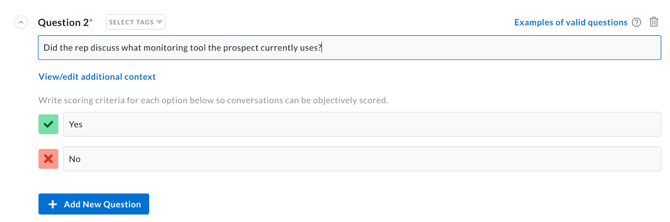
3. Add additional context
For both Rating scale and Yes / No questions, click Add additional context to give Avoma more information about what it should look for when evaluating the conversation.
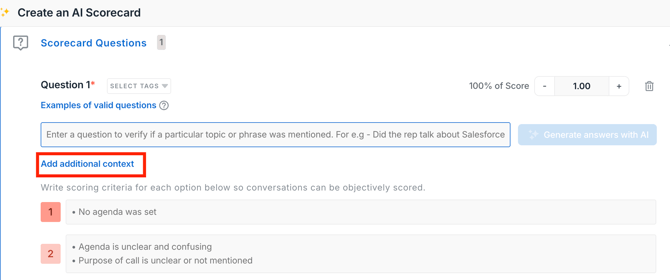
Use this field to provide:
- Examples of phrases or behaviors that may satisfy the criteria.
- Different ways the expected behavior might appear in a conversation.
- Conditions or nuances Avoma should consider.
- Relevant customer, industry, or sales-process context.
Specific examples and context help Avoma account for different ways something may be expressed in a conversation and identify the evidence that supports the score.
4. Save the question when you're finished.
Repeat these steps to add multiple questions as needed.
Why additional context matters
AI scoring works best when Avoma has clear criteria and enough context to understand what it should look for.
The question tells Avoma what to evaluate.
The scoring criteria define what each rating means.
Additional context helps Avoma understand how that behavior may appear in a real conversation, including different examples, variations, and conditions.
When Avoma assigns a rating, you can review the reason for the score and the supporting conversation evidence. This helps you verify the evaluation and refine your scorecard when the result does not match your expectations.
6. Create the scorecard
- Review your questions and scoring.
- Click Create to save the AI scorecard.
7. Create a manual scorecard
- Click Create new scorecard.
- Select Manual scorecard from the dropdown menu.
8. Add manual scorecard details
- Enter a Scorecard name.
- Add a description.
- Select the Conversation purpose from the dropdown.
9. Add questions to a manual scorecard
- Type or paste your question into the question field.
- Click Generate AI answers to generate suggested answers.
For Yes / No questions:
- Enter your question.
- Enter the answers.
- Click Save to add the question to the scorecard.
Repeat to add additional questions as needed.
Tips
- Write clear, specific questions to improve AI scoring accuracy.
- Use the question examples to match recommended phrasing.
- Start with fewer questions and expand after validating results.
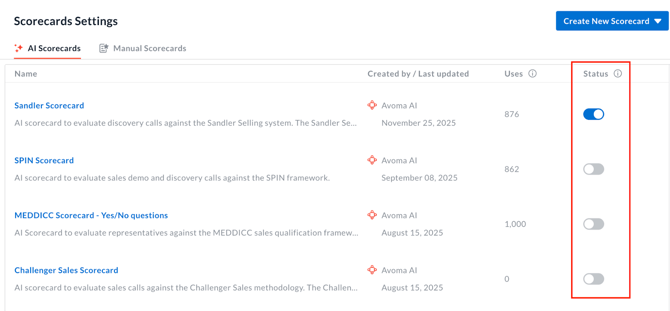
- Keep the new scorecard deactivated, test it on one meeting, then activate it for the team. Deactivating an AI scorecard disables auto-scoring even if rules are assigned.
Troubleshooting and FAQs
What’s the difference between an AI scorecard and a manual scorecard?
An AI scorecard automatically scores the conversation based on the questions you configure and the auto-scoring rules you set up.
A manual scorecard requires a reviewer to score the conversation by answering the same set of questions manually after the meeting.
Why don’t I see AI-generated answers?
This is expected until AI generation is triggered.
- Confirm the question type is Rating scale.
- Click Generate answers with AI after entering the question.
- Check that the question is clearly written.
How can I improve the accuracy of my AI scorecard?
Give Avoma clear scoring criteria and enough context to understand what it should look for in the conversation.
- Define what qualifies for each rating or Yes/No response.
- Use Add additional context to include examples, variations, nuances, and conditions Avoma should consider.
- Include examples of how the expected behavior or topic might appear in a real conversation instead of relying on one exact phrase.
- Test the scorecard on a few representative meetings before activating it for your team.
- Review the reason and supporting conversation evidence behind each score. If a result does not match your expectations, refine the scoring criteria or additional context.
The more specific the criteria and context are, the better Avoma can identify relevant evidence in the conversation and apply your scoring rules consistently.
What’s next
- Learn how to apply AI scorecards to evaluations.
- Review best practices for writing effective AI scoring questions.
To drive adoption:
- Test the scorecard on a small set of interactions.
- Adjust questions and rules based on early results.