
Smart Topics help Avoma consistently capture the information your team cares about into meeting notes and Tracker dashboard—without relying on reps to type everything manually.
This helps ensure reliable notes, clearer trend reporting, and (optionally) cleaner CRM fields. Avoma Admins are responsible for configuration.
Use Smart Topics when you want key details (like competitors, referral source, goals, or objections) captured the same way across calls.
Before you begin
|
Steps to customize Smart Topics with Trigger Prompts, Keywords, and Smart Trackers
1) Open Smart Topics
- In the left navigation, click Settings.
- Click Smart Topics.
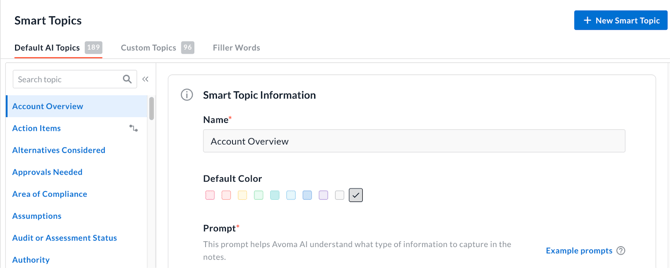
You’ll see:
- Default AI Topics: Provided by Avoma (you can still configure these for your business).
- Custom Topics: Topics you create for your specific workflows.
Example (Default AI Topics)
Avoma includes Competitors as a Default AI Topic, but you’ll typically want to add your competitor names as exact-match keywords so Avoma can reliably capture competitor mentions in meeting notes and trend them on the Trackers dashboard.
2) Create a Custom Topic
- Click Add Custom Topic (top-right).
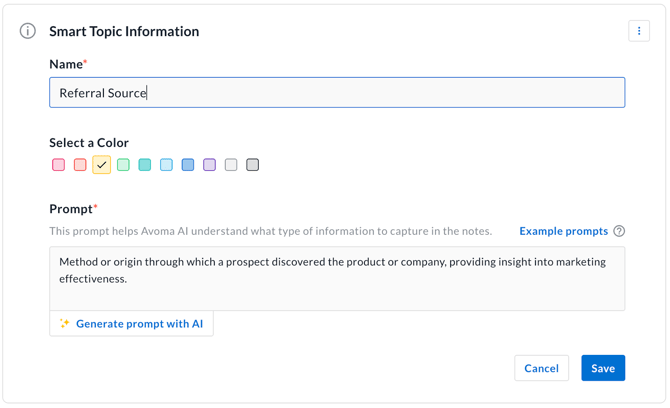
- In Smart Topic Information, fill in
- Name: A label that will appear in notes and Trackers.
-
- Color: Helps users scan notes more easily.
-
- Prompt: Guidance for Avoma AI on what to capture under this topic.
3) Optional: Set how this topic appears in notes
- In Smart Topic Formatting in Notes (Optional), set:
- Data Type: Text / number / date-time
- Format: Bullet points / paragraph
- Length: Short / Medium / long
- Data Type: Text / number / date-time
Tip: If you plan to map this topic to a CRM field, choose a format and length that matches how your team expects to read it in the CRM.
4) Optional: Add Trigger Prompts for topic detection
Trigger Prompts are “reference questions” your team asks on calls. They help in two ways:
- They appear in the notes editor as a cue for reps.
- When Avoma recognizes the prompt, it extracts relevant notes from the surrounding conversation.
- Go to Trigger Prompts for Topic Detection (Optional).
- Enter Phrases as Trigger Prompt (the cue users will see in the notes editor).
- Add variations (recommended).
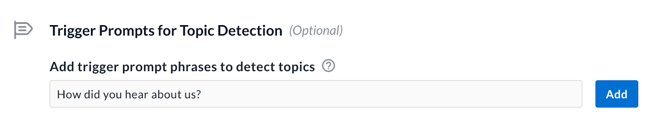
To edit or delete a trigger prompt:
- Click the three dots (⋯) next to the prompt.
- Select Edit or Delete.
Tip: Avoid overly common words or very short (2–3 word) trigger phrases for best results.
5) Configure Keywords and Smart Trackers
This section controls what Avoma detects from the transcript and (optionally) extracts into notes.
5.1 Add keywords for exact match
Keywords are matched exactly in the transcript and can be extracted into notes and tracked for trends.
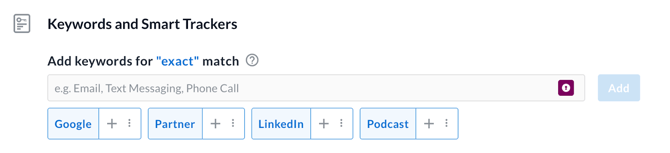
- Under Keywords and Smart Trackers, add terms in Add keywords for "exact" match.
- Example keywords: LinkedIn, Google, Partner
- Example keywords: LinkedIn, Google, Partner
- Add at least one keyword if you want keyword-based extraction.
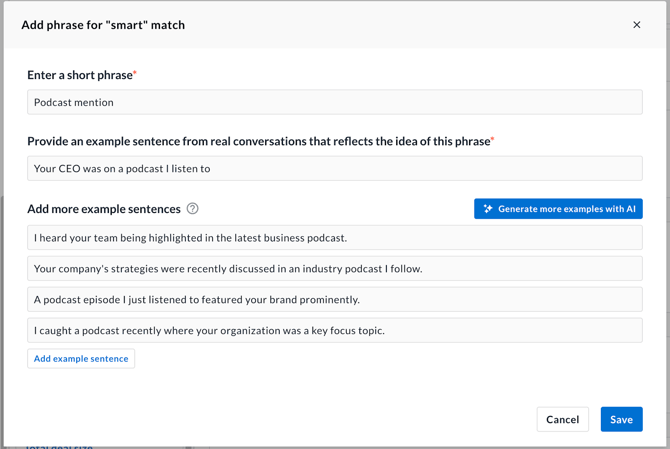
5.2 Add phrases for smart match (Smart Trackers)
Smart Trackers capture concepts even if the wording varies.
- In Add phrase for "smart" match, enter a short phrase that represents the idea you want to track.
- Add an example sentence from real conversations.
- Add more examples (AI can help you Generate more examples).
- Add at least 5 example sentences (up to 20).
- Click Save to activate.
5.3 Choose whether mentions are extracted into notes
Toggle: Capture mentions of the specified keywords and phrases in notes
- When enabled, Avoma will pull exact keyword matches and smart-matched phrases into notes.
- When disabled, mentions won’t be added to notes; they will only appear in tracking (for example, on the Trackers dashboard).
Reprocessing behavior
- Avoma will reprocess conversations from up to 12 months ago to reflect newly added, updated, or deleted keywords and smart phrases (license limits apply).
- Depending on conversation volume, changes may take 24–48 hours to appear on the Trackers dashboard.
6) Set Conversation Purpose mapping
Conversation Purpose mapping controls which meetings the Smart Topic applies to.
- Go to Conversation Purpose Mapping.
- Choose one
- Extract notes for All meetings irrespective of Conversation Purpose
- Extract notes for meetings having Conversation Purpose as below
- Extract notes for all meetings except having Conversation Purposes as below
- Extract notes for All meetings irrespective of Conversation Purpose
Note: Use inclusion (#2) for specialized topics like Implementation details or Support escalations. Use exclusion (#3) to prevent clutter in specific meeting types.
Tips
- Use Trigger Prompts when reps ask a consistent question and you want the customer’s response captured reliably.
- Use Exact match keywords for fixed terms and proper nouns (competitors, product names, channels).
- Use Smart match phrases for themes that are often reworded (goals, pains, objections).
- After changing keywords or smart phrases, allow 24–48 hours for Trackers trends to reflect updates.
Troubleshooting and FAQs
Why isn’t my Smart Topic showing anything in the notes?
That usually comes down to extraction settings.
- Check that Capture mentions of the specified keywords and phrases in notes is enabled.
- If you’re using keywords, confirm you added at least one under exact match.
- If you’re using smart match, confirm you added at least 5 example sentences and clicked Save.
If it still doesn’t show up, check again after reprocessing completes (up to 24–48 hours).
I can see my trigger prompt in the notes editor—why isn’t anything being captured?
This typically means the prompt wording doesn’t match how the question is actually asked.
- Add more variations that reflect real rep phrasing.
- Avoid short or generic prompts that can be missed or misdetected.
- Use the ⋯ menu to edit an existing prompt instead of creating duplicates.
I updated keywords or smart phrases—why don’t I see the changes in Trackers yet?
This is expected right after updates.
- Avoma may be reprocessing up to 12 months of conversations.
- High conversation volume can delay updates.
- Allow 24–48 hours for tracker trends to refresh.
How do I limit a Smart Topic to only certain meeting types?
You can control this with Conversation Purpose Mapping.
- Choose Extract notes for meetings having Conversation Purpose as below to include only selected purposes.
- Choose Extract notes for all meetings except… to exclude specific purposes.
What’s next
- Configure Default AI Topics (like Competitors) with your actual competitor names.
- Map Smart Topics to multi-line text CRM fields for downstream use.
- Standardize rep talk tracks so Trigger Prompts are asked consistently.
Recap
You can customize Smart Topics by defining a strong Prompt, optionally adding formatting and Trigger Prompts, and configuring keywords and Smart Trackers with conversation-purpose rules. Once saved, Avoma can extract structured notes and track trends across meetings—including reprocessing up to 12 months of past conversations (license limits apply).