
Inviting teammates to your Avoma workspace ensures the right people get access with the right permissions, licenses, and add-ons.
This is for Admins who manage user access, billing-linked licenses, and team membership.
Use it when onboarding new employees, adding collaborators, or adjusting access at scale.
Before you begin
|
How to invite new members with workspace invites
1) Open the invite flow
-
In Avoma, go to Settings → Members.
-
Click Invite New Member (top-right).

2) Fill in invite details for each person
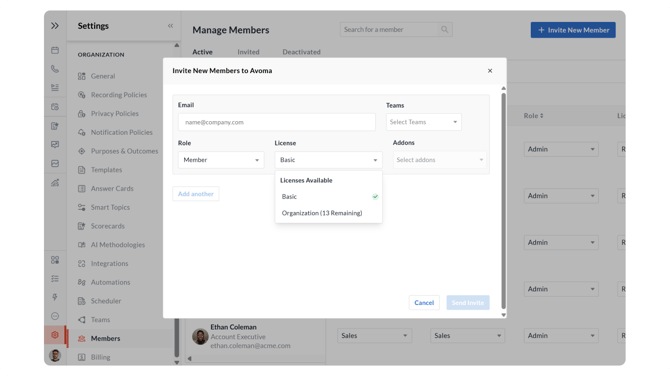
In the Invite New Members to Avoma dialog, complete the fields for each invitee:
-
Email: Enter their work email (for example,
name@company.com). -
Role (You can add these later too)
-
Admin — Full access to workspace settings, billing, users, and teams.
-
Member — Default for most employees; access depends on license and add-ons.
-
Guest — Very limited access; best for external collaborators or view-only use cases.
-
-
License (You can add these later too)
-
Basic — Free, limited functionality; suitable for light or view-only usage.
-
Organization — Paid; unlocks advanced collaboration and intelligence features.
-
You’ll see current availability (for example, Organization: 12 Remaining).
-
-
Teams (You can add these later too)
-
Select the team(s) they belong to (for example, Sales, Customer Success).
-
Note: New users are not automatically added to any team—assign team(s) where relevant.
-
-
Add-ons (only shown when an eligible base license is selected) (You can add these later too)
-
Conversation Intelligence (CI) — AI notes, coaching insights, and call analysis.
-
Revenue Intelligence (RI) — Deal risk, pipeline and forecast health, revenue insights.
-
Add-on availability is shown (for example, Conversation Intelligence: 11 Remaining).
-
-
(Optional) Click Add another to invite multiple members in one go.
3) Send invites
-
Review the details (role, license, teams, and any add-ons).
-
Click Send Invite.
What happens next
- Invited members receive an email to join Avoma.
- You can later edit their role, license, teams, or deactivate them from Settings → Members.
- If you run out of licenses or add-ons, upgrade via the Pricing page or contact your Customer Success Manager.
- For large-scale onboarding, Avoma can help with bulk import via Excel. Contact your CSM or help@avoma.com.
How to resend or revoke invites
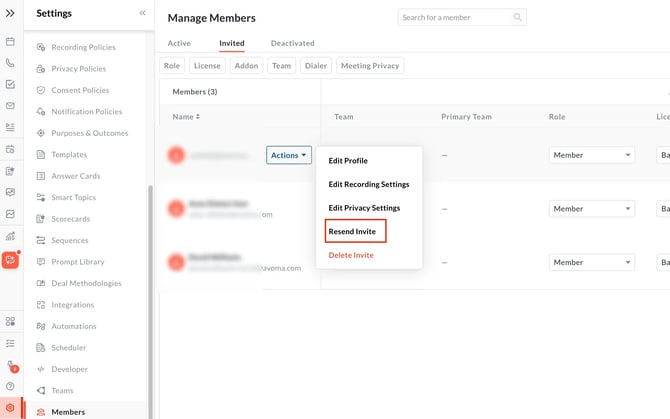
1. Resend an invite
- Go to Settings → Members → Invited tab.
- Hover over the user with a pending invite.
- Open the dropdown for Actions.
- Select Resend invite.
2. Revoke an invite
- Go to Settings → Members.
- Hover over the user with a pending invite.
- Open the dropdown for Actions.
- Select Delete invite.
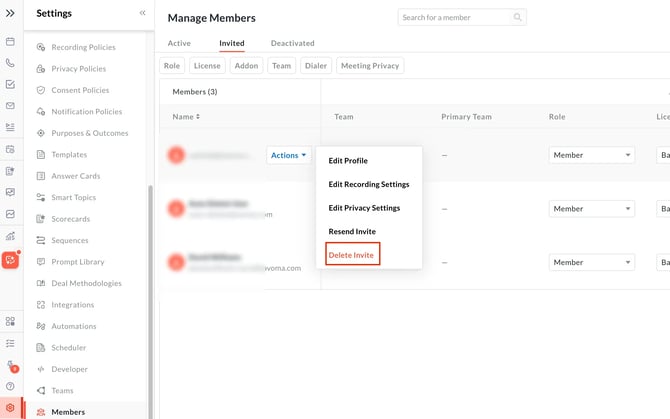
Note: If you revoke an invite by mistake, you can send a new invite from Settings → Members → Invite New Member.
How to deactivate or activate a user profile
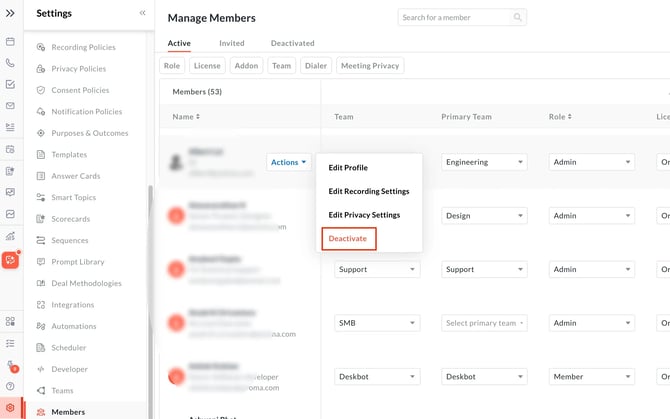
1. Deactivate a user profile
-
Go to Settings → Members → Active tab.
-
Hover over the user.
-
Open the dropdown for Actions.
-
Select Deactivate.
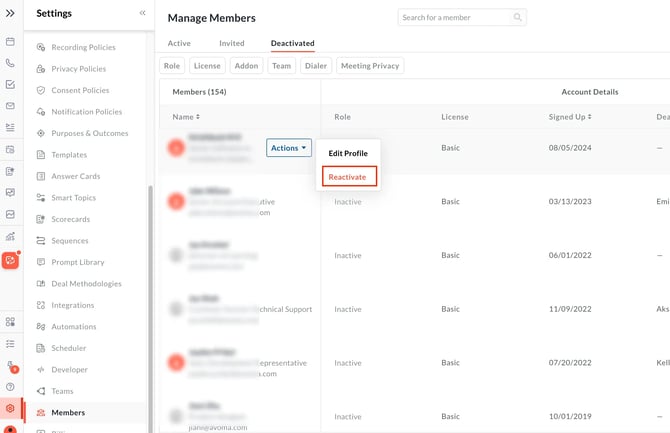
2. Activate a user profile
-
Go to Settings → Members → Deactivated tab.
-
Hover over the user with an inactive role.
-
Open the dropdown for Actions.
-
Select Reactivate.
3) What users see on first login
After the user clicks the invite link and signs in, they typically:
- Confirm their account details (and create a password if prompted).
- Enter your workspace and land on the default home experience for their access level.
- See only the features and content their access allows, based on what was assigned during the invite.
Note: The exact first-login prompts can vary based on your organization’s sign-in method and settings (for example, SSO vs. password login).
Troubleshooting and FAQs
Why can’t I assign a license or add-on to a user?
This usually means you’ve run out of available seats.
-
Check the availability shown next to the license or add-on (for example, “Remaining”).
-
Reduce assigned licenses or add-ons for other users if appropriate.
-
Upgrade via the Pricing page or contact your Customer Success Manager.
Why didn’t someone receive their Avoma invite email?
This is most often caused by a typo or email filtering.
-
Confirm the email address is correct in Settings → Members.
-
Ask the user to check their spam or junk folder and allowlist your company’s email domain if needed.
-
Resend the invite from Settings → Members.
Can I revoke an invite after it’s been sent?
Yes. You can revoke an invite at any time before the user accepts it.
- Go to Settings → Members.
- Find the user with a pending invite.
- Select Revoke invite.
What if a user clicks the invite link but doesn’t complete signup?
The invite remains pending until the user finishes signup.
-
- Ask the user to click the original invite link again.
- If needed, revoke the invite and send a fresh one.
What’s next
-
Confirm invitees have joined, then adjust their role, license, teams, or add-ons anytime from Settings → Members.
-
Deactivate users who no longer need access from Settings → Members to free up licenses.
-
For large-scale onboarding, contact your CSM or help@avoma.com about bulk import via Excel.
-
Check how to set up Avoma workspace with users, roles, licenses, and teams to finish onboarding (users, roles, license assignments, and team setup in one flow).
Recap
You’ve invited new members from Settings → Members, assigned the right role, license, teams, and optional add-ons, and sent invites so they can join your Avoma workspace.