
When prospects ask common questions or mention key topics, Answer Cards pop up automatically to support reps in the moment.
This article explains how admins can configure Answer Cards to deliver the right information at the right time.
Before you begin
|
How to create and configure Answer Cards
Phase 1: Create your first Answer Card
- In Avoma, go to Settings > Answer Cards.
- Click New Answer Card.
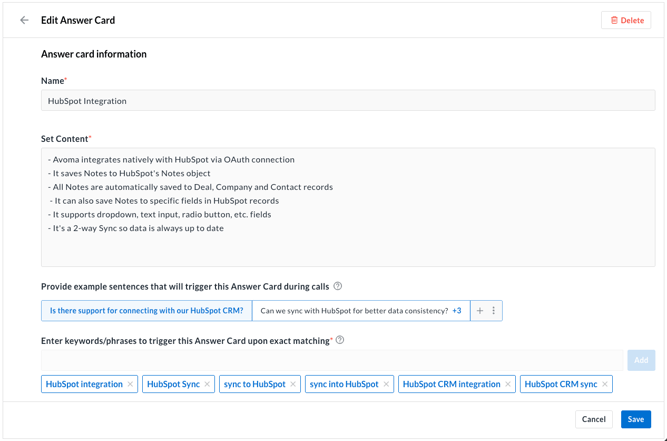
- Enter a descriptive Name (title of the card).
- In Set Content, enter the exact talking points reps should see during calls.
- Use bullet points (recommended) or 2–3 short sentences so reps can scan quickly.
Phase 2: Configure triggers
- Add example phrases that show how prospects might ask a question, raise an objection, or bring up this topic.
-
- Enter 3–5 phrases that should activate this card.
- Examples:
- “What’s your pricing?”
- “How much does this cost?"
- "What are your rates?"
- Add Keywords that should trigger this card during calls.
- Keywords require an exact match, so include all common variations you want to capture.
- Examples:
- “Enterprise plan"
- “Salesforce integration"
- Click Save.
What reps see during a live call
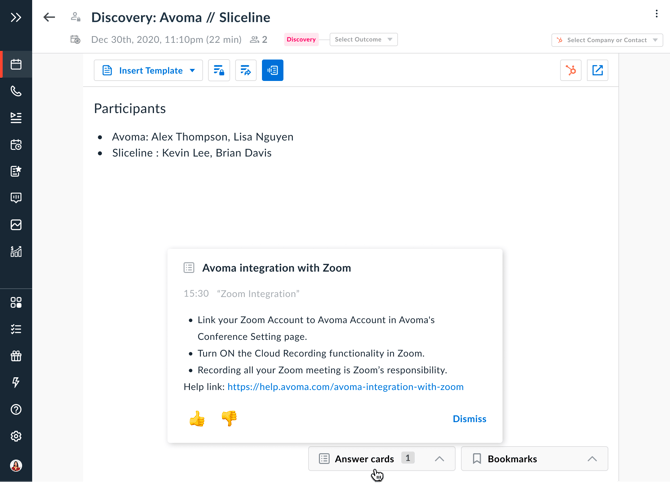
During a live call, Answer Cards appear automatically when a trigger phrase is detected and a corresponding Answer Card is configured.
IMPORTANT: Reps must be signed in to Avoma with the live note-taker open or be using the Avoma Zoom app for Answer Cards to appear.
- When a trigger phrase is detected, the relevant Answer Card is displayed in the Avoma interface.
- Each Answer Card stays visible for 20 seconds and then disappears automatically.
- Reps can manually dismiss an Answer Card at any time by clicking Dismiss.
- To revisit an Answer Card, reps can open the Answer Cards drawer and select the card they want to view.
NOTE: The drawer shows only Answer Cards that appeared during the meeting.
IMPORTANT: Answer Cards are visible only to reps inside Avoma and are never shown to external participants.
How Answer Cards appear after the call
After the meeting ends, Answer Cards that were triggered during the call are available for review.
- Reps and leaders can view all triggered Answer Cards in the Answer Cards section on the Meeting Details page.
- Reps can mark whether an Answer Card was helpful or not, either during the call or after the meeting.
- Leaders and admins should review this feedback to understand which Answer Cards are effective and where content needs improvement.
Tips
- Start with your most common objections. Pricing, implementation time, security, and competitor comparisons usually deliver the most value.
- Keep content concise. Aim for 2–3 scannable sentences that reps can quickly paraphrase.
- Use your reps’ language. Write answers the way your top performers naturally respond.
- Review past call recordings to identify the exact phrases prospects use.
Troubleshooting and FAQs
Why aren’t my Answer Cards not appearing in my reps calls?
- Confirm team members have the Avoma desktop app installed.
- Check that the Answer Cards are published, not saved as drafts.
- Verify that the user is assigned a Conversation Intelligence add-on.
- Review your trigger phrases and keywords. Test them exactly as you configured, and add phrases your reps actually used when the card should have appeared.
Will my reps see too many Answer Cards during calls?
- Start small with 5–10 Answer Cards focused on your most frequent questions or objections.
- Assign clear ownership to subject matter experts to keep content relevant and up to date.
Will prospects or customers see when Answer cards pop up?
- Cards appear only in the Avoma desktop app sidebar or web interface.
- Prospects on calls cannot see Answer Cards.
- Reps can reference the information naturally without reading directly from the card.
What’s next
- Expand coverage: Add cards for product features, technical details, and competitive differentiators.
- Train your team: Show reps how to use Answer Cards during live calls.
- Maintain accuracy: Schedule quarterly reviews to update or retire outdated cards.