
The Avoma MCP Connector lets you interact with your Avoma meetings and data directly within ChatGPT. Once connected, you can ask ChatGPT to pull up your upcoming meetings, view transcripts, check outcomes, and more, all without leaving your ChatGPT workspace.
This article walks you through connecting to the Avoma MCP Connector as a user, choosing the right access scope, and running your first prompt.
|
Before you begin
|
Connect the Avoma MCP Connector
Follow these steps to connect your Avoma account to ChatGPT via the MCP Connector.
- In ChatGPT, navigate to Plugins
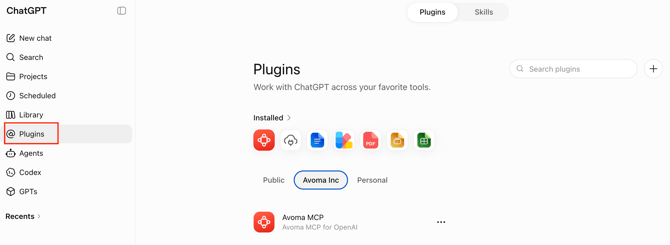
- Search the plugin by name "Avoma MCP"
- Click the '+' sign next to the plugin name to install it or
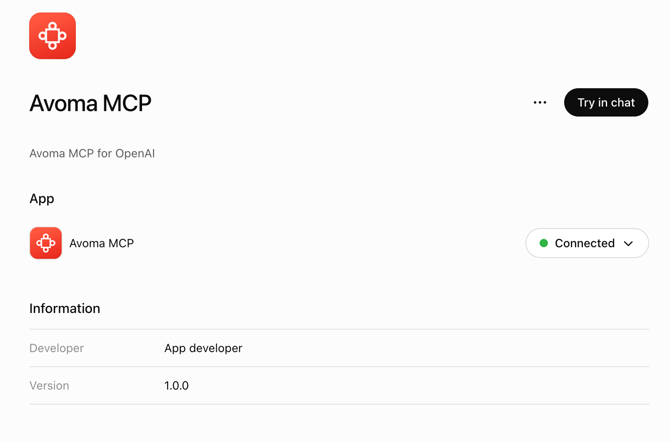
- Open the Avoma MCP Plugin and click Install plugin.
If you’re already connected, you can skip to Step 5.In the search bar, type Avoma MCP.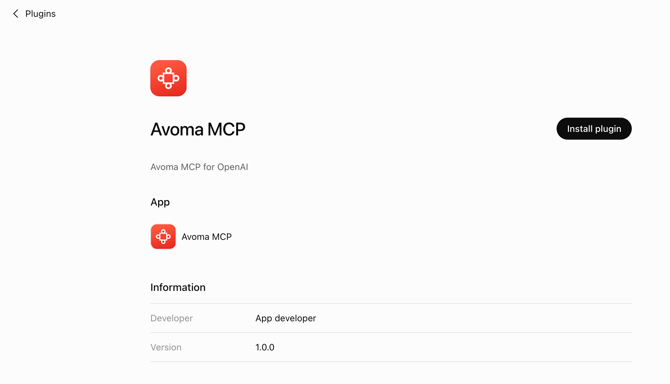
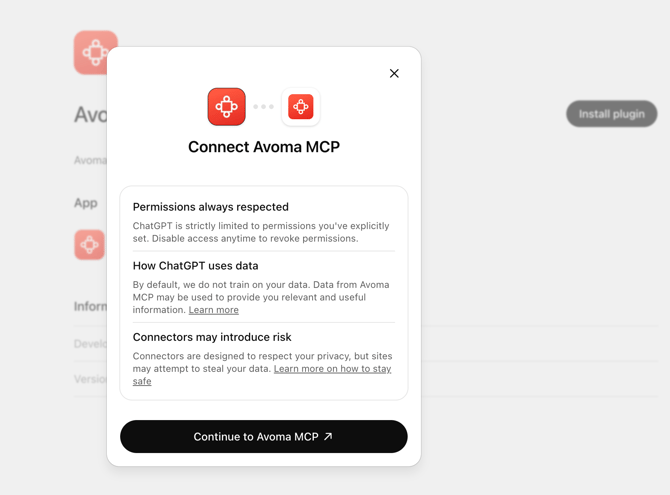
- Click Continue to proceed with the OAuth connection.
- Select your access scope from the dropdown (see scope options below), then click Allow.
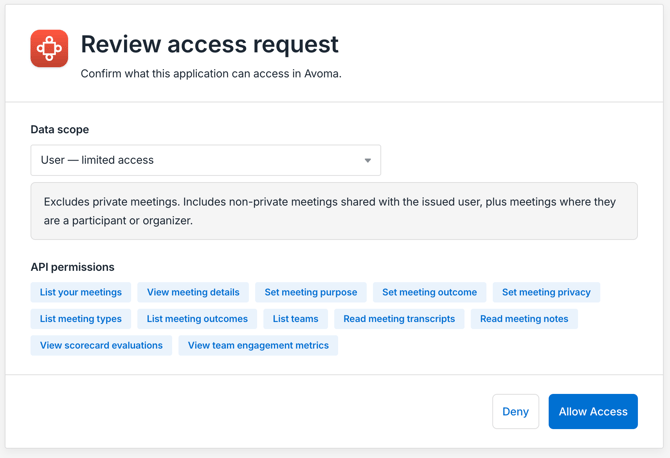 OAuth scope selection dropdown — showing all four scope options with Allow button
 - The Avoma MCP Connector is now connected to your ChatGPT account.
Choose your access scope
When connecting, you’ll be asked to select a scope. This controls what data the Avoma MCP Connector can access on your behalf. Choose the scope that fits how you’ll use the connector.
|
Scope |
What it can access |
Best for |
|
User – limited access |
Your non-private meetings only. |
Tools that should never receive private recordings. |
|
User – full access |
Everything you can see in Avoma, including private meetings. |
Integrations that need to act as a specific person. |
|
Organization – limited access |
All non-private meetings across your org. |
Reporting or analytics tools that should only use shared data. |
Tip: If you’re unsure which scope to choose, start with “User – limited access”. You can reconnect and select a different scope at any time.
Start using Avoma in ChatGPT
Once connected, you can use Avoma data in any new ChatGPT conversation.
- Click the (+) button in the chat input area. Avoma MCP will appear in the list of available integrations.
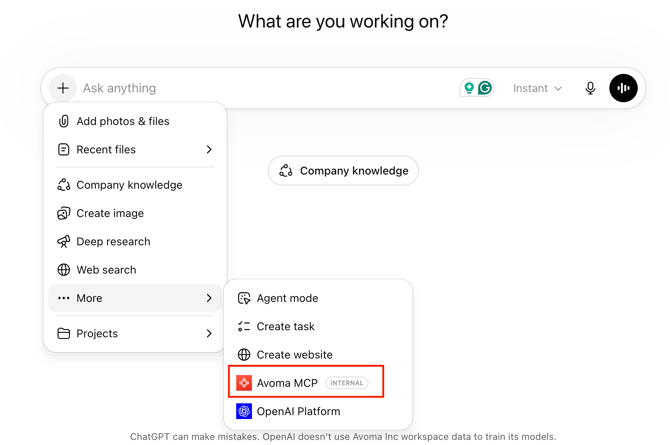 ChatGPT new chat — (+) button and Avoma MCP visible in integrations list
 - In your prompt, explicitly mention Avoma MCP to direct ChatGPT to use the connector. For example:
- “Show me my next two meetings using Avoma MCP.”
- “Using Avoma MCP, pull up the transcript from my last meeting with UUID ''xxxxx.”
NOTE: You must mention Avoma MCP explicitly in your prompt for ChatGPT to use the connector. ChatGPT will not automatically route requests to Avoma.
Troubleshooting
I don’t see Avoma MCP in the Apps list
Your organization’s admin may not have completed the setup yet. Share the admin setup article with them and ask them to complete the configuration before you try again.
ChatGPT isn’t using Avoma data in my response
Make sure you’re explicitly mentioning “Avoma MCP” in your prompt. ChatGPT requires a direct reference to route the request to the connector.
I'm seeing an error:"Authorization with the MCP server failed. You can check your credentials and permissions. If this persists, share this reference with support: <uuid>"
This error indicates your Avoma account does not have the access required to use the MCP connector. Avoma MCP requires an Organization or Enterprise plan, or the API Access add-on. Contact your Avoma admin to confirm your plan eligibility, or reach out to help@avoma.com with the reference ID shown in the error.
Avoma MCP is not responding or requests are timing out.
Check the following in order:
- LLM provider status — The issue may be on the AI provider's end, not Avoma's. Check https://status.claude.ai (Claude) or https://status.openai.com (ChatGPT) to see if there is an active incident.
- Rate limiting — If you have been chatting for a while, you may have hit Avoma's rate limits. Wait 1–2 minutes and retry the same prompt. If it works on retry, rate limiting was the cause.
- Query too broad — Queries spanning a very large number of meetings can exceed timeout limits. Narrow your query with a specific timeframe, meeting type, or company name.
Avoma MCP returns no results for a meeting I know exists.
This is likely a scope or access issue. The OAuth scope selected during setup controls which meetings the connector can access. Common causes:
- You are trying to access a private meeting but are on a user-limited or org-limited scope, which excludes private meetings.
- You are trying to access a meeting not shared with you, which falls outside your permitted scope.
- You referenced a direct Avoma meeting link for a meeting outside your access.
To fix: go to your connector settings and review or update the OAuth scope. If the meeting belongs to another user and is set to private, an Avoma admin may need to adjust visibility on the meeting itself.
Avoma MCP stopped working after it was previously connected.
Two common causes:
- Automatic disconnection — The connector disconnects automatically after 30 days of inactivity. Reconnect from your connector settings by clicking Connect and completing OAuth again.
- Admin republished the connector — If your org admin made changes and republished the connector, all members need to reauthenticate. Follow the same reconnection steps.
What’s next
- Try prompts with different Avoma data — meetings, transcripts, outcomes, and team activity.
- If you need access to private meetings or org-wide data, reconnect and select a broader scope.
- Contact your Avoma admin if you encounter permission issues.
Recap
You’ve connected your Avoma account to ChatGPT via the Avoma MCP Connector, selected your access scope, and run your first Avoma-powered prompt.
Related articles
- How admins can add the Avoma MCP connector in ChatGPT
- How admins can add the Avoma MCP Connector in Claude
- How team members can configure and use the Avoma MCP Connector in Claude
If you have any questions, contact our team at help@avoma.com