
Scheduled prompts let you automate recurring Ask Avoma reports so insights are delivered to you on a consistent schedule. Use them to track pipeline health, customer feedback, competitive mentions, and more without manually rerunning the same questions.
|
Before you begin
|
Key sections
- What are scheduled prompts?
- Where to find scheduled prompts
- How to create a scheduled prompt
- Reading and using scheduled reports
- Managing scheduled prompts
What are scheduled prompts?
Scheduled prompts let you set a question to run automatically on a recurring basis. Each time the prompt runs, a fresh report appears in your Ask Avoma feed and you receive a notification when it’s ready.
This is useful for any question you find yourself asking repeatedly like weekly pipeline health, daily competitive mentions, recurring customer feedback digests, or summaries for leadership that no one has to remember to run.
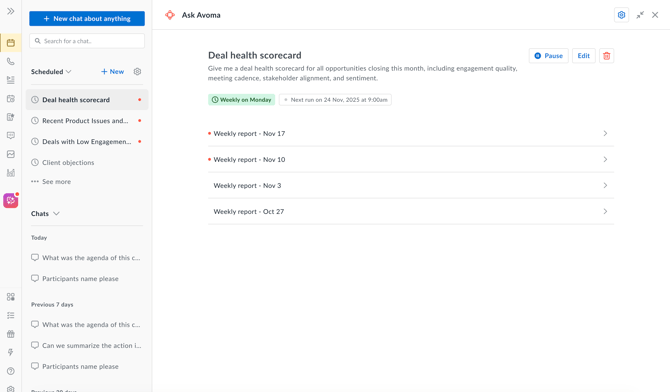
Global Ask Avoma — Scheduled section in the left panel showing active scheduled prompts with notification badges
Where to find scheduled prompts
- Ask Avoma left panel — the 'Scheduled' section at the top of the panel lists all your active scheduled prompts. Click any entry to open its latest report.
- Prompt Library — under Scheduled for you, you’ll see all prompts currently running on a schedule for you when you click on 'Scheduled for you' link.
-
Credit Balance — Next to the Scheduled header in the left panel, you’ll also see a credit balance indicator. Click the green icon to view your organization’s remaining monthly credits for scheduled prompts and the date and time they reset.
Note: Credits are shared across your organization and apply to scheduled prompts only. Regular Ask Avoma conversations do not consume scheduled prompt credits.
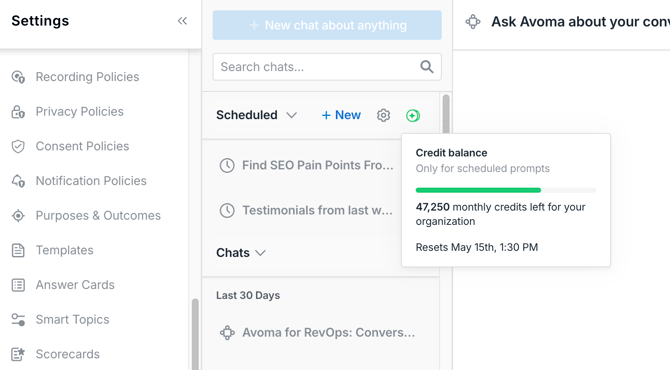
Scheduled section header — credit balance popover showing monthly credits remaining and reset date
How to create a scheduled prompt
You can create a scheduled prompt from the Scheduled section in the Ask Avoma panel, or from inside the Prompt Library.
From the Scheduled section
- Open Global Ask Avoma from the left-hand navigation.
- Click + New next to the Scheduled header in the left panel. The Schedule a prompt modal opens.
- Enter your question in the Prompt field.
- (Optional) Click Refine to use AI to improve or clarify the prompt before saving.
- Under Who can use this prompt?, choose:
- Only me — the prompt is private to you.
- Anyone in my organization — the prompt is visible to your whole organization.
- (Optional) Add the prompt to a collection by selecting one from the Add to a collection dropdown, or click + New collection to create one.
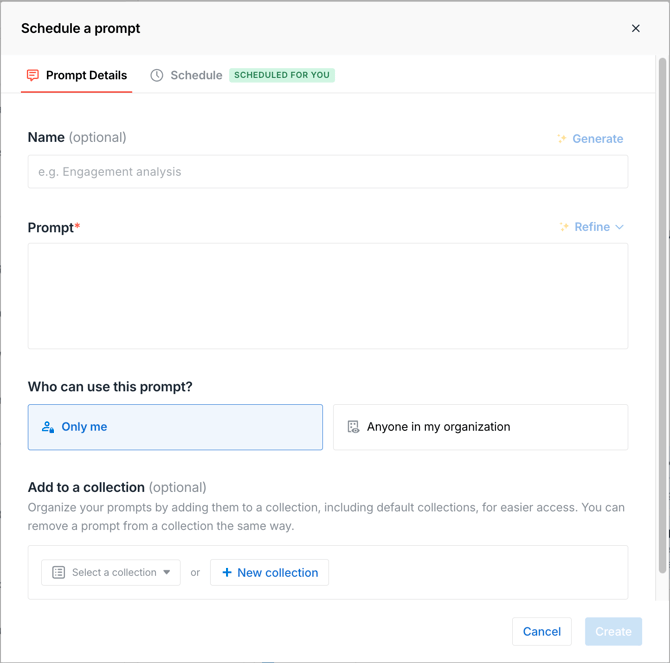
Schedule a prompt modal — Prompt Details tab showing the Prompt field, Refine button, Who can use this prompt options, and Add to a collection section
- Click the Schedule tab at the top of the modal.
- Turn on the Schedule this prompt to run at a regular frequency toggle.
- Set your cadence: choose a frequency (for example, Weekly), select the day, and set the time.
- (Optional) Under Also send generated reports to, select any delivery channels: Slack, Microsoft Teams, or Email.
- Click Create.
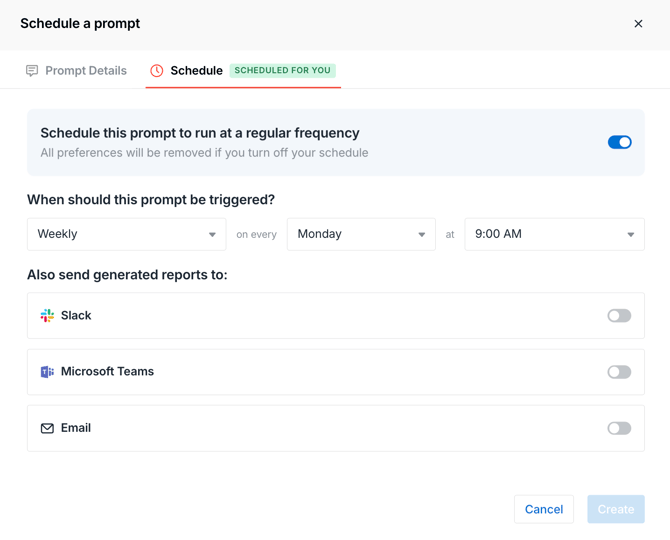
Schedule a prompt modal — Schedule tab showing the frequency toggle on, Weekly cadence selected, day and time pickers, and delivery channel options
Note: Collections are visible to everyone in your organization and can include both private and organization-level prompts. Any private prompt you add to a collection remains visible only to you.
Warning: All schedule preferences — cadence, day, time, and delivery channels — are permanently removed if you turn off the Schedule toggle. They cannot be recovered and must be reconfigured from scratch if you turn the toggle back on.
From the Prompt Library
- Open the Prompt Library from the chat input or from Settings → Prompt Library.
- Open an existing prompt or create a new one.
- Turn on the Schedule this prompt to run at a regular frequency toggle.
- Set your cadence, day, time, and any delivery channels.
- Click Create (or Save if editing an existing prompt).
Reading and using scheduled reports
Each time a scheduled prompt runs, a new report appears in the Scheduled section of the left panel with a notification badge.
- Click the report to open it as a chat thread.
- Ask follow-up questions directly in the thread to explore any finding further.
- If you set up delivery to Slack, Microsoft Teams, or email, the report is also sent to those channels at the scheduled time.
Tip: Scheduled reports work best for questions that benefit from consistency over time — running the same question weekly gives you a comparable view across periods.
Managing scheduled prompts
Go to Global Ask Avoma, cClick the three-dot menu next to any prompt name in the Scheduled section to access the following options:
- Mark all as read — marks all reports generated by this prompt as read.
- Edit schedule — update the prompt text, cadence, delivery channels, or sharing settings.
- Pause schedule — temporarily stops the prompt from running without deleting it.
- Delete prompt — permanently removes the scheduled prompt and stops all future runs.
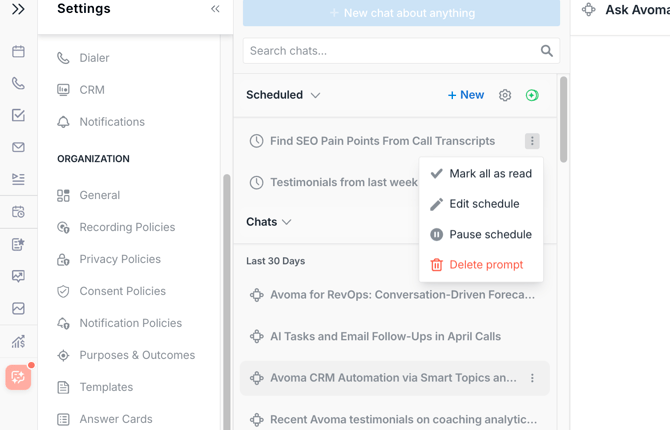 Scheduled section — three-dot menu open on a scheduled prompt showing Mark all as read, Edit schedule, Pause schedule, and Delete prompt options
Note: From the Prompt Library (Settings → Prompt Library → Scheduled for you), you can edit or delete a scheduled prompt. Pause and Mark all as read are only available from the Ask Avoma left panel.
Caution: Editing the prompt text of an active scheduled prompt applies to all future runs. Previously generated reports are not affected.
Warning: Deleting a scheduled prompt is permanent and cannot be undone. All future scheduled runs will stop immediately.
Frequently asked questions
Can I schedule a prompt to run daily?
Yes. When setting up the schedule, you can choose daily, weekly, or a custom cadence, and set the exact time you want the report to run.
What happens if I turn off the Schedule toggle?
All schedule preferences — cadence, day, time, and delivery channels — are removed. The prompt itself is not deleted and can still be run manually. If you turn the toggle back on, you’ll need to configure the schedule from scratch.
Can I send a report to more than one delivery channel?
Yes. You can select any combination of Slack, Microsoft Teams, and Email. Reports will be sent to all selected channels each time the prompt runs.
Can I share a scheduled prompt with my team?
Yes. Set Who can use this prompt? to Anyone in my organization when creating the prompt. It will appear under Teammates’ prompts in the Prompt Library for everyone else in your org.
What’s next
- Prompt Library — discover, create, and organize prompts
- What is Global Ask Avoma? — overview of the interface and data sources
If you have any questions, contact our team at help@avoma.com