
Avoma connects to Microsoft Teams to capture meetings, recordings, and transcripts. Without an Application Access Policy in place, workspace admins cannot manage cloud recordings centrally — recording behavior falls back to each user's individual settings.
This article walks IT administrators through configuring the Teams Application Access Policy: a required step to give your organization precise, privacy-first control over which users' meeting data (meetings, recordings, and transcripts) Avoma can access.
How Microsoft Teams access control works
Microsoft requires two separate security layers to be configured before any application can access Teams meeting data. Both must be in place — completing only one is not sufficient.
|
Security Layer |
Description |
Purpose |
|
1. API Permissions (Microsoft Graph) |
This is the initial grant of technical capability, similar to giving our app a general security badge in your system. |
Confirms our app has the ability to request data from Microsoft Teams. |
|
2. Application Access Policy |
This acts as a granular whitelist, explicitly naming our application and defining which users' meetings it is allowed to monitor. |
Ensures your administrator retains precise control over data access and user privacy. |
Note: Without the Application Access Policy, all requests to access meeting data will fail with a "403 Forbidden" error, even if the API permissions are correctly configured in the Azure portal.
|
Before you begin
|
Configuration overview
The entire setup involves executing a few commands in Microsoft Teams PowerShell to create the policy and link our application to it.
|
Step |
Action |
PowerShell Command (Reference) |
|
1. Install Module |
Install the necessary Microsoft Teams PowerShell module. |
|
|
2. Connect |
Connect to Microsoft Teams with administrator credentials. |
|
|
3. Create Policy |
Create the specific Application Access Policy (e.g., MeetingAccessPolicy). |
|
|
4. Set Access |
Link our application's Client ID to the newly created policy. |
|
|
5. Assign Scope |
Assign the policy to the desired scope: Global, Specific Users, or Specific Groups. |
|
Step-by-step
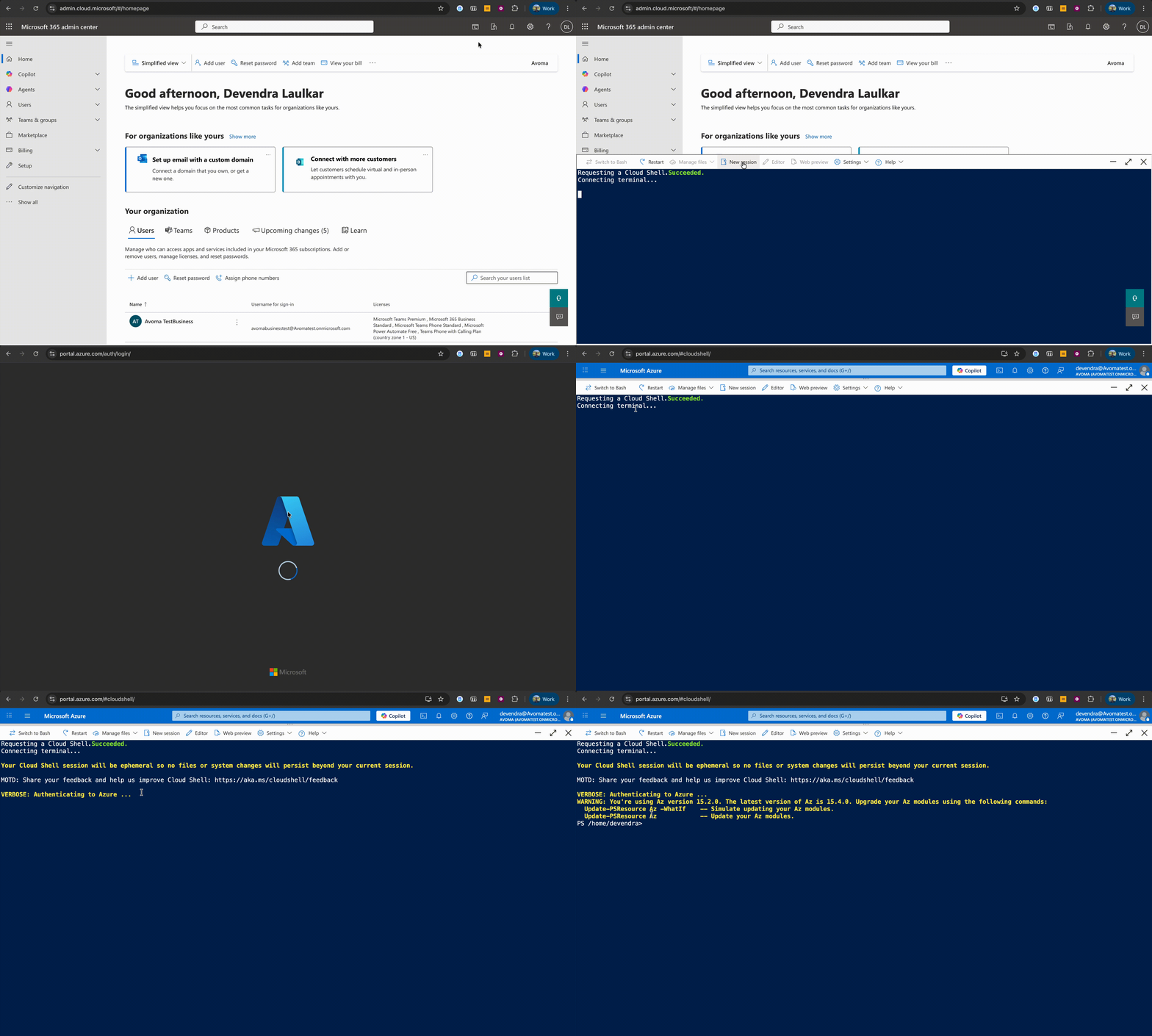
-
Click on the Cloud Shell icon in the top right corner
-
Open New session
Step 1 — Install Microsoft Teams PowerShell
Install-Module MicrosoftTeams -Force -AllowClobber
Step 2 — Connect to Microsoft Teams
Connect-MicrosoftTeams
Step 3 — Create the application access policy
New-CsApplicationAccessPolicy -Identity "AppAccess-OnlineMeetings" -Description "Allows Avoma Admin Connect access to online meetings, recordings, and transcripts"
Step 4 — Set access to the application
Link our application to the policy using your Application (Client) ID from the Entra ID Overview page.
Avoma App ID: 4a13a29a-3995-41e3-beb2-ef3a97de4caa
Set-CsApplicationAccessPolicy -Identity "AppAccess-OnlineMeetings" -AppId "4a13a29a-3995-41e3-beb2-ef3a97de4caa"
Step 5 — Assign the policy (Choose your scope)
Assign the policy based on the required scope. Choose one option below.
Important
Microsoft Teams uses a priority-based assignment model. Policies are applied in this order:
1. Individual users (Option A)→ 2. Groups (Option B)→ 3. Global (fallback) (Option C)
Once a match is found, lower levels are ignored.
Option A: Individual users (Highest priority)
Applies the policy to named users only.
Best for: Small pilots, testing, or limited rollouts
When to use: You want precise, manual control over who has access
Key consideration:
This creates a direct assignment ("lock"). If a user is assigned a policy here, Group and Global assignments will not apply to them.
- Assign:
Grant-CsApplicationAccessPolicy -PolicyName "AppAccess-OnlineMeetings" -Identity "user@yourdomain.com" - Remove (Reset):
Grant-CsApplicationAccessPolicy -PolicyName $null -Identity "user@yourdomain.com" -
Check Status:
Get-CsUserPolicyAssignment -Identity "user@yourdomain.com" -PolicyType ApplicationAccessPolicy
If the user already has another application access policy, assigning this one will overwrite it. To allow multiple apps, you must use the Unified policy.
Option B: Specific groups (Medium priority)
Applies the policy to all members of a Microsoft Entra ID Security Group.
Best for: Department-level rollouts (e.g., Sales, Customer Success)
When to use: You want access managed via group membership (You can add or remove users from the group to adjust access without re-running PowerShell).
Key consideration: Requires a Security Group to already exist in Microsoft Entra ID. Distribution lists or Microsoft 365 Groups are not supported — it must be a Security Group type.
To use this option, you must first have a Security Group and its unique Object ID.
How to find or create a Group ID:
- Login: Go to the Microsoft Entra admin center.
- Navigate: Go to Groups > All groups.
- Find or Create:
- To find an existing group: Search for the group you wish to use (e.g., "Sales Team") and copy the Object Id (a string like 1a2b3c4d...).
- To create a new group: Click New group, set the Group type to Security, give it a name, and add the desired members. Once created, copy its Object Id.
- Assign:
New-CsGroupPolicyAssignment -GroupId "<GROUP_ID>" -PolicyType ApplicationAccessPolicy -PolicyName "AppAccess-OnlineMeetings" -Rank 1 - Remove:
Remove-CsGroupPolicyAssignment -GroupId "<GROUP_ID>" -PolicyType ApplicationAccessPolicy - Check Status:
Get-CsGroupPolicyAssignment -PolicyType ApplicationAccessPolicy
Note: Use the Group's Object ID from Entra ID.
Option C: Global (Entire organization — Lowest priority)
Applies the policy to all users in your Microsoft 365 tenant.
Best for: Organization-wide deployments
When to use: You've rolled out Avoma org-wide and want uniform access without managing individual or group assignments.
Key consideration:
-
This is a "fallback" policy. It applies only to users who have zero Individual or Group assignments.
-
No granularity. Avoma will have access to meetings for all users, including those who may not use it. If your deployment is limited to specific teams or departments, use Option A or B instead.
Important:
If you have an existing Global policy for another application, you should not create a second Global policy. Instead, you must add the Avoma App ID to your existing Global policy.
- Assign:
Grant-CsApplicationAccessPolicy -PolicyName "AppAccess-OnlineMeetings" -Global - Remove:
Grant-CsApplicationAccessPolicy -PolicyName $null -Global - Check Status:
Get-CsApplicationAccessPolicy -Identity Global
Pro tip: Unified Policy (Multiple apps access)
A user can have only one Application Access Policy at a time.
To allow access to multiple apps (e.g., Avoma + another tool), include all App IDs in a single policy:
Set-CsApplicationAccessPolicy -Identity "AppAccess-OnlineMeetings" -AppIds "APP_ID_1", "APP_ID_2"Quick troubleshooting summary
| Situation | What Happens |
|---|---|
| User has an Individual policy | ✅ Individual policy applies (overrides everything) |
| No Individual, but Group policy exists | ✅ Group policy applies |
| User is in multiple groups with policies | ⚠️ Only one applies — the group policy with the highest priority (lowest rank) wins |
| No Individual or Group, but Global policy exists | ✅ Global policy applies |
| No policy assigned anywhere | ❌ No access (403 error) |
Verify your setup
Once the policy is configured, run the following checks to confirm everything is in order before testing in Avoma.
Check 1 — Confirm the policy exists and Avoma is linked
Get-CsApplicationAccessPolicy -Identity "AppAccess-OnlineMeetings"
Look for the Avoma App ID (4a13a29a-3995-41e3-beb2-ef3a97de4caa) in the output. If it's present, the policy is correctly linked.
Check 2 — See all users with the policy assigned
Get-CsOnlineUser -Filter {ApplicationAccessPolicy -eq "AppAccess-OnlineMeetings"} | Select-Object DisplayName, UserPrincipalName
This returns only users who currently have the policy assigned. If the list is empty after a Global assignment, the policy may still be propagating — wait 10–15 minutes and retry.
Check 3 — Verify a specific user's assignment
Get-CsUserPolicyAssignment -Identity "user@company.com" -PolicyType ApplicationAccessPolicy
The PolicyName returned should be AppAccess-OnlineMeetings. If it shows a different policy or returns blank, the assignment in Phase 4 may not have completed successfully.
Tips
- Automated setup: If you prefer to run everything in one go, Avoma provides an automated PowerShell script. Replace the placeholder values, uncomment only the assignment scenario that applies (Global, User, or Group), then run the full script.
- Propagation time: Policy changes typically take 5–10 minutes to take effect, but can take up to 60 minutes across your full organization. Wait before testing.
- Token refresh: If access still fails after 60 minutes, Avoma needs to acquire a new access token to reflect the updated permissions. Contact your Avoma workspace admin to trigger this.
Troubleshooting and FAQs
Why does a user still show as "Missing" after setup?
If a user is still showing as "Missing" after assigning the policy, check the following:
- Individual assignment may be overriding other policies
If the user has a direct (individual) policy assigned, it takes highest priority and can prevent Group or Global policies from applying.
Reset it if needed. - Allow time for changes to sync
Policy updates can take 8–24 hours to reflect due to Microsoft service delays. - Verify Microsoft Teams licensing
Ensure the user has an active Microsoft Teams license. Check status:Get-CsOnlineUser -Identity "user@domain.com" | Select TeamsLicenseStatus.
Without it, the policy will not apply.
Why am I seeing a 403 Forbidden error that says "No Application Access Policy found"?
This error means the policy isn't linked to Avoma's App ID correctly.
- Confirm the App ID in Step 4 exactly matches
4a13a29a-3995-41e3-beb2-ef3a97de4caa— no extra spaces or characters - Re-run Step 4 (
Set-CsApplicationAccessPolicy) to re-link the App ID to the policy - Verify the policy exists by running
Get-CsApplicationAccessPolicy -Identity "AppAccess-OnlineMeetings" - Ensure Admin Consent has been granted for all three API permissions in Microsoft Entra ID
If the error persists after all checks, contact Avoma Support.
What happens if I skip the access policy setup?
Recording will still work, but without admin control.
- Workspace-level management of cloud recordings will be unavailable
- Recording behavior will continue based on each individual user's settings
- Avoma's bot will still record meetings where applicable, but admins cannot manage this centrally
My API permissions are configured in Azure — why is it still not working?
API permissions alone are not sufficient.
- Microsoft requires both API permissions and an Application Access Policy to grant meeting data access
- Without the policy, all requests will return a 403 error, even with correct Azure configuration
- Complete all five steps above to satisfy both security layers
How do I remove Avoma's access if it is no longer needed?
Remove the policy assignment first, then delete the policy.
- Global:
Grant-CsApplicationAccessPolicy -PolicyName $Null -Global - User:
Grant-CsApplicationAccessPolicy -PolicyName $Null -Identity "user@yourcompany.com" - Group:
Remove-CsGroupPolicyAssignment -GroupId "<GROUP_ID>" -PolicyType ApplicationAccessPolicy - Once all assignments are cleared, delete the policy:
Remove-CsApplicationAccessPolicy -Identity "AppAccess-OnlineMeetings"
De-provisioning and cleanup (Optional)
If you need to remove Avoma's access to Microsoft Teams meeting data, follow the steps below in order. You must remove all policy assignments before deleting the policy itself.
- Remove Policy Assignment
Run the command that matches the scope you assigned in Phase 4:
- Global:
Grant-CsApplicationAccessPolicy -PolicyName $Null -Global
- User:
Grant-CsApplicationAccessPolicy -PolicyName $Null -Identity "user@company.com"
- Group:
Remove-CsGroupPolicyAssignment -GroupId "<GROUP_ID>" -PolicyType ApplicationAccessPolicy
Delete the policy
Once all assignments are removed, delete the policy itself.
Remove-CsApplicationAccessPolicy -Identity "AppAccess-OnlineMeetings"
Note: After removal, Avoma will no longer have access to meetings, recordings, or transcripts. Recording behavior will revert to individual user settings. Allow 5–10 minutes for the change to propagate.
What's next
- Microsoft Workspace integration — learn how to connect Avoma with Microsoft Workspace
- Avoma meeting privacy — Understand the four privacy levels in Avoma
- How recording, compliance, and privacy work in Avoma for Microsoft Teams
Recap
Once the Application Access Policy is assigned and propagated, your Avoma workspace admin will have full control over cloud recording settings across your organization. From here, head to Avoma's recording settings to configure rules at the workspace level.