
Use Single Sign-On (SSO) with Rippling to let your team log in to Avoma using corporate credentials. This reduces password fatigue and centralizes access control. This guide is for IT admins managing identity and access in Rippling and Avoma. Use it when you want to enforce secure, organization-wide authentication.
Before you begin
|
Note: Once SSO is enabled, users can only log in via SSO. Google and Microsoft sign-in will be disabled.
Step-by-step
Set up the Rippling SAML app
-
Log in to your Rippling Admin dashboard.
-
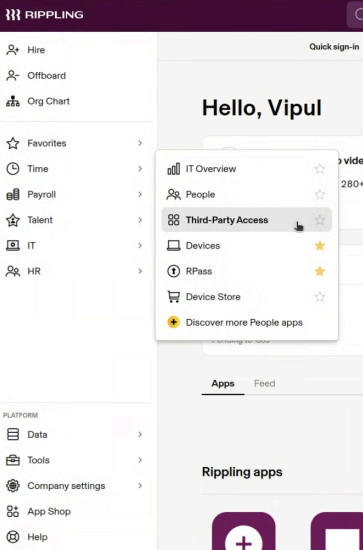
Go to IT in the left-hand sidebar.
-
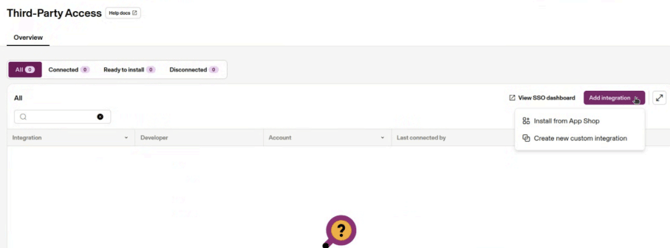
Select Third-Party Access.
-
Click Create New Custom Integration.
-
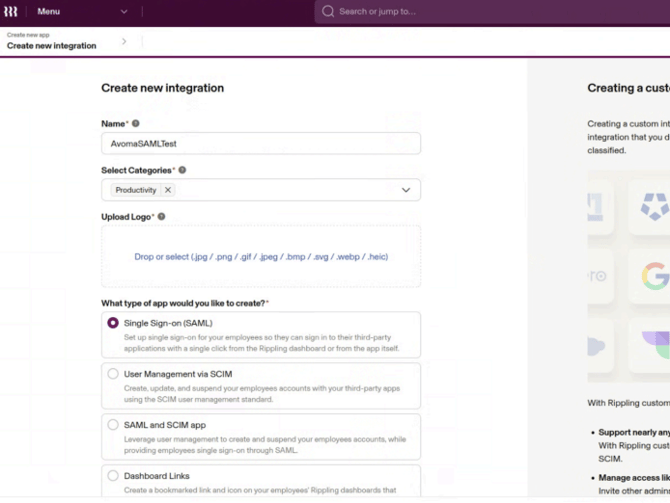
Enter a name (for example, “Avoma SSO”).
-
Select Single Sign-On (SAML) as the application type.
-
Click Continue.
Retrieve Identity Provider (IdP) Metadata
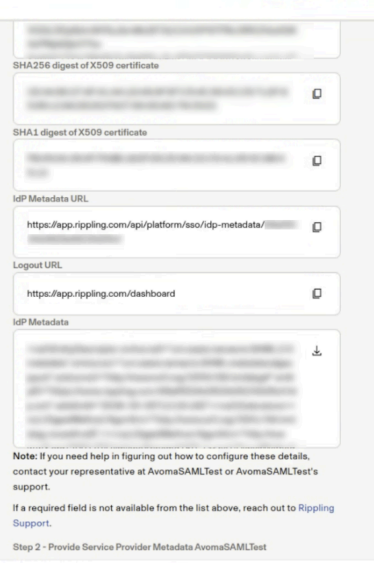
Before moving forward in Rippling, you need to collect the information required by Avoma.
-
In the Rippling app configuration, find the IdP Details or Metadata section.
-
Copy the IdP Metadata URL (this is your
idp_metadata_url). -
Copy the Issuer / IdP Entity ID (this is your
idp_url).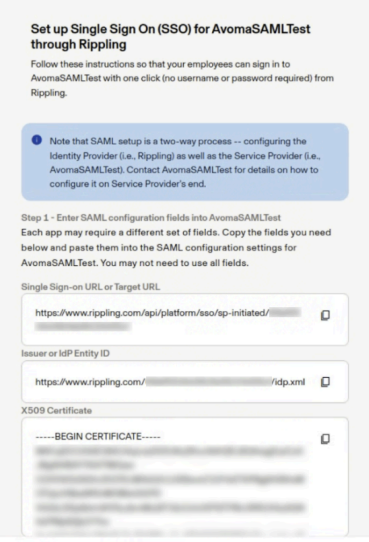
Configure Avoma (Service Provider) details in Rippling
Now, you need to tell Rippling where to send authentication requests.
-
Navigate to the SSO or SAML Configuration section.
-
Enter the following values:
-
Identifier (Entity ID):
https://app.avoma.com -
Assertion Consumer Service (ACS) URL:
https://prod-api.avoma.com/saml2/acs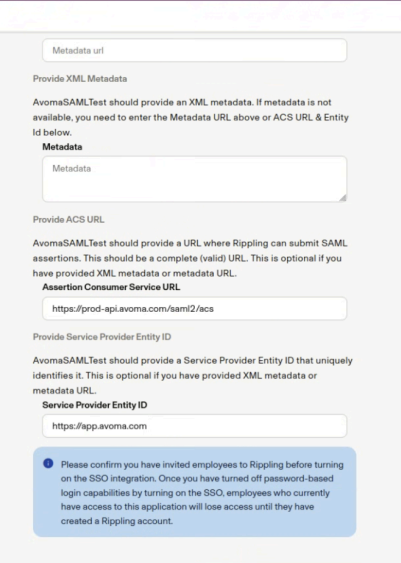
-
Map user attributes
To ensure user profiles are created correctly in Avoma, you must map the required attributes.
-
Go to the attribute mapping section in Rippling.
-
Ensure the following attributes are configured:
-
email
-
first name
-
last name
-
username
-
Assign users and finalize
-
Open the Access Rules or Assignments tab.
-
Assign the Avoma SSO app to the relevant employees or departments.
-
Save your changes.
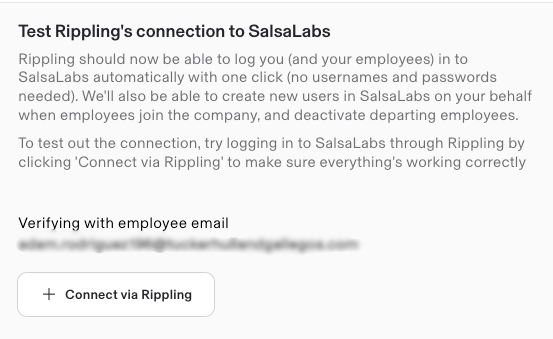
Test the SSO connection in Rippling
-
In Rippling, click Connect via Rippling.
-
Verify that you can log in to Avoma using SSO successfully.
Provide details to Avoma
-
Contact Avoma Support or your Customer Success Manager.
-
Share the following details:
-
idp_metadata_url(IdP Metadata URL from Rippling) -
idp_url(Issuer / IdP Entity ID from Rippling)
-
-
Wait for confirmation that SSO has been configured.
Note: Avoma will terminate existing sessions so users can log in again using SSO.
Troubleshooting and FAQs
Why can’t users log in after SSO is enabled?
This is usually due to missing assignment or incorrect configuration.
-
Check that the user is assigned to the Avoma SSO app in Rippling.
-
Confirm required attributes (email, first name, last name, username) are mapped.
-
Verify IdP details shared with Avoma are correct.
-
Ensure users are using the SSO login option (not Google/Microsoft).
If the issue persists, contact Avoma Support.
Why is SSO login failing during testing?
This often relates to incorrect SAML configuration.
-
Confirm Entity ID and ACS URL match exactly.
-
Recheck IdP Metadata URL and Isser/Entity ID values.
-
Ensure the app is saved and active in Rippling.
If it still fails, re-test after confirming setup with Avoma.
What’s next
See the Rippling Help Center article on SAML SSO setup for deeper configuration details.
-
Roll out SSO to all users and communicate the login change.
-
Understand Avoma's privacy levels to control who can access meetings and recordings.
Recap
You created a custom SAML app in Rippling, shared IdP details with Avoma, and enabled SSO login. Your team can now securely access Avoma using corporate credentials.