
Single Sign-On (SSO) lets your team log in to Avoma using your existing JumpCloud credentials, removing the need for separate passwords. This guide is for IT admins or org admins responsible for identity management. Use it when onboarding your organization to Avoma or consolidating authentication under JumpCloud.
Before you begin
|
Step-by-step
Setting up SSO for Avoma with Jumpcloud SAML is a two-stage process.
Stage 1: Create the Avoma app in JumpCloud
- Log in to your JumpCloud account and go to SSO Applications > Add New Application.
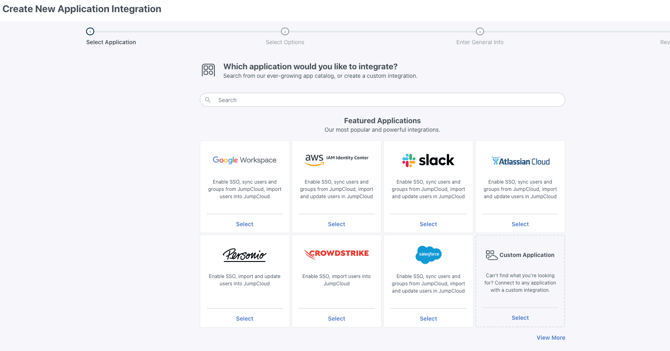
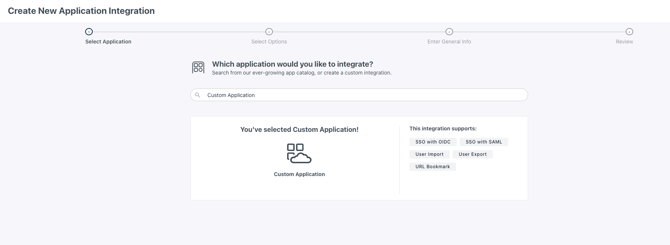
- Select Custom Application and click Next.
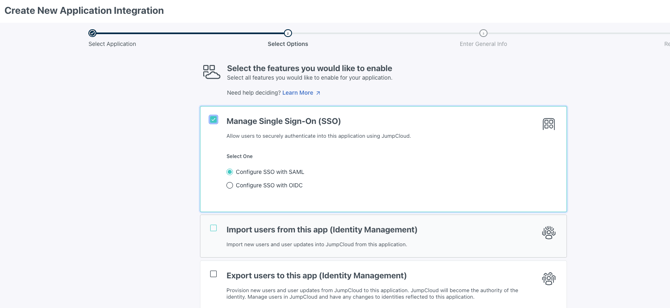
- Select Manage Single Sign-On, then select Configure SSO with SAML. Click Next.
- Enter a Display Label (e.g., "Avoma") on the next screen and click Save Application.
- Click Continue to Configure Application and open the SSO tab. Add the settings below in the SSO Tab.
- Copy the Metadata URL shown on the SSO tab and save it. You'll send this to Avoma in Phase 2.
- In IdP Entity ID, enter a unique identifier using this format:
jumpcloud-<orgdomain>— replace<orgdomain>with your organization's unique name (e.g.,jumpcloud-acmecorp).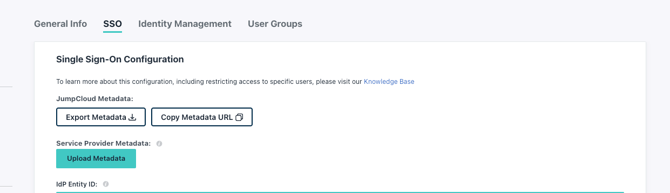
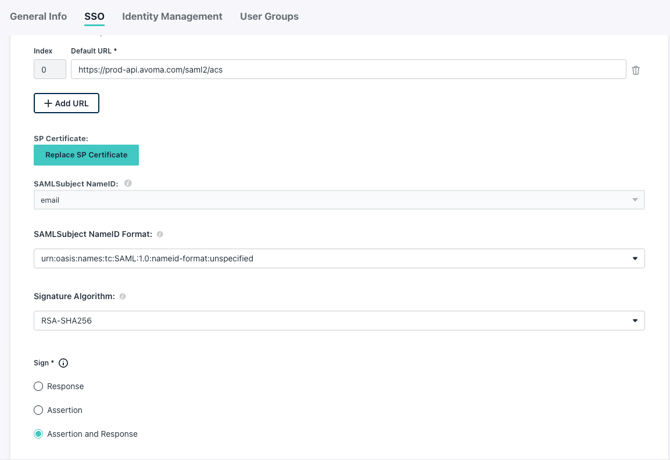
- In SP Entity ID, enter:
https://app.avoma.com - In ACS URLs, enter:
https://prod-api.avoma.com/saml2/acs - Leave SAMLSubject NameID set to Email. Set Sign to Assertion and Response.
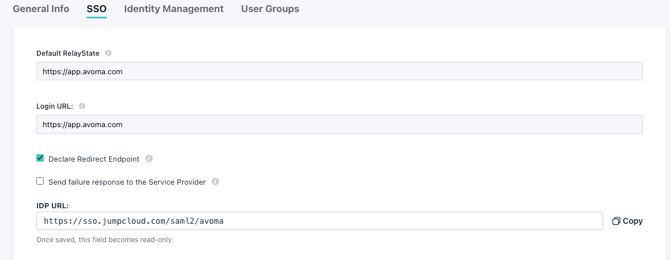
- In both Default Relay State and Login URI, enter:
https://app.avoma.com - Check the box for Declare Redirect Endpoint. Leave the IDP URL at its default value.
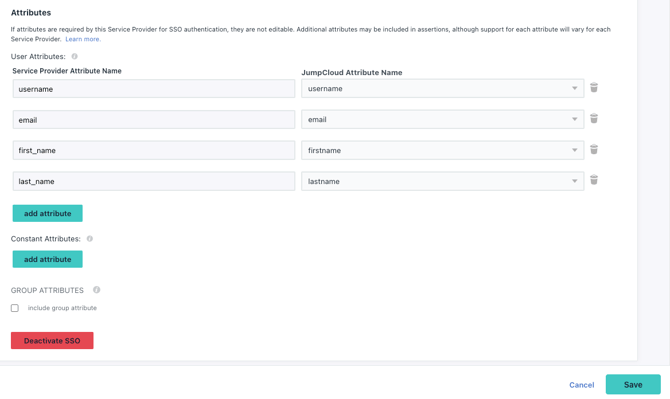
- In the Attribute section, enter the attribute mappings as required.
- Click Save.
- Go to the Assignments tab and assign the users and/or groups who should have access to Avoma.
Phase 2: Submit details to Avoma for SSO configuration
- Contact Avoma Support or your Customer Success Manager.
- Provide the following:
- The Metadata URL copied in Phase 1, Step 5 (a)
- The IdP Entity ID you set in Phase 1, Step 5 (b)
- Wait for confirmation from Avoma that SSO has been configured for your organization.
Note: Once configured, Avoma will terminate all existing user sessions. Users will need to log in again using the SSO option on the Avoma login screen. Going forward, all users in your organization will only be able to log in via SSO.
Tips
- Double-check the ACS URL and SP Entity ID for typos before saving. These must match exactly, or SAML authentication will fail.
- Assign JumpCloud app access to a small test group first before rolling out to your entire organization.
- Let your users know in advance that their sessions will be terminated once SSO goes live, so the forced logout doesn't catch them off guard.
Troubleshooting and FAQs
Why are my users being logged out after SSO is configured?
This is expected behavior. Avoma terminates existing sessions when SSO is enabled, so all users authenticate cleanly through JumpCloud going forward.
- Notify users in advance that a forced logout will occur.
- Direct users to the Avoma login screen and have them click the SSO option.
- Confirm that the JumpCloud app has been assigned to all relevant users and groups.
A user can't log in after SSO is enabled. What should I check?
Start with JumpCloud app assignment before assuming a configuration error.
- Verify the user is assigned to the Avoma app in JumpCloud under the Assignments tab.
- Confirm the user is logging in via the SSO option on the Avoma login screen, not with email/password.
- Check that the user's JumpCloud email matches the email on their Avoma account.
- Confirm Avoma Support has sent a configuration success confirmation — SSO won't be active until they complete their side.
If the issue persists, contact Avoma Support with the user's email and the IdP Entity ID you configured.
Can I use a different IdP Entity ID format?
Yes, as long as it is unique to your organization. The jumpcloud-<orgdomain> format is a recommendation, not a requirement. Whatever value you set, send the exact same string to Avoma Support.
What's next
- SAML SSO overview — If you're new to SAML-based authentication, review Avoma's general SSO documentation to understand how identity assertions work between JumpCloud and Avoma.
- User provisioning — Learn how to manage user access and deprovisioning when employees leave your organization.
- Review Avoma's login and authentication settings in your org admin panel to confirm SSO is active once Avoma notifies you.
- Set up user groups in JumpCloud aligned with Avoma roles to keep access management consistent as your team grows.
Recap
Once Avoma confirms configuration is complete, your organization's SSO setup is live, and all users will authenticate through JumpCloud. The next milestone is to validate access for all assigned users and establish a process for onboarding new team members via JumpCloud group assignments.