
Use Avoma-Dialpad integration to automatically sync Dialpad call recordings and metadata into Avoma for analysis and coaching. It’s designed for Dialpad admins and requires a one-time, organization-wide setup—no action is needed from individual users.
Use this when your team records calls in Dialpad and wants them to appear in Avoma without manual uploads.
Before you begin
|
Step-by-step
1) Create the Dialpad API key
-
Log in to Dialpad as an admin
-
Go to Admin Settings → API & Integrations
-
Click Create new key
-
Name it Avoma Integration
-
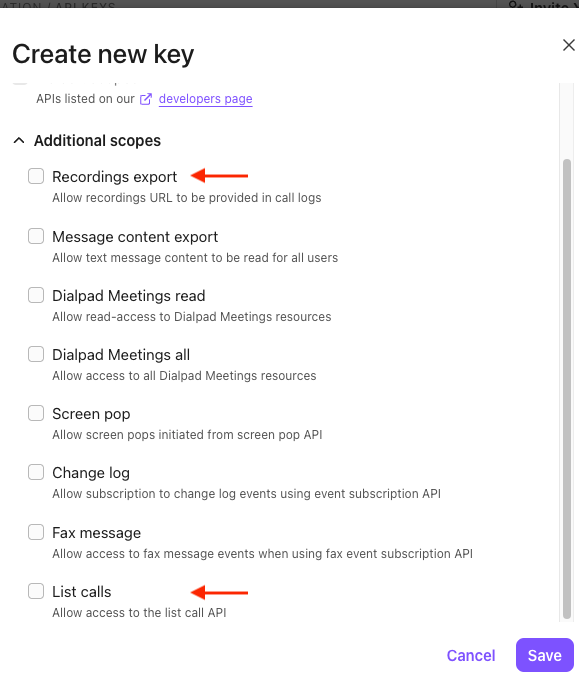
Select both required permissions:
-
Recordings export
-
List calls
-
-
Click Save
-
Copy the API key immediately (it won’t be shown again)
Reference: Dialpad guide to creating an API key.
2) Share required details with Avoma
Provide the following to your Avoma contact:
-
API key (the full alphanumeric string)
-
Organization name
-
Admin contact email (who created the key)
-
Email mismatch list (if applicable)
Format:
Dialpad Email → Avoma EmailExample:
john.doe@company.com → jdoe@company.com
3) Wait for setup completion
-
Avoma will complete the integration setup after receiving your details
-
Typical setup time: 1–2 business days
4) Verify call sync
-
New calls will appear in Avoma within ~30 minutes of ending
-
Only users with matching emails will sync automatically unless a mapping list is provided
Tips
-
Keep API key access limited to admins; treat it like a password
-
Double-check email consistency across systems to avoid missing calls
-
If many users have mismatched emails, send the full list upfront to prevent delays
Troubleshooting and FAQs
I don’t see "API & Integrations" in Dialpad
You likely don’t have the required permissions.
-
Confirm you are logged in as an admin
-
Ask your Dialpad admin to create the API key if needed
Which permissions should I select?
You must select both required permissions.
-
Recordings export
-
List calls
-
Ensure both boxes are checked before saving
If unsure, recreate the key with both enabled.
Will this change anything in Dialpad?
No—this is a read-only integration.
-
Avoma only retrieves call data
-
No changes are made to Dialpad settings or calls
Some users have different emails in Dialpad and Avoma
This is common and fixable.
-
Create a mapping list: Dialpad email → Avoma email
-
Include all mismatched users
-
Share it with your Avoma contact
If calls are missing, this is the first thing to check.
When will calls appear in Avoma?
Sync happens automatically.
-
Calls sync every 30 minutes
-
Only calls after setup (plus recent history) will appear
-
Ensure emails match or mappings are provided
If calls don’t appear after an hour, contact support.
What’s next
-
Review Avoma's call library to confirm recordings and metadata are syncing correctly
-
Learn how to analyze calls and share insights with your team
-
Set up call scoring and coaching workflows in Avoma
-
Invite managers to review synced calls and provide feedback
Recap
Once the API key is created and shared, Avoma will automatically sync Dialpad calls every 30 minutes. With matching emails (or a mapping list), your team’s calls will flow into Avoma without any ongoing setup.