
Recording Insights helps sales and revenue leaders understand whether meetings are being recorded consistently—and why some are missed. It’s designed for managers and admins who need clear visibility into recording adoption, coverage gaps, and underlying issues across the team.
Use this dashboard to diagnose problems, coach reps, and improve the overall quality and completeness of conversation data.
Before you begin
|
Step-by-step
1. Review overall conversation usage in the Overview tab
The Overview tab focuses on recorded conversations, not scheduled calendar meetings. Use it to understand activity levels and workload.
-
Navigate to Usage Intelligence → Activity → Overview.
-
Review the top-level metrics:
-
Total Conversations – Total number of recorded conversations in the selected timeframe.
-
Average Conversations / User – Average number of conversations per team member.
-
Total Time Spent – Combined duration of all recorded conversations.
-
Average Time / User – Average recorded conversation time per team member.
-
-
Scroll to the table to review activity by individual:
-
Team Member
-
Number of Conversations
-
Total Hours Spent in Conversations
-
Average Duration
-
Use this view to answer questions such as:
-
Who is most active in customer conversations?
-
How much time is the team spending with customers?
-
Are conversation volumes increasing or declining?
-
Apply filters at the top to refine results:
-
Timeframe (for example, Last 7 days)
-
Team
-
Member
-
Companies
-
Purposes
-
Outcomes
-
Call Types
-
Deal Stages (During / Now)
-
Amount Now
-
Best use: Weekly activity monitoring, workload analysis, and engagement trends.
2. Review recording coverage in Recording Insights
Use Recording Insights to understand how many scheduled meetings were recorded—and which were missed.
-
Navigate to Usage Intelligence → Activity → Recording Insights.
-
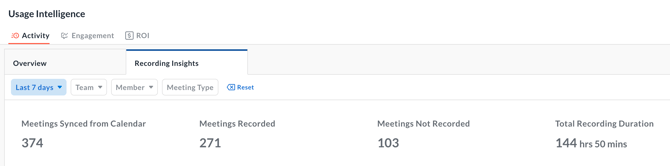
Review the summary metrics at the top:
-
Meetings Synced from Calendar – Total meetings pulled from connected calendars.
-
Meetings Recorded – Meetings that were successfully recorded.
-
Meetings Not Recorded – Meetings that were not captured.
-
Total Recording Duration – Combined length of all recorded meetings.
-
3. Understand the Members table
The Members table shows recording coverage and outcomes for each team member.
Review the columns:
-
Members – Individual users in your workspace.
-
Meetings Synced from Calendar – All meetings imported from the member’s calendar where they were host or participant.
-
Meetings Attributed to Member – Meetings owned by this member based on licensing.
-
Attribution is determined by the highest licensed participant.
-
That user’s recording settings control whether the meeting is recorded.
-
-
Recording Status – Visual breakdown of recorded vs. not recorded meetings.
-
Total Recording Duration – Total duration of all successfully recorded meetings.
-
Reasons if Not Recorded – Distribution of why meetings were missed.
Hover over bar charts to see detailed counts.
4. Filter Recording Insights to answer specific questions
Use filters at the top of the table:
-
Timeframe (for example, Last 7 days)
-
Team
-
Member
-
Meeting Type (internal or external)
Examples:
-
Which reps missed recordings last week?
-
Which meeting types are least likely to be recorded?
-
Are recording gaps isolated or systemic?
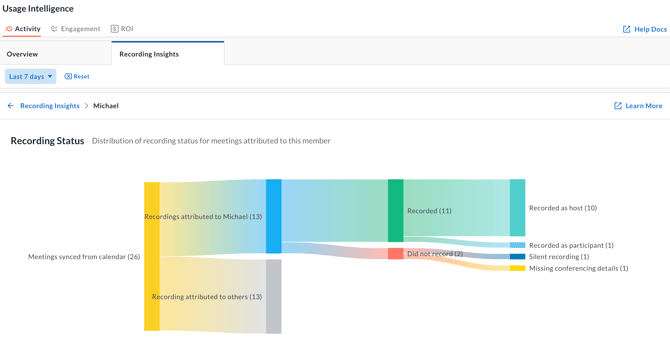
5. Drill into meeting-level details for a member
-
Click View Details next to a member.
Review the detailed view:
-
A Sankey chart showing the funnel from meetings synced → recorded → not recorded.
-
-
A meeting-level table with:
-
Meeting Title
-
Meeting Date
-
Company Name
-
Type (internal or external)
-
Meeting Recorded
-
Recording Duration
-
Recorded as Host / Participant
-
Meeting Platform
-
Recording Source (Avoma bot or platform cloud recording)
-
Reason if Not Recorded
-
-
Use this view to troubleshoot individual failures and recurring issues.
6. Understand “Reasons if Not Recorded”
When a meeting isn’t captured, Recording Insights provides a reason. Common reasons include:
Setup and configuration issues
-
Missing conferencing details – Conferencing info was missing, incorrect, or arrived after the meeting started.
-
Unsupported conferencing provider
-
Recording disabled – Recording turned off (including recurring meetings).
-
Recording setting disabled – Internal or external meeting recording disabled for all participants.
-
Recording license missing – No participant had a recording or phonebot license.
-
Recording limits exceeded – No eligible participant remained within limits.
-
Blacklisted domain – One or more participants belonged to a restricted domain.
Meeting behavior issues
-
Meeting invite not accepted
-
No participants
-
Parallel meetings / Host in another meeting
-
Silent recording
-
Recording too short
Platform or bot issues
-
Zoom meeting did not start
-
Recording not received
-
Download failed / Download error
-
Invalid recording details / Invalid video
-
No recording found
-
Bot kicked out / Bot denied entry
-
Bot timed out
-
Recording error
Use these reasons to distinguish behavior problems, setup gaps, and technical failures.
7. Take action based on insights
-
Identify members with consistently high Meetings Not Recorded counts.
-
Review Reasons if Not Recorded to pinpoint root causes.
-
Take action:
-
Coach reps on best practices (starting meetings on time, avoiding overlaps).
-
Fix configuration issues (licenses, recording settings, calendar sync).
-
Reinforce expectations around recording compliance.
-
Tips
-
Use Last 7 days for quick health checks.
-
Focus on patterns, not one-off misses.
-
Compare Meetings Synced from Calendar vs. Meetings Recorded to spot adoption issues quickly.
-
Use member-level insights in 1:1s.
Troubleshooting and FAQs
What is Usage Insights?
Usage Insights helps you track adoption and usage of Avoma across your organization.
-
Analyze how members and teams use features like listening, snippets, comments, and sharing.
-
Drill down to see who listened to whose conversations and which conversations were accessed.
-
Measure time saved by using Avoma.
-
Definitions for each metric are available in the help documentation for the corresponding dashboard.
Who can access Usage Insights?
Usage Insights is available to users on the Business license and higher.
-
Admins must also have a license to access Usage Insights dashboards.
When does Avoma update Usage Insights data?
Usage Insights data is refreshed every hour.
If I watched a 10-minute snippet from a 30-minute meeting, is it counted as a conversation listened?
No—this is counted only under Snippets listened.
-
The listened duration is not counted as a full conversation.
-
Conversations listened duration is a separate metric and is coming soon.
What does the trend % mean?
The trend percentage compares the selected date range with the immediately preceding date range of the same length.
-
If there is no prior data or no change, the trend value is not shown.
Why do Activity Overview conversations differ from Meetings Synced from Calendar?
This discrepancy is expected in some scenarios.
-
Activity Overview includes dialer calls.
-
Recording Insights includes only scheduled calendar meetings.
-
Last-minute reschedules can cause mismatches if the bot already joined the original meeting.
What does “Meetings attributed to member” mean?
Meetings are attributed to the highest licensed participant.
-
That user’s recording settings determine whether the meeting is recorded.
-
Attribution does not necessarily reflect who hosted or scheduled the meeting.
The total conversations displayed in the Activity Dashboard suggests the number of conversations the member participated in, and the Meetings Synced from Calendar indicates the same. Why do these two numbers differ?
This discrepancy can occur for a few expected reasons:
-
The Activity Overview Dashboard includes dialer calls, while the Recording Insights dashboard includes only scheduled meetings synced from members’ calendars.
-
If a meeting is rescheduled very close to the start time or after it has begun, the Avoma assistant may have already joined the original meeting.
-
In these cases, Avoma cannot reliably determine whether to discard the original recording.
-
This can result in mismatched counts between the Activity dashboard and Recording Insights.
-
What’s next
-
Review recording settings and licenses to reduce missed meetings.
-
Validate calendar connection health across your team.
To drive adoption:
-
Add Recording Insights to your weekly manager review cadence.
-
Use insights in onboarding and enablement to reinforce recording best practices.
Recap
You now know how to use Usage Insights, Overview, and Recording Insights together to track adoption, diagnose recording gaps, and take action. With regular reviews, you can improve recording coverage, coaching effectiveness, and overall data reliability across your organization.