
|
Before you begin
|
Step 1: Enable developer mode
Before configuring Avoma MCP, you need to enable developer mode in ChatGPT.
- In ChatGPT, open Settings → Security and login and turn on Developer mode.
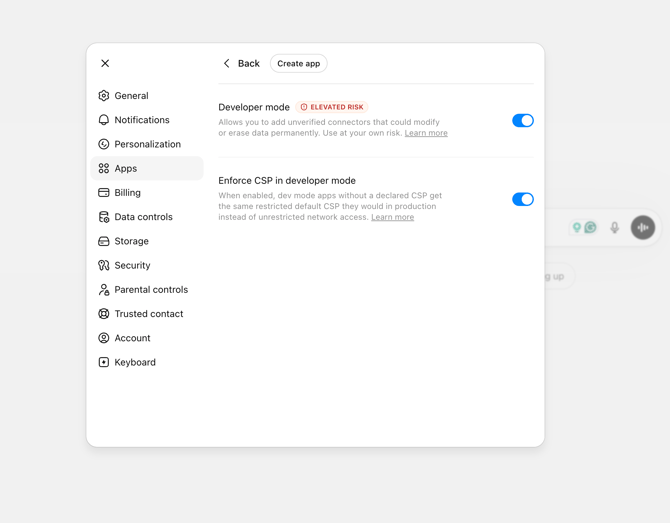
ChatGPT Settings → Security and login → Developer mode and Enforce CSP toggles enabled
Note: If you don't see an option to enable developer mode after following the steps above, check the ChatGPT documentation to see if the steps have changed.
Step 2: Create the Avoma MCP app
- Go to → Workspace settings → Apps in ChatGPT web or mobile.
- Click “Create”.
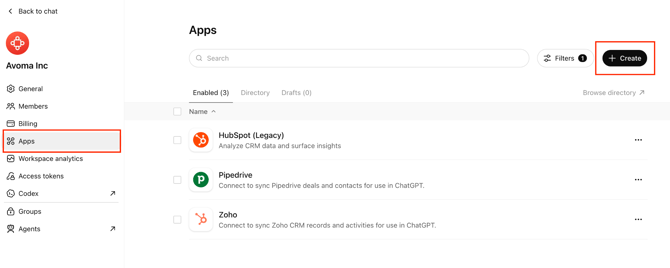 Settings → Workspace settings → Apps — Create button visible
 - Fill in the following details:
- Name: Avoma MCP
- Description: Integration for accessing meeting data and insights
- URL: https://mcp.avoma.com/mcp
- Authentication method: OAuth
- Click “I understand and want to continue” to confirm.
- Scroll to the bottom and click “Create”.
- Wait for the system to register the app.
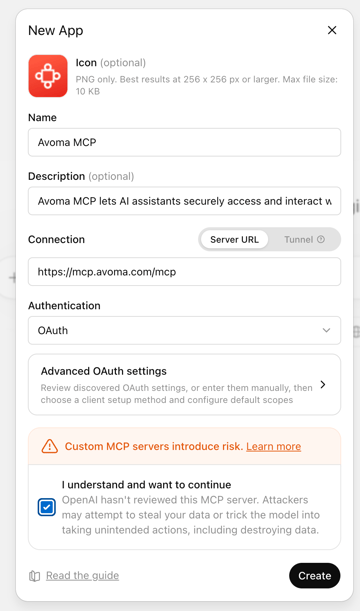
Enter the Avoma MCP app details and select OAuth authentication.
Note: If you don't see any options in ChatGPT as explained above, the ChatGPT UI might have changed. Check out the latest documentation for the latest steps.
Step 3: Authorize with OAuth
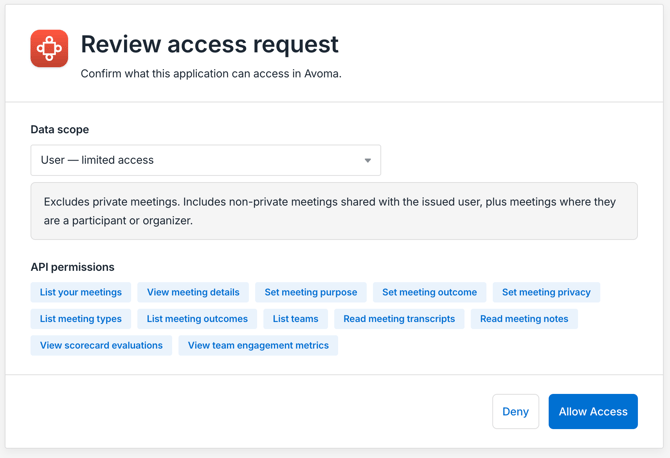
After the app is created, you’ll be redirected to an OAuth consent page to connect your individual Avoma account.
- Review the three permission scopes displayed on the consent page:
Scope
Tied to
What it can access
Best for
User – limited access
One user
That user’s non-private meetings only. Private meetings are always excluded.
Tools that should never receive private recordings.
User – full access
One user
Everything that user can see in Avoma, including their private meetings.
Integrations that need to act as a specific person.
Organization – limited access
Org-wide
All non-private meetings across the org. Private meetings are excluded.
Reporting or analytics tools that should only use shared data.
- Select the scope appropriate for your organization.
- Click “Allow Access”.
NOTE: Avoma MCP is now connected to your admin account. Your team members will connect their own accounts after you publish the app in Step 4.
Step 4: Publish the app to your workspace
Publish the app so all members of your workspace can find and use it.
- Go to Settings → Workspace settings → Apps
- Click “Drafts” to find the connector you just created.
- Click on the Avoma MCP connector, then click “Publish”.
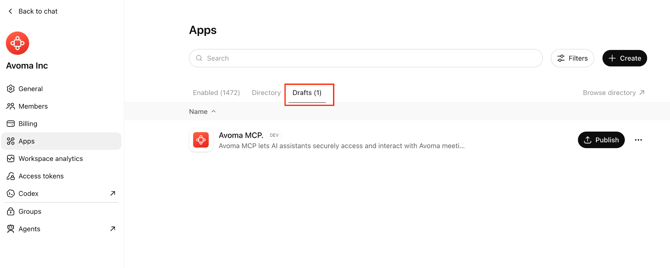
Workspace settings → Apps → Drafts — Avoma MCP connector with Publish button - A “Publish Avoma MCP” dialog appears. Expand each of the two risk review sections:
- Review potential risk: Unauthorized data access — expand and acknowledge.
- Review potential risk: Malicious app — expand and acknowledge.

- Click “Publish” to make Avoma MCP available to all workspace members.
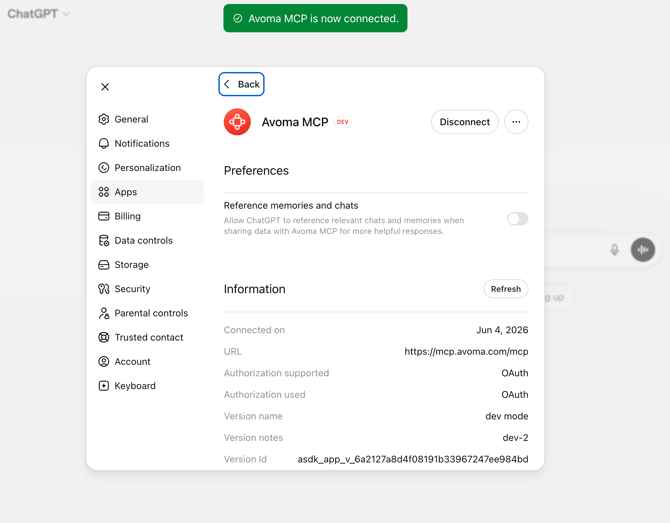
Important: Both risk review sections must be expanded and acknowledged before the Publish button becomes active. The app will not publish if either section is left in the “Not reviewed” state.
NOTE: After publishing, each member must connect their own Avoma account before they can access meetings, transcripts, and other Avoma data in ChatGPT. Share the Using Avoma MCP in ChatGPT guide with your team to help them complete their setup.
Troubleshooting and FAQs
Why is the Publish button grayed out?
The Publish button remains inactive until both risk review sections in the publish dialog are expanded and acknowledged. Expand each section, review the information, and confirm both before clicking Publish.
Why can’t my team members find the Avoma MCP connector?
After publishing, it may take a few minutes for the connector to appear for workspace members. If it’s still not visible after 10 minutes, check that the app status in Workspace settings → Apps shows “Published” (not “Draft”).
Which OAuth scope should I choose?
Choose based on what data the integration needs access to. For org-wide reporting or analytics, use “Organization – limited access”. For individual user workflows that do not require private meeting data, use “User – limited access”. Use “User – full access” only when the integration specifically needs access to private meetings.
My team members are seeing an error: "Authorization with the MCP server failed. You can check your credentials and permissions. If this persists, share this reference with support: <uuid>"
This error indicates your Avoma account does not have the access required to use the MCP connector. Avoma MCP requires an Organization or Enterprise plan, or the API Access add-on. Contact your Avoma admin to confirm your plan eligibility, or reach out to help@avoma.com with the reference ID shown in the error.
Avoma MCP is not responding or requests are timing out.
Check the following in order:
- LLM provider status — The issue may be on the AI provider's end, not Avoma's. Check https://status.claude.ai (Claude) or https://status.openai.com (ChatGPT) to see if there is an active incident.
- Rate limiting — If you have been chatting for a while, you may have hit Avoma's rate limits. Wait 1–2 minutes and retry the same prompt. If it works on retry, rate limiting was the cause.
- Query too broad — Queries spanning a very large number of meetings can exceed timeout limits. Narrow your query with a specific timeframe, meeting type, or company name.
Avoma MCP returns no results for a meeting that exists.
This is likely a scope or access issue. The OAuth scope selected during setup controls which meetings the connector can access. Common causes:
- You are trying to access a private meeting but are on a user-limited or org-limited scope, which excludes private meetings.
- You are trying to access a meeting not shared with you, which falls outside your permitted scope.
- You referenced a direct Avoma meeting link for a meeting outside your access.
To fix: go to your connector settings and review or update the OAuth scope. If the meeting belongs to another user and is set to private, an Avoma admin may need to adjust visibility on the meeting itself.
Avoma MCP stopped working after it was previously connected.
Two common causes:
- Automatic disconnection — The connector disconnects automatically after 30 days of inactivity. Reconnect from your connector settings by clicking Connect and completing OAuth again.
- Admin republished the connector — If your org admin made changes and republished the connector, all members need to reauthenticate. Follow the same reconnection steps.
What’s next
- Share the “Using Avoma MCP in ChatGPT” help article with your team so each member can connect their own Avoma account.
- Verify the connector appears as “Published” in Workspace settings → Apps.
- Test the integration by opening a new chat, adding Avoma MCP, and asking a meeting-related question.
Recap
You’ve enabled developer mode, created the Avoma MCP connector, authorized it with OAuth, and published it to your workspace. Your team can now connect and use Avoma MCP in ChatGPT.
Related articles
- How team members can configure and use the Avoma MCP Connector in ChatGPT
- How admins can set Up Avoma MCP Connector in Claude
- How team members can configure and use the Avoma MCP Connector in Claude