
Why Set Up Google Workspace Domain-Wide Delegation with Avoma?
- Seamless onboarding: Reduce the need for individual users to manually connect supported Google services.
- Centralized control: Admins can manage which Google Workspace services Avoma is authorized to access at the organization level.
- Automatic sync: Depending on the services you enable, Avoma can sync Calendar meetings, Gmail emails, Google Groups, and cloud recordings.
- Member-level controls: Supported services such as Calendar, Gmail, and Cloud Recordings can also be disabled for individual members when needed.
This article provides step-by-step guidance for Google Workspace admins to configure Domain-Wide Delegation (DWD) for Avoma.
Prerequisites
- You must be designated as a Google Workspace Admin to establish the connection.
- You must have access to Security → API Controls → Domain-wide delegation → Manage Domain-Wide Delegation in Google Workspace.
Google Workspace Configuration
Admins can manage the Google Workspace integration from the Workspace Configuration section in Avoma.
From here, admins can:

1. Set up company-wide Google Workspace connection
-
In your Avoma dashboard, go to Settings → Organization → Integrations or, simply click here: Go to Avoma Integrations
- Choose Google Workspace click on Configure.
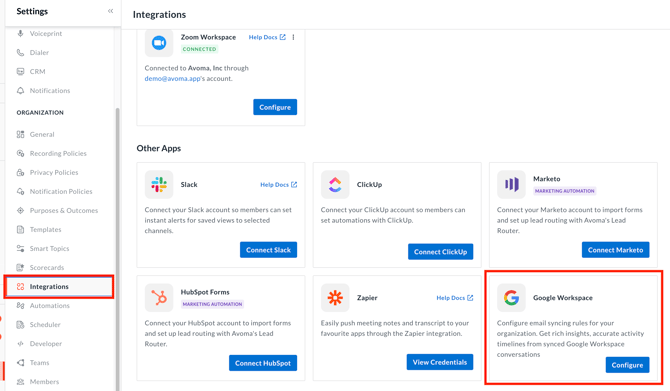
- On the Workspace connection tab, click on Connect Google Workspace.
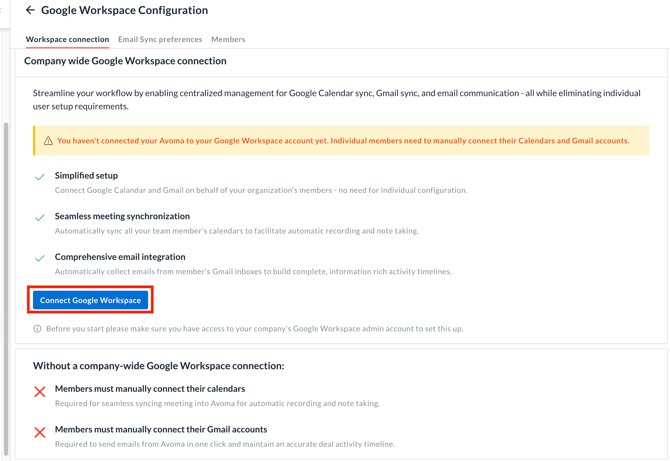
- Avoma will open a step-by-step setup wizard to guide you through configuring domain-wide delegation in Google Workspace.
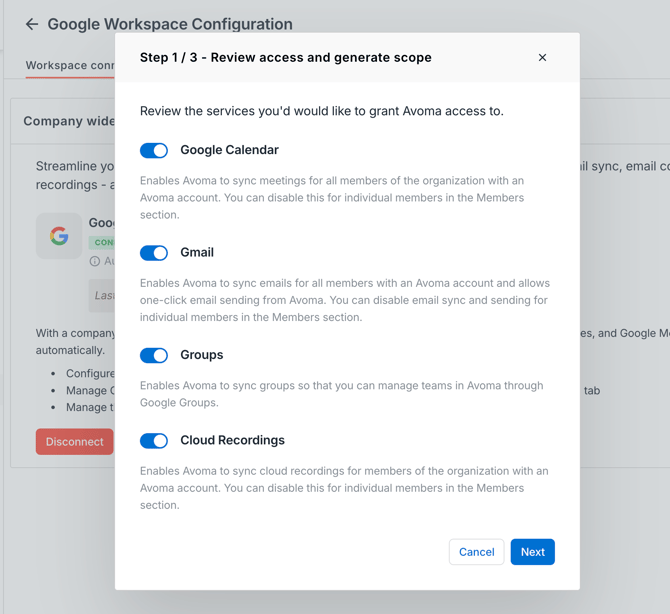
- Review and select the Google Workspace services you want to grant Avoma access to.
You can choose from the following services:- Google Calendar: Enables Avoma to sync meetings for members of the organization with an Avoma account. Calendar access can be disabled for individual members from the Members section.
- Gmail: Enables Avoma to sync emails for members with an Avoma account and to send emails one-click from Avoma. Email sync and sending can be disabled for individual members from the Members section.
- Groups: Enables Avoma to sync with Google Groups, allowing you to manage teams in Avoma through Google Groups.
- Cloud Recordings: Enables Avoma to sync cloud recordings for members of the organization with an Avoma account. Cloud Recording access can be disabled for individual members from the Members section.
Select the services your organization wants to enable, then click Next.
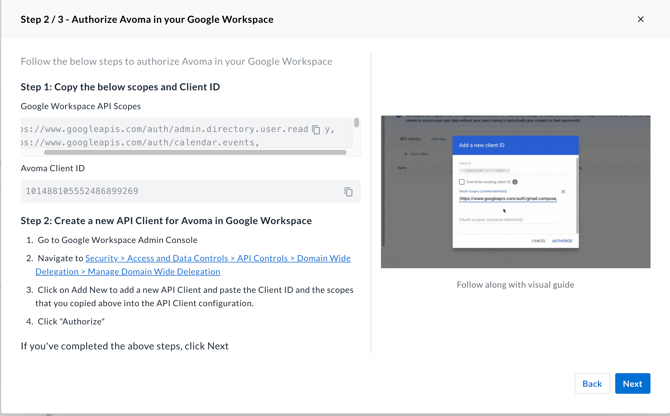
- Follow the instructions in the setup wizard to authorize Avoma in your Google Workspace. The guide provides the information and visual references required to configure Domain-Wide Delegation for the services you selected. When finished, click Next.
-
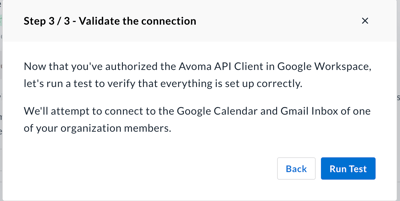
Validate the connection by clicking Run Test.
Avoma will verify that the necessary authorization has been configured for the services and scopes you selected.
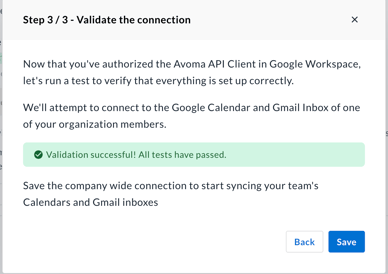
- Once all tests have passed for the selected scopes, you will see a success notification. Click Save to save the Google Workspace configuration for your organization.
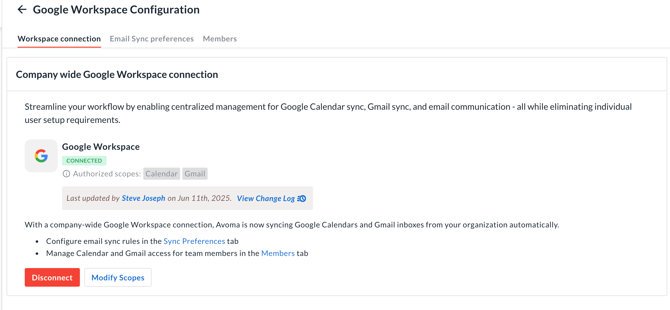
- After saving, the Workspace connection tab will show Google Workspace as connected along with the services/scopes authorized for your organization.
Add or Modify Services and Scopes
To change the Google Workspace services Avoma can access, click Modify Scopes on the Workspace connection tab.
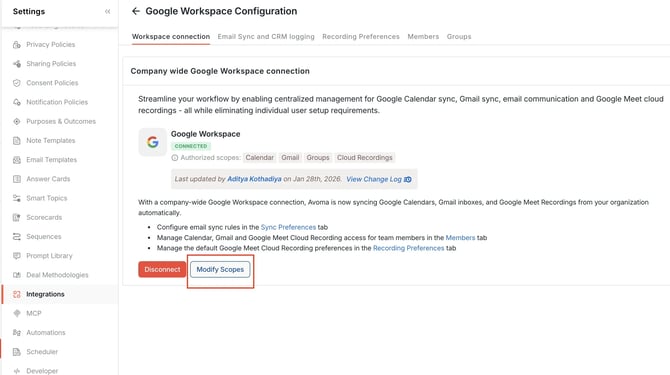
From the setup flow, review the available services and select or deselect the services you want Avoma to access:
- Google Calendar
- Gmail
- Groups
- Cloud Recordings
Follow the instructions in the setup wizard to update the corresponding authorization in Google Workspace. Run the connection test and save the configuration after the selected scopes have been successfully validated.
Changes made at the organization level determine which Google Workspace functionality is available to members in Avoma.
Disconnect Google Workspace
To disconnect the Google Workspace integration, click Disconnect on the Workspace connection tab.
As an admin, you must also manually remove Avoma's authorization from the Domain-Wide Delegation settings in Google Workspace.
NOTE: Disconnecting Google Workspace stops Avoma from using the Google Workspace services that were authorized through the organization-level connection. Features that depend on those services, including Calendar, Gmail, Groups, or Cloud Recordings, where enabled, will no longer use the organization-level authorization.
Users who need to continue using supported individually connectable services may need to connect their accounts directly in Avoma.
2. Configure Email Sync and CRM logging
Admins can configure organization-level Email Sync and CRM Logging preferences for Gmail.
These settings allow you to control which external emails are synced from Gmail to Avoma using email syncing rules, as well as whether synced emails are logged to your CRM and contacts are created when needed.
Member-level email sync can be managed separately from the Members section.
For comprehensive details on all available email sync controls, refer to this help article.
3. Configure Google Meet Recording Preferences
Admins can set the default recording behavior for all users in the workspace by choosing between Cloud Recording and the Avoma Assistant (Bot).
With Cloud Recording, Avoma processes Google Meet recordings once they become available, while the Avoma Assistant joins meetings to record them directly.
Recording preferences for individual users can be managed from the Members page.
4. Manage Google Workspace settings for individual Members
Go to Google Workspace Configuration-> Members tab.
Admins can enable or disable specific functionality for each member based on the services authorized at the organization level.
The following settings can be managed for individual members:
- Calendar Connection: Enable or disable Google Calendar connectivity for the member.
- Send via Gmail: Enable or disable the member's ability to send emails through Gmail from Avoma.
- Sync emails from Gmail: Enable or disable Gmail email sync for the member.
- Google Meet Cloud Recording: Enable or disable the syncing of Google Meet cloud recordings for the member.
These member-level settings are available only when the corresponding Google Workspace service and required scopes have been authorized at the organization level.
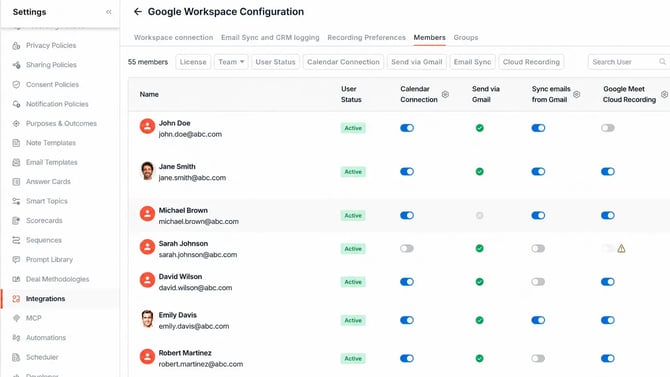
NOTE: The Sync Email feature is available exclusively to users with a Revenue Intelligence license. This functionality will be disabled for users who do not have the appropriate license.
5. Manage teams synced through Google Groups
Admins can sync Google Groups with Avoma to manage teams based on their existing Google Workspace groups.
Once connected, Avoma displays the synced groups, their email addresses, and members. Admins can manually sync groups to pull in the latest updates or disconnect Google Groups when needed.