
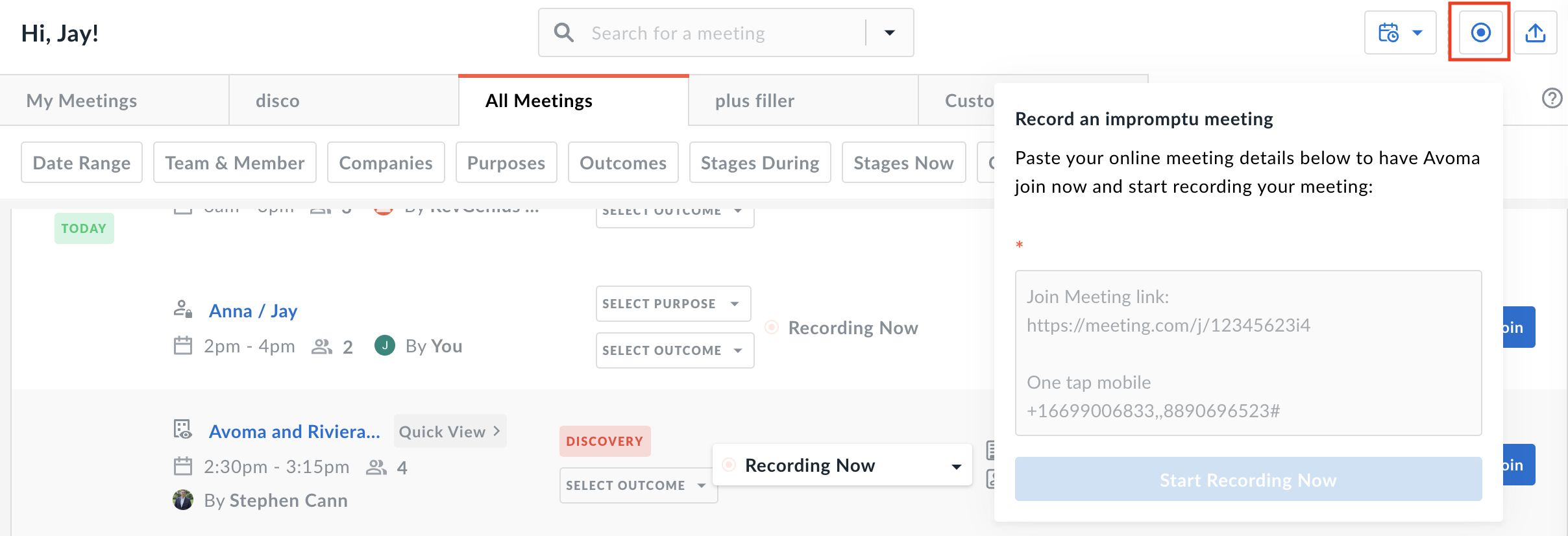
You might want to record an unscheduled meeting which was not on your calendar. In this case, you can request the Avoma Bot to join and record this meeting using Avoma's "Record Impromptu Meeting" feature.
From the home view, in the top right corner, click the "Record Impromptu Meeting" button, and paste the meeting link, and then click on "Start Recording Now". You can also edit the meeting subject to reflect the meeting agenda.
NOTE:
-
You should paste the conference link that you would normally add in a calendar invite. Once Avoma verifies that it's a valid conference link, it will create a new meeting and join the conference.
-
If you are using Zoom, Avoma Assistant joins on your behalf, so you need Zoom connected in Avoma. You must be in the meeting signed in to the Zoom account you connected to Avoma. If you join as a guest from the browser, or with a different Zoom account, Avoma Assistant can't join through you. If you aren't in the meeting yet, it keeps trying for up to 45 minutes, so join signed in to that Zoom account and it follows you in. If your Zoom isn't connected or needs reconnecting, Avoma shows "Avoma can't join this Zoom meeting yet: nobody in it has a Zoom connection that lets the notetaker in. Connect or reconnect Zoom in Avoma settings, then try again." with a Connect Zoom link instead of starting. See Connect Zoom to record your Zoom meetings and Zoom recording: rules and limits.
If you have any additional questions, please contact our team at help@avoma.com.