
|
Before you begin
|
What is Live Assist or Real-Time Assist in Avoma?
Live Assist is Avoma’s real-time AI assistant that helps you during meetings with live transcripts, note-taking, AI-powered answers, and contextual Answer Cards. It works alongside your calls through the Avoma Desktop App, so you can access information and respond to questions without waiting until the meeting ends.
Live Assist is what you see on screen while the Avoma Desktop App records a call. Once recording starts, up to 3 floating pieces appear: the recording widget, the panel for the live transcript, notes and Ask Avoma, and answer cards when there’s something to show.

The recording widget: timer, Pause, Stop and the … button
To pause, resume or stop the recording from the widget, see How to pause, resume and stop a recording.
View live meeting transcripts
The transcript shows the conversation as it happens. During the call, speakers appear as Speaker 1, Speaker 2 and so on.
To open it, click the Transcript icon on the right of the live panel.
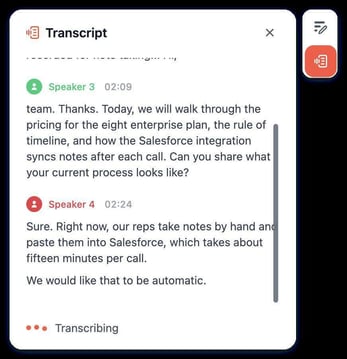
The live transcript, with speakers shown as Speaker 1, Speaker 2 and so on
Take notes during meetings
Type your notes in the same notes the meeting page shows, using the meeting’s notes template. Your notes are saved to the meeting and appear in Avoma after the call, alongside the AI notes.
- Click the Notes icon on the right of the live panel.
- Type your notes. To go back to the transcript, click the Transcript icon.
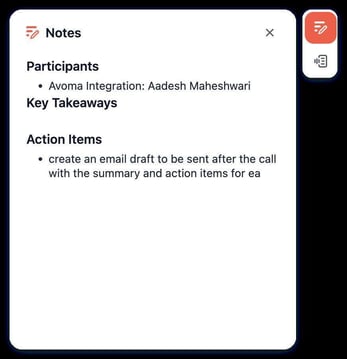
Live notes, using the meeting’s notes template
To ask questions about the call, click the Ask Avoma icon. See Ask Avoma questions during the call.
Ask Avoma questions during the call
Ask Avoma about the call while it’s still recording. Answers come from what has been said so far, the panel opens inside the overlay, and the recording keeps running.
To learn about Ask Avoma outside live calls, see What Global Ask Avoma is?.
Note: Ask Avoma during the call needs the Organization plan or above.
- Click the Ask Avoma icon on the right of the overlay.
- Type your question in Ask about this call, or tap a suggestion above, or tap a suggested prompt such as Clarify the POC scope or List open questions. The suggested prompts change as the call goes on.
- Read the answer. To see the steps Avoma took, click the arrow next to Compiling.
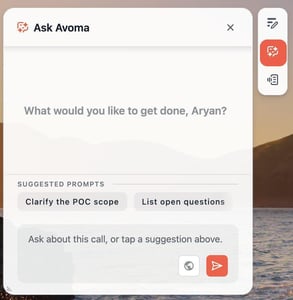
The Ask Avoma panel with suggested prompts above the input box
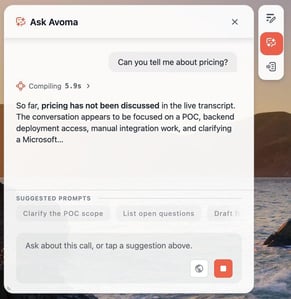
An answer from the live transcript, with the thinking steps above it
Work with an answer
- Copy: Click the copy icon to copy the answer. Click the arrow next to it to choose Copy with timestamps or Copy without timestamps.
- Rate: Click thumbs up or thumbs down.
- Get a file: Ask for a document, for example a follow-up note as a Word file. Avoma creates it, and the answer card shows a download button.
- Stop an answer: While Avoma is thinking, the send button turns into a red Stop button (Stop response). Click it to stop the answer.
- Resize the panel: Drag the panel’s corner to make it larger or smaller.
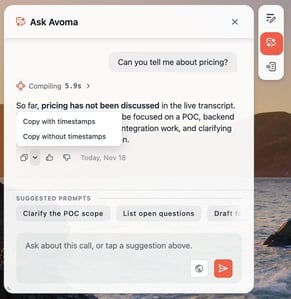
Copy with or without timestamps, then rate the answer
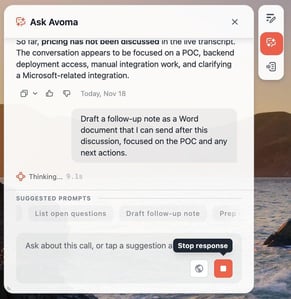
The Stop response button while an answer is being generated
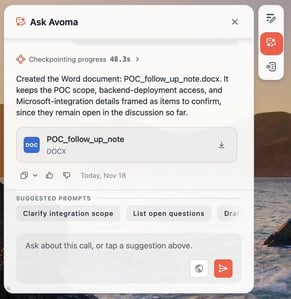
A generated Word file, ready to download from the answer card
If your organization is below the Organization plan
The panel shows “Unlock Ask Avoma for Live calls: Ask your admin to upgrade to the Organization plan to start using Ask Avoma in live meetings.” Click Contact Admin to ask your admin. You can still record, see the live transcript and take notes.
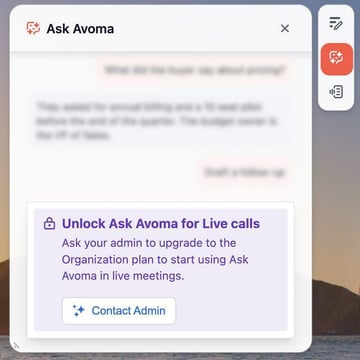
The upgrade prompt shown below the Organization plan
Get real-time suggestions with Answer Cards
When the conversation touches a topic your team has set up answer cards for, such as a competitor, a product question or an objection, a card appears with the suggested answer.
- The cards panel stays hidden until the first card arrives.
- Use Search to find a card, and step through cards with the arrow.
- Cards come from your team’s existing Answer Cards setup in Avoma. If no cards appear, ask your admin to check that setup. See How to set up Answer Cards.
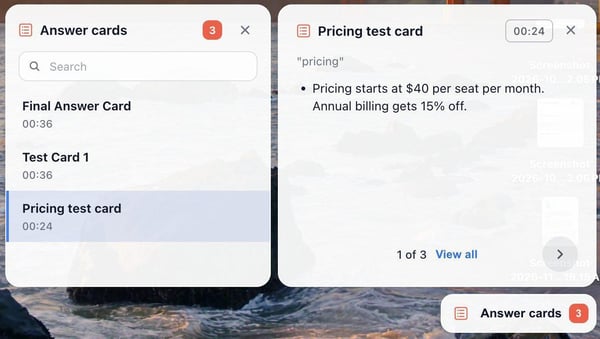
Answer cards during a call, with search and the suggested answer
Announce recording to participants
The speaker button in the consent reminder plays a short announcement, starting “This meeting is being recorded for note taking…”, so everyone on the call knows they’re being recorded. For your consent responsibilities, see Consent policy for local recording on the Avoma desktop app.
- Make sure you’re unmuted in the call. Participants hear the announcement through your microphone.
- Click the speaker button in the consent reminder.

The consent reminder with the speaker button
The app plays the announcement through your Mac’s built-in speakers at full volume, even if you wear headphones, then switches your sound back.
Note: If your Mac’s sound is muted, the button shows “Please unmute your system speakers”. Unmute your Mac and click the button again.
Show or hide Live Assist panels
Choose which panels appear on your screen during the call. These switches only change what you see. The recording keeps running.
- Click the … button on the recording widget. The Show or hide panels menu opens.
- Turn each switch on or off:
- Notes panel: notes, transcript and Ask Avoma.
- Answer cards: cards that appear at the bottom right when a configured question comes up.
- Consent announcement: the consent reminder under the recording widget.
- To hide everything at once, click Hide all.
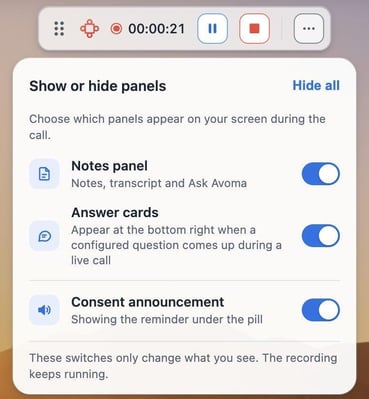
The Show or hide panels menu, opened from the … button
How Live Assist works during screen sharing
- The widget and panels are hidden from screen sharing and screenshots. Others on the call never see them, even when you share your whole screen.
- They follow your focus. They move to whichever display has the app you’re working in, and stay on top of full-screen apps.
Related articles
- How to install and set up the Avoma Desktop App
- How to record meetings using the Avoma Desktop App
- How to set up Answer Cards
- What is Global Ask Avoma?
If you have any questions, contact our team at help@avoma.com.