
In Avoma, you can categorize meetings using Purpose (what the meeting is for) and Outcome (what happened as a result). These tags make it easier to search across meetings, build more specific reports, and filter activity dashboards.
This article explains how Avoma Admins can create, edit, delete, and organize Purposes and Outcomes at the organization level—and how they show up in day-to-day workflows like templates and auto-tagging.
Before you begin
|
Create a Meeting Purpose
- Go to Settings → Organization Settings → Purposes and Outcomes.
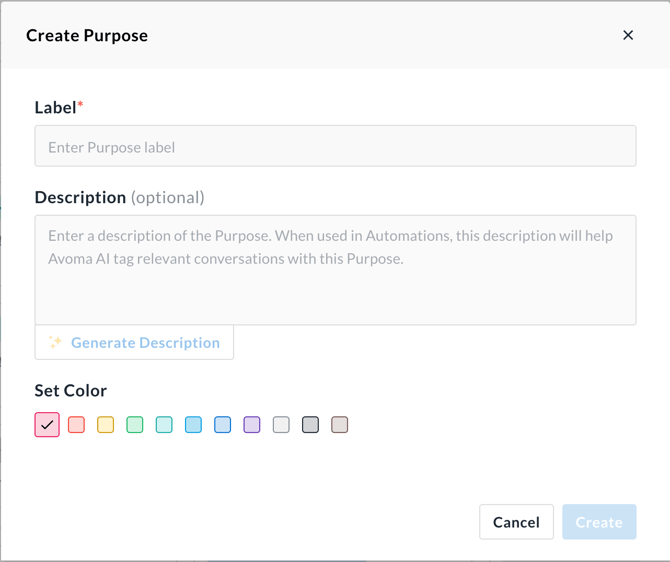
- Click Add New Purpose (top right).
- Enter a Label (for example, Demo or Discovery).
- (Optional but recommended) Enter a Description to clarify when to use this Purpose.
- Choose a Color.
- Click Create.
Your new Purpose is now available across Avoma and can be used in templates and automations.
Update or delete a Meeting Purpose
Update a Purpose
- Go to Settings → Organization Settings → Purposes and Outcomes.
- Find the Purpose you want to change.
- Use Search to look it up by label or description.
- Hover over the Purpose and click the pencil (Edit) icon.
- Update the label, description, and/or color.
- Click Update to save.
To delete a Purpose:
- Hover over the Purpose.
- Click the trash (Delete) icon.
- Confirm the deletion when prompted.
Note: Deleting a Purpose does not retroactively change past meetings, but it will no longer be available for future assignments or automations.
Update or delete a Meeting Outcome
To update an Outcome:
- Go to Settings → Organization Settings → Purposes and Outcomes.
- Find the Outcome you want to change.
- Use Search to look it up by name or description.
- Hover over the Outcome and click the pencil (Edit) icon.
- Update the name, description, or color as needed.
- Click Update to save your changes.
To delete an Outcome:
- Hover over the Outcome.
- Click the trash (Delete) icon.
- Confirm the deletion when prompted.
Outcomes can be applied manually or via automations after meetings occur.
Tips
- Use Purpose and Outcome tags consistently so you can reliably search meetings, build specific reports, and filter dashboards.
- Keep your lists tight: aim for 5–10 Purposes and 5–10 Outcomes so selection stays fast and reporting stays clean.
- Use consistent naming conventions so auto-selection and automations work reliably.
Using a Purpose with a template
Once a Purpose is associated with a meeting, a corresponding template can apply automatically based on the type or context of the meeting.
Note: If different teams run similar meeting types (like “Demo”), consider team-specific Purposes (for example, Sales – Demo vs CS – Demo) so the right template can apply automatically.
How Avoma auto-selects meeting purposes
Avoma will try to auto-select the meeting Purpose by reading the meeting title. Keep this in mind when customizing Purposes.
- Example: If a meeting title is “Avoma Demo Call”, Avoma may auto-select the Purpose “Demo.”
- Purposes can be manually applied or changed anytime using the Purpose drop-down on the meeting.
Color coding best practices for Purposes and Outcomes
Color coding helps teams quickly recognize meeting types and results at a glance in meeting lists, dashboards, and reports. While colors don’t affect functionality, consistent use improves adoption and reduces tagging errors.
Color code Meeting Purposes by team or function
A common approach is to assign colors based on the team primarily responsible for the meeting.
Examples:
- Sales meetings (Discovery, Demo, Pricing) → one color (for example, green)
- Customer Success meetings (Onboarding, Training, QBR) → another color (for example, blue or red)
- Internal meetings (1:1, All Hands, Planning) → a third color (for example, yellow)
Note: If multiple teams run similar meeting types (such as “Demo”), consider creating team-specific Purposes (for example, Sales – Demo and CS – Demo). This helps you:
- Apply different templates automatically
- Segment reporting by team more accurately
Color code Meeting Outcomes by sentiment
Outcomes work best when colors reflect the result or sentiment of the meeting.
Examples:
- Positive outcomes (Qualified, Verbal Commit, Next Steps Set) → green
- Neutral outcomes (Follow-up Required, Rescheduled) → yellow or gray
- Negative outcomes (No-show, Not Interested, Wrong Contact) → red
This can save time by making it easier, at a glance, to see the types of meetings happening and the results of those meetings.
When to avoid over-coloring
- Don’t assign a unique color to every Purpose or Outcome.
- Stick to a small, meaningful set of colors so patterns are easy to recognize.
- Use color to reinforce meaning—not to replace clear labels.
Troubleshooting and FAQs
Why do I still see a deleted Purpose/Outcome on older meetings?
That’s expected.
- Deleting removes it from future selection.
- Past meetings keep the value they had at the time for reporting consistency.
- If you need different values historically, update the meetings individually (or use your team’s bulk process, if available).
Why can’t I access Purposes and Outcomes in Settings?
This is usually a permissions or org-selection issue.
- Confirm you’re an Avoma Admin.
- Make sure you’re in the correct organization/workspace (if your company has more than one).
- If it’s still missing, ask another admin to confirm your role and access.
What’s next
- How to apply Purposes and Outcomes to meetings manually
- How to automatically set Purposes and Outcomes with Automations
Also consider:
- Audit your current meeting taxonomy and consolidate duplicates.
- Align Purpose/Outcome definitions with your reporting dashboards and templates for consistent adoption.
Recap
As an Admin, you define Meeting Purposes and Outcomes once at the organization level, and Avoma uses them consistently across meetings, reporting, templates, and automations. Color coding helps teams apply and interpret categories faster—especially at scale.