
API keys authenticate your integrations and control which tools can access your organization's Avoma data.
Avoma supports multiple named API keys, so you can issue separate keys per tool, team, or use case — and revoke one without disrupting the others.
This article is for admins who need to create, manage, or rotate API keys for their organization.
Before you begin
|
Step-by-step
Create a key
- Log in to your Avoma account.
- Navigate to Settings → Organization → Developer.
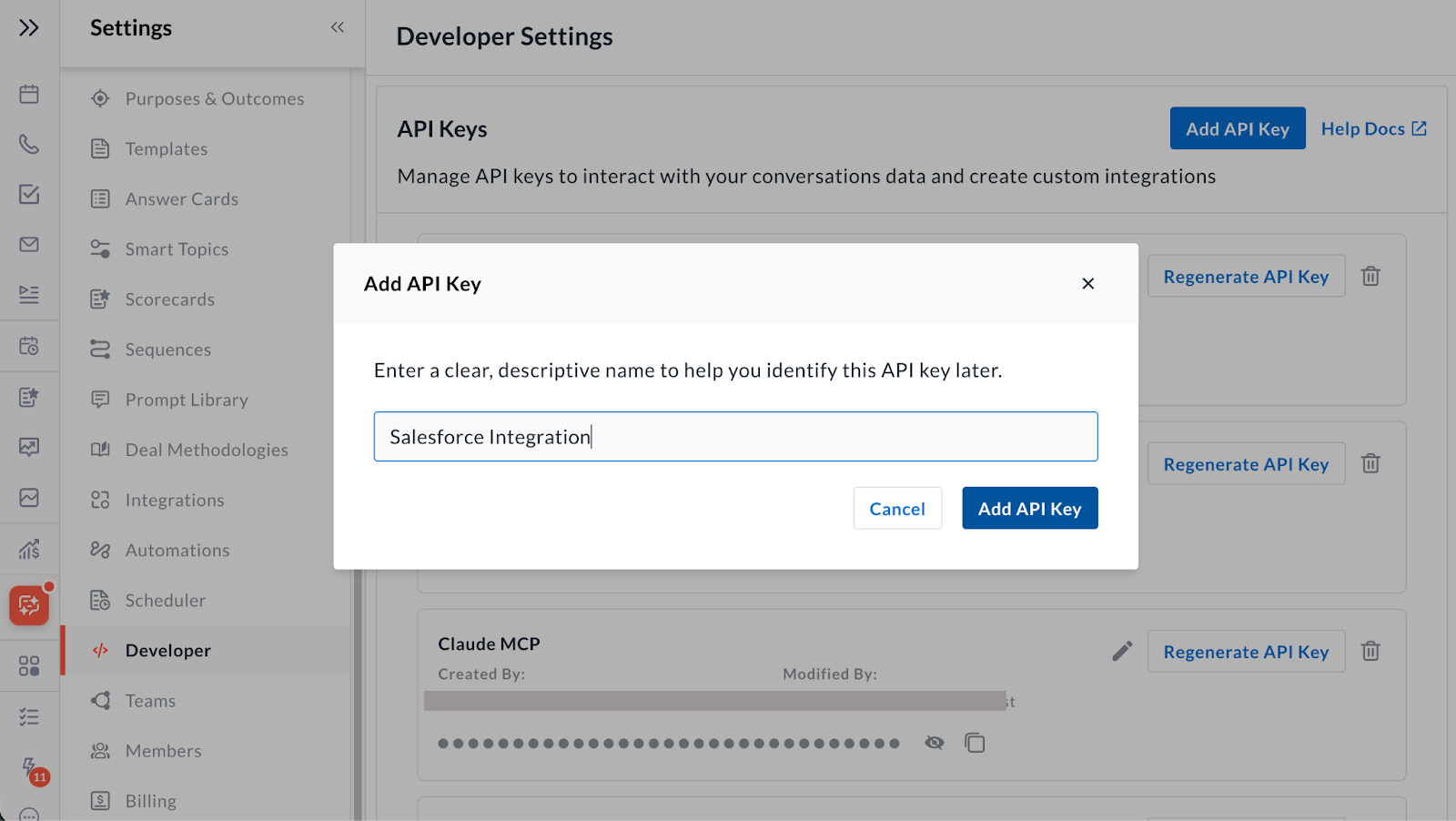
- Click Add API Key.
- Enter a name that identifies the key's purpose or owner — for example, Salesforce Integration, Data Team, or Zapier.
- Copy both the API Key and API Secret and store them in a secure location. When using these credentials in the API, they are used in the format API_KEY:API_SECRET.
Use a key
- Pass your credentials in the HTTP Authorization header when making API requests. Refer to the Avoma API documentation for the exact format and authentication details.
- If you are connecting Zapier to Avoma, use the API (Client) Key and API (Client) Secret when prompted during the Zapier setup flow.
Manage existing keys
- To copy an existing key, go to Settings → Organization → Developer and copy it directly from the key list.
- To rename a key, find it in the list, click the pencil icon, and update the label. Renaming does not affect the key's credentials or any active integrations using it.
- To delete a key, find it in the list and click on the Delete icon. This is permanent and immediately revokes access for any integration using that key.
- To regenerate a key, find it in the list and click on the Regenerate API key button.
Tips
- Issue one key per integration or team rather than sharing a single key across tools. This makes it easier to rotate or revoke access without a broad impact.
- Label keys clearly from the start. Vague names like Key 1 become hard to manage as integrations grow.
- If you expect a sudden spike in API usage — such as a large batch of meetings in a short period — notify the Avoma engineering team in advance so they can accommodate the load.
Troubleshooting and FAQs
What should I do if an API key is compromised?
Regenerate it immediately — this issues a new credential without affecting other keys or losing the key name.
- Go to Settings → Organization → Developer
- Find the compromised key and click Regenerate
- Copy the new credential string and update it in any integrations that were using the old key
Alternatively, you can delete the key and create a new one — but regenerating keeps the same name and is faster.
Will my existing integrations break when I add or delete other keys?
No. Each key is independent. Adding, renaming, or deleting one key has no effect on other keys or the integrations using them.
Can I retrieve my Client Secret after closing the creation screen?
You can copy your existing Client Key anytime from Settings → Organization → Developer by selecting it from the key list.
What's next
- Getting started with Avoma's API — Overview of what the API can do and how to make your first request.
- Avoma API reference — Full technical documentation including endpoints, authentication details, and rate limits.
- Once your keys are in place, connect your first integration and verify that it can pull meeting data successfully.
- We're working on scoped API keys — keys that limit access to specific data sets, such as a single user's data or shared org-level data only. We'll share more when this is ready.
Recap
Your API keys are created, named, and stored securely. Each integration now has its own credential, so you can manage access cleanly as your stack grows.