
Once your organization's admin has published the Avoma MCP connector, each team member needs to connect their own Avoma account.
This is a one-time step and works the same way across Claude web, mobile, and desktop.
|
Before you begin
|
Connect to Avoma MCP
- Go to Customize in Claude
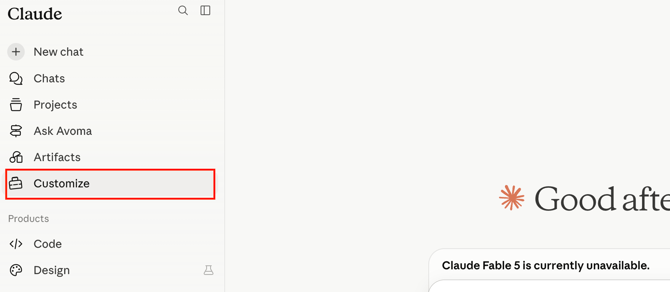
Claude → customize (in the left navigation) - Go to connectors.
- Search for Avoma MCP in the search box if you don't see it listed.
- Click Avoma MCP, then click the Connect button below it.
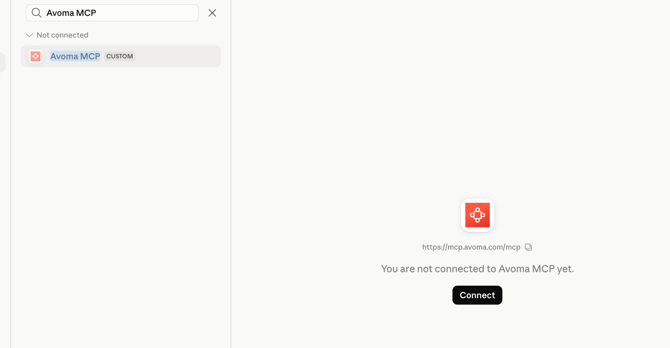
- Review the permission scopes shown on the OAuth consent page. Select the appropriate scope for your use case.
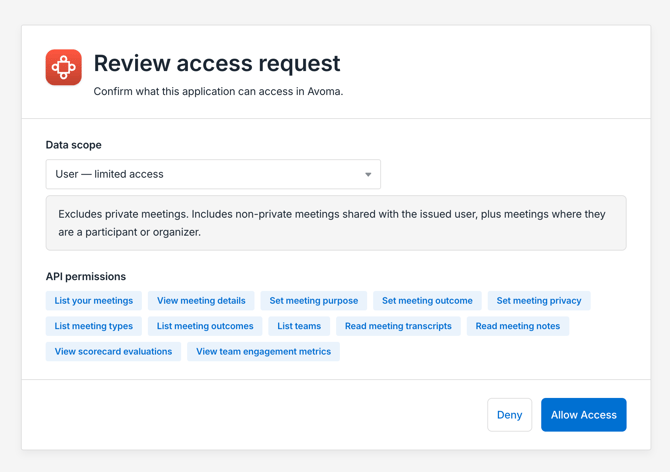
OAuth consent page — three permission scopes listed for Avoma MCP - Click Allow Access. You’ll see a confirmation message: Connected to Avoma MCP.
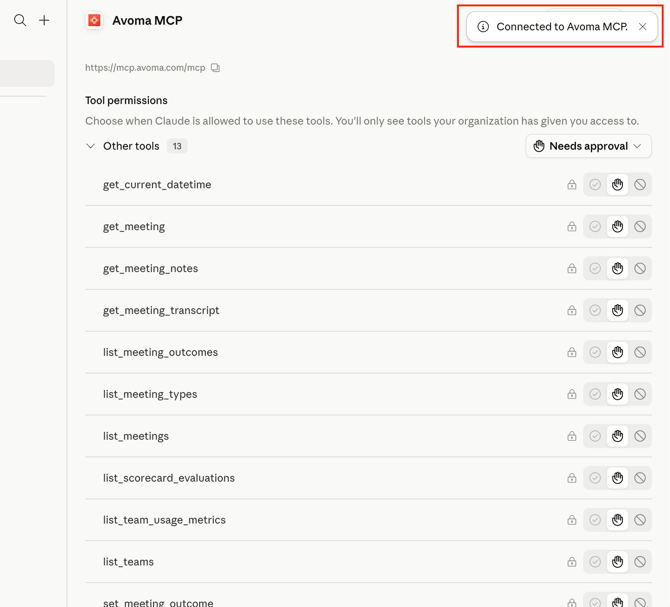
Connector — Avoma MCP showing “Connected” status
NOTE: The permission scopes control what Avoma data Claude can access on your behalf. You can adjust these later in Settings → Connector.
Use Avoma MCP in Claude chat
Once connected, you can request meeting data directly in Claude chat. Here are some examples to get started:
- List my meetings
- Show my upcoming three meetings
- Get details about my last meeting
NOTE: You may need to explicitly mention Avoma MCP in your first few requests — for example, “List my meetings using Avoma MCP.” After a few uses, if memory is enabled in your workspace, Claude may not require the mention.
Managing tool permissions
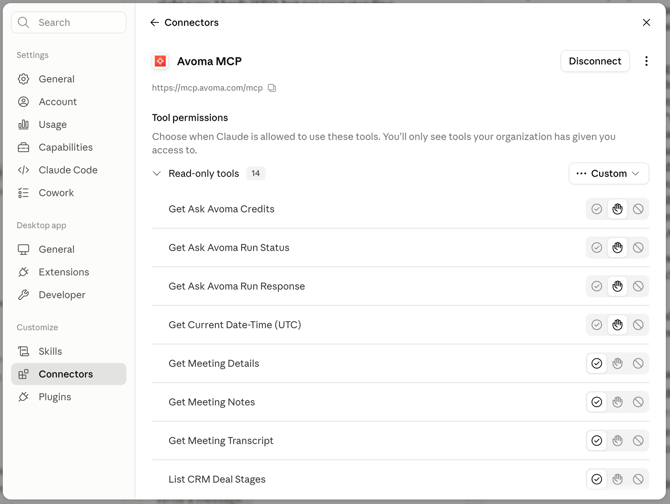
After connecting, you can control how Claude handles each Avoma MCP action. Go to Customize → Connector and select Avoma MCP to review and adjust permissions.
For each tool call, you can choose one of three options:
|
Permission |
What it means |
|
Blocked |
Avoma MCP cannot perform this action. |
|
Ask permission |
Claude will ask you before performing this action. |
|
Always allow |
Avoma MCP performs this action without asking. |
Tip: For sensitive actions like retrieving meeting notes, consider setting permission to “Ask permission” so you have oversight over which meetings are accessed.
Tips
- If Claude doesn’t seem to use Avoma MCP automatically, mention it explicitly in your request until memory learns the preference.
- You can disconnect and reconnect Avoma MCP at any time from Customize → Connector without losing your permission settings.
- If you switch Avoma accounts, disconnect and reconnect to refresh your credentials.
Troubleshooting and FAQs
I don't see Avoma MCP in my Connector list.
Your org admin needs to add Avoma MCP first. Ask them to follow the admin setup guide. Once they've added it, refresh your Settings page.
I'm seeing an error: "Authorization with the MCP server failed. You can check your credentials and permissions. If this persists, share this reference with support: <uuid>"
This error indicates your Avoma account does not have the access required to use the MCP connector. Avoma MCP requires an Organization or Enterprise plan, or the API Access add-on. Contact your Avoma admin to confirm your plan eligibility, or reach out to help@avoma.com with the reference ID shown in the error.
Avoma MCP is not responding or requests are timing out.
Check the following in order:
- LLM provider status — The issue may be on the AI provider's end, not Avoma's. Check https://status.claude.ai (Claude) or https://status.openai.com (ChatGPT) to see if there is an active incident.
- Rate limiting — If you have been chatting for a while, you may have hit Avoma's rate limits. Wait 1–2 minutes and retry the same prompt. If it works on retry, rate limiting was the cause.
- Query too broad — Queries spanning a very large number of meetings can exceed timeout limits. Narrow your query with a specific timeframe, meeting type, or company name.
Avoma MCP returns no results for a meeting I know exists.
This is likely a scope or access issue. The OAuth scope selected during setup controls which meetings the connector can access. Common causes:
- You are trying to access a private meeting but are on a user-limited or org-limited scope, which excludes private meetings.
- You are trying to access a meeting not shared with you, which falls outside your permitted scope.
- You referenced a direct Avoma meeting link for a meeting outside your access.
To fix: go to your connector settings and review or update the OAuth scope. If the meeting belongs to another user and is set to private, an Avoma admin may need to adjust visibility on the meeting itself.
Avoma MCP stopped working after it was previously connected.
Two common causes:
- Automatic disconnection — The connector disconnects automatically after 30 days of inactivity. Reconnect from your connector settings by clicking Connect and completing OAuth again.
- Admin republished the connector — If your org admin made changes and republished the connector, all members need to reauthenticate. Follow the same reconnection steps.
The OAuth page isn't loading or shows an error.
Make sure you're signed in to your Avoma account in the same browser session. If the issue persists, try opening the OAuth page in a fresh browser tab or contact help@avoma.com.
Claude isn't using Avoma MCP even after I connected.
Try mentioning Avoma MCP explicitly in your request, for example: “Using Avoma MCP, list my meetings from last week.” After a few explicit uses with memory enabled, Claude should recognize the preference.
Why are my scheduled prompts in Claude using the Avoma MCP not running successfully?
When using scheduled prompts in Claude with the Avoma MCP, any MCP tool that the scheduled prompt needs to use must have Always allow enabled.
If Always allow is not toggled on for a required tool, the scheduled prompt may pause and wait for manual permission ("Allow") before it can continue. Since scheduled prompts run automatically, there is no user available to grant permission, which can cause the prompt to fail or remain stuck.
How to fix it:
- Enable Always allow for every Avoma MCP tool that your scheduled prompt will use.
- Verify that all required tools have this setting enabled before scheduling the prompt.
This ensures your scheduled prompts can execute without requiring manual intervention.
How do I disconnect Avoma MCP?
Go to Customize → Connector, find Avoma MCP, and click Disconnect. You can reconnect at any time by clicking Connect again.
What's next
- Try asking Claude to list your recent meetings or show details about a specific call.
- Adjust your tool permissions in Customize → Connector to match your privacy preferences.
- Contact help@avoma.com if you run into issues with your Avoma account or connection.
Recap
You’ve connected your Avoma account to Claude and know how to request meeting data in chat and manage which actions require your permission.
Related articles
- How admins can add the Avoma MCP Connector in Claude
- How admins can add the Avoma MCP connector in ChatGPT
- How members can configure and use the Avoma MCP Connector in ChatGPT
If you have any questions, contact our team at help@avoma.com