
Bi-directional Salesforce sync ensures your CRM stays accurate without manual updates by keeping Avoma meeting data, notes, Smart Topics, contacts, and forecast data in sync.
This article is for Salesforce admins and RevOps leaders responsible for CRM data quality and Avoma configuration.
Use it when you’re enabling Salesforce for the first time or refining how Avoma writes data back to Salesforce.
Before you begin
|
Step 1: Access Salesforce configuration in Avoma
- In Avoma, go to Settings → CRM → Configure → Salesforce
- You will see the five configuration tabs:
- Notes
- Objects
- Contacts
- Forecast
- Advanced Settings
Each tab controls a different part of how data syncs between Avoma and Salesforce.
Step 2: Configure notes sync settings for Salesforce
Avoma lets you control how meeting notes, call notes, and Smart Topic data are written into Salesforce.
Required: Enable Enhanced Notes in Salesforce
To sync notes to any Salesforce records or objects, Enhanced Notes must be enabled in your Salesforce account.
- Enhanced Notes allows notes to be attached to multiple CRM records (Leads, Contacts, Accounts, Opportunities)
- Without Enhanced Notes, Salesforce Notes sync will not work correctly
Salesforce admins can enable this from Salesforce Setup.
Click here to learn how to enable Enhanced Notes in Salesforce.
Where notes sync settings can be configured
Notes sync settings exist at three levels:
- Organization level: Admins can configure this for all users in your org
- Individual level (You tab): Applies only to the signed-in user
- Members level: Admins can configure settings for specific users
Important
- Individual-level and Members-level settings can be changed only if Organization-level settings are not locked
- If org-level settings are locked, they override all individual configurations
Automatically create Salesforce Events for Avoma meetings
When enabled, Avoma automatically creates a Salesforce Event when:
- A meeting is created via calendar sync, or
- An impromptu external meeting is logged in Avoma
This ensures meetings are logged as Salesforce Activities and provides the anchor for syncing notes and Smart Topic data.
Choose where meeting notes sync
You can send meeting notes to one or more Salesforce destinations.
Sync meeting notes from Avoma to:
- Salesforce Note
- Saved in the Salesforce Note object
- Attached to related records (Lead, Contact, Account, Opportunity)
- Best for long-form notes and historical reference
- Salesforce Event
- Written to the Event Description field
- Visible directly in the Activity Timeline
- Best when reps rely on timelines for context
- Salesforce Task
- Added as comments on a Task
- Visible in the Activity Timeline
- Best for follow-ups or post-meeting actions
Choose where call notes sync
Call notes can be routed independently from meeting notes.
Sync call notes from Avoma to:
- Salesforce Note
- Salesforce Event
- Salesforce Task
Note: Meeting notes and call notes can be routed to different Salesforce objects.
Step 3: Configure Salesforce object sync
Use the Objects tab to control how Avoma syncs data with Salesforce objects such as:
- Opportunity
- Lead
- Contact
- Account
- Event
- Task
Click an object to open its configuration page.
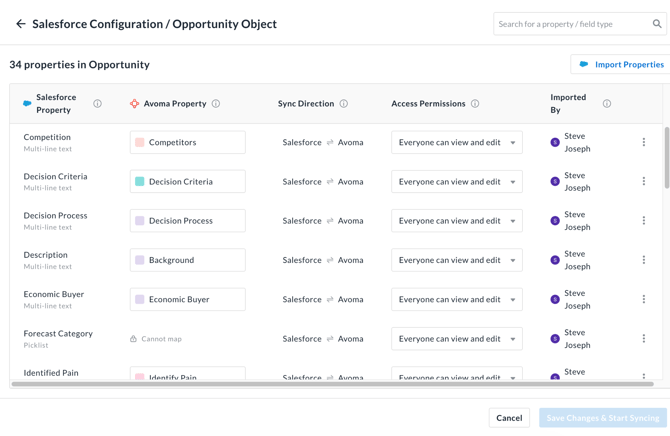
Understand the object configuration table
For each object, you’ll see a table with:
- Salesforce Property: The field name in Salesforce
- Avoma Property: The mapped Smart Topic (if any)
- Sync Direction
- Inbound (Salesforce → Avoma)
- Outbound (Avoma → Salesforce)
- Bidirectional (Avoma ↔ Salesforce)
- Access Permissions: Who can edit the field
- Imported by: The Avoma admin who imported the field
Understand sync direction rules
- When you map a Smart Topic to a Salesforce field, sync direction becomes Outbound (Avoma → Salesforce)
- If a Salesforce field is read-only, sync direction is Inbound (Salesforce → Avoma)
- If a field is editable and not mapped, sync direction is typically Bidirectional
Map Smart Topics to Salesforce fields
- In the Avoma Property column, open the dropdown
- Select a Smart Topic to map, for example:
- Next Steps field → Action Items Smart Topic
- Custom Pain Points field → Pain Points Smart Topic
- Competitor field → Competitors Smart Topic
- Repeat for each field you want Avoma to update
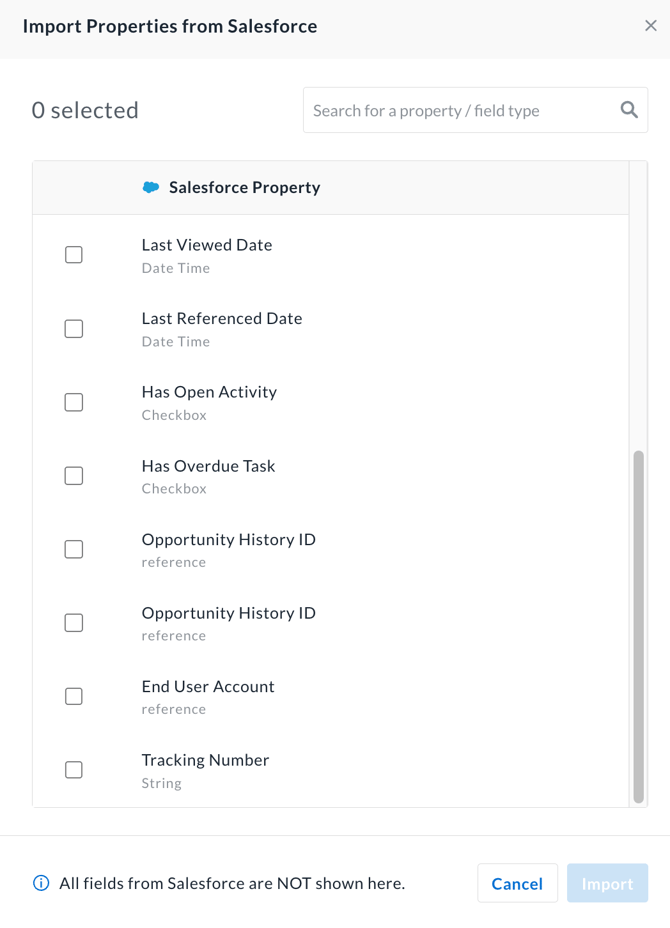
Import additional Salesforce Properties
If a Salesforce property is missing:
- Click Import Properties
- Select the fields you want to sync
- Click Import
Imported fields appear immediately and can be used in Revenue Insights once mapped.
Save and start syncing
- Review property mappings and sync directions
- Click Save Changes & Start Syncing
Step 4: Configure contact sync settings
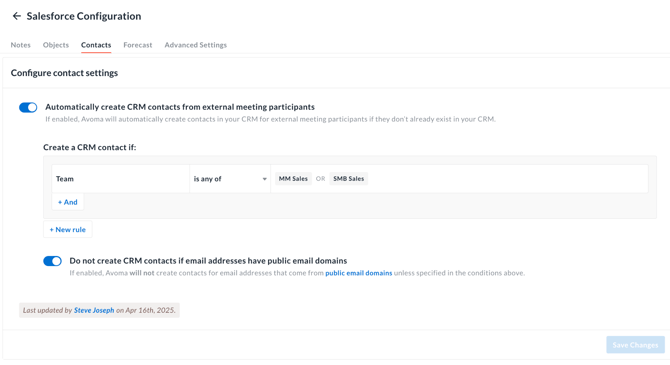
Avoma can automatically create Salesforce Contacts from meetings.
Automatically create Salesforce contacts
When enabled, Avoma creates Salesforce Contacts for external meeting participants who don’t already exist.
You can define rules such as:
- Create contacts only if the team is Sales or Customer Success
- Exclude public email domains
If enabled, Avoma will not create contacts for addresses using public domains (for example, Gmail or Yahoo), unless explicitly allowed.
Step 5: Configure forecast settings
The Forecast tab controls how Salesforce deal data is displayed in Avoma’s forecasting views.
In this section, you can:
- Select the forecast period (for example, Monthly)
- Choose how amounts are calculated (Total or Weighted)
- Control which deals appear in forecasts based on stage or forecast category
- Manage forecast visibility by team and role
These settings determine how Salesforce pipeline data is visualized and rolled up in Avoma.
For detailed setup instructions and best practices, see: Forecast Settings in Avoma.
Step 6: Configure advanced settings
The Advanced Settings tab lets you fine-tune how deal data, meeting metadata, Smart Topics, and emails from Salesforce appear in Avoma.
Customize deal information
- Deal amount field
Select which Salesforce field Avoma should use as the deal amount across pipelines, forecasts, win/loss, and reports. - Deal close date field
Select which Salesforce field Avoma should use as the deal close date across pipelines, forecasts, win/loss, and reports.
Map CRM Event fields for Avoma meetings
- Meeting purposes (Event fields)
Map Avoma meeting purposes (for example, Sales, CSM, Partner, SA) to Salesforce Event fields. - Meeting outcomes (Event fields)
Map Avoma meeting outcomes to Salesforce Event fields.
Map CRM Task fields for Avoma meetings
- Meeting purposes (Task fields)
Map Avoma meeting purposes to Salesforce Task fields. - Meeting outcomes (Task fields)
Map Avoma meeting outcomes to Salesforce Task fields.
Currency label
- Select the currency symbol shown in Avoma for CRM amounts and reports.
Note: Updating the currency label only changes the display symbol in Avoma. It does not convert currencies or modify Salesforce data.
Smart Topic extraction
- Summarize Smart Topics in the deals dashboard
When enabled, Smart Topic notes from multiple meetings and emails are consolidated into a single deal-level summary.
Date-sensitive Smart Topics (such as Action Items and Follow-ups) are never summarized.
Email sync settings
- Sync emails from Task objects
- Sync emails from Email Message objects
Enable the options that match how emails are logged in your Salesforce org.
Tips
- Lock org-level notes settings before rollout to prevent inconsistent CRM data
- Enable Salesforce Events auto-creation so notes and Smart Topics always have an activity anchor
- Use Salesforce Notes for long-form context and Events/Tasks for timeline visibility
- Prioritize mapping Smart Topics for Next Steps, Pain Points, Competitors, and Objections to unlock reporting
- Test sync behavior with a small pilot group before enabling for the full org
Troubleshooting and FAQs
Why aren’t my notes syncing to Salesforce?
This is usually caused by a missing prerequisite or an override.
- Confirm Enhanced Notes is enabled in Salesforce
- Check whether org-level notes settings are locked
- Verify at least one destination (Note, Event, or Task) is enabled
- Ensure the meeting is associated with a Salesforce record
If the issue persists, re-save settings and retry the sync.
Why is a Salesforce field read-only in Avoma?
This typically reflects Salesforce permissions or field configuration.
- Check field-level security in Salesforce
- Confirm the field is editable for the user profile
- Re-import the property if permissions were updated recently
Why isn’t Smart Topic data writing back to Salesforce fields?
This usually means the field isn’t mapped.
- Confirm the Salesforce field is mapped to a Smart Topic
- Verify the sync direction is Outbound (Avoma → Salesforce)
- Check that the field is not read-only
Why are duplicate Contacts being created?
This is usually related to contact creation rules.
- Review contact creation criteria (team, domain rules)
- Confirm public email domains are excluded if needed
- Check for existing Leads vs Contacts in Salesforce
What’s next
- Read about how to connect Avoma with Salesforce
- Learn what are Smart Topics and how to configure Smart Topics for extracting the right inforation from conversations
- Review Forecast Settings in Avoma for detailed forecasting configuration
To drive adoption:
- Share notes sync best practices with your sales team
- Audit Salesforce fields quarterly to ensure mappings stay aligned
Recap
You’ve set up bi-directional sync between Avoma and Salesforce so meetings, notes, Smart Topics, contacts, and forecast data stay aligned automatically. With notes destinations, object mappings, and advanced settings configured, your team can rely on Salesforce as a single source of truth—without manual updates.