
This article is for admins. A Zoom Workspace connection links your company's Zoom account to Avoma once, so members don't have to connect Zoom themselves. Avoma can then process Zoom Cloud recordings for the members it covers, and Avoma Assistant can join Zoom meetings on their behalf.
Who it covers: members whose Zoom user is in that one Zoom account with the same email they use in Avoma, and who have signed in to Avoma at least once. Covered members see CONNECTED VIA ADMIN on their Zoom card. People added to the Zoom account later are picked up automatically, usually within a day, and people removed from it are dropped. Avoma Assistant still needs one of them in each meeting, signed in to their Zoom account (see Zoom recording: rules and limits).
|
Before you begin
|
Note: For the full admin setup, including the Zoom settings that let Avoma record, see Connect Zoom to record your Zoom meetings. This article covers the Members tab, permissions and disconnecting.
Note: Members who already connected their own Zoom user in your company's Zoom account switch to the company connection automatically when you connect. They don't need to do anything, and their recording isn't interrupted. Members whose own connection is on a different Zoom account usually keep it.
Permissions Required
- Account permissions - View and manage account info , View and manage sub accounts
- User permissions - View and manage all user meetings
- Meeting permissions - View and manage all user recordings
- Recording permissions - View users information and manage users
Steps to Connect
-
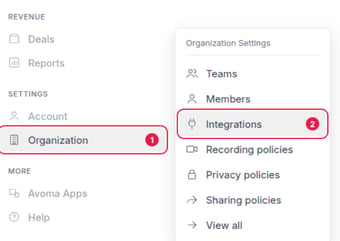
In your Avoma dashboard, go to Organization → Integrations in the left sidebar (collapsed sidebar: the building icon).
-
Or, simply click here: Go to Avoma Integrations
- Choose Zoom Workspace click on Configure.

4. On the Workspace connection tab, click on Connect Zoom Workspace.

5. Zoom opens. Sign in with a Zoom account that is an Admin or Owner of your company's Zoom account, and click Allow, approving every permission Zoom asks for. If you skip one, Avoma Assistant can't join on members' behalf. When it's done, Avoma shows Zoom Workspace is connected to Avoma.
Tip: Use an admin who will stay with the company. The connection runs through their Zoom account, so it stops working if they leave (see If the admin who connected Zoom leaves).


6. After logging in, the admin will see the current status of the Zoom account’s recording settings. To proceed with connecting Avoma across your Zoom workspace, both Cloud Recording and Automatic Recording must be enabled or unlocked.

If these settings are locked and disabled, they will need to be updated in Zoom Account settings page for seamless integration.

For the best experience with Avoma, we also recommend enabling settings like Active Speaker view, Active Speaker view during Screen Share, and Allow Live Streaming. While these features enhance recording quality and real-time capabilities, you can still use cloud recording with the Zoom workspace-wide connection if they remain locked or disabled.

It is important to review these settings carefully before selecting the Save and Apply option.
7. Once you have reviewed and updated the settings, head over to the Members page to check the status of individual settings for all users within your Zoom account.
This page offers a concise overview of how many users require setting updates and details about their current assigned licenses. You can easily update the settings for all users simultaneously by clicking the Update User's Zoom Settings button.

Note: If your organization has Zoom app pre-approval enabled, your Zoom administrator must preapprove “Avoma App for Admins” in the Zoom App Marketplace before connecting.
Search for "Avoma App for Admins" and select Approve. For step-by-step instructions, refer to the Zoom official support article on app approvals
Manage Existing Connection
Transition to the Avoma Assistant (Bot) flow for all users.
Utilize the Zoom Workspace to switch between managing Zoom cloud recordings and accessing the Avoma Assistant. Please be aware that the Avoma Assistant (Bot) will automatically join meetings for users who do not have the appropriate settings or license configured, but only when someone from your organization with Zoom connected is in the meeting, signed in to that Zoom account. See Zoom recording: rules and limits for what happens in each situation.

Manage Existing Members
You can also examine the Zoom settings and licenses for each user by navigating to the Members tab. Any modifications made to these settings in zoom will be reflected in this view. Admins have the option to update settings for all users simultaneously by using the Update User's Zoom Settings button, or they can manage individual user settings directly within the Zoom interface.

Disconnect Zoom workspace connection
To disconnect the Zoom workspace connection, click the Disconnect button on the Workspace connection tab.

NOTE: After you disconnect, Zoom Cloud recording stops for the members the connection covered, and Avoma Assistant can no longer join on their behalf. Each member must connect Zoom under Account → Recording in the left sidebar (collapsed sidebar: the person icon) to keep recording. Avoma doesn't email members about this, so tell them. Every Avoma admin gets an email titled "Urgent: Reconnect Your Zoom Admin Account to Avoma".
If the admin who connected Zoom leaves
The connection runs through the Zoom admin who set it up. If that person leaves your company or is deactivated in Zoom, Avoma Assistant can no longer join for anyone the connection covers, and their Zoom Cloud recordings stop. Meetings show "Zoom did not allow the notetaker" at first. Once Avoma detects it, Avoma disconnects the Zoom Workspace connection, every Avoma admin gets an email titled "Urgent: Reconnect Your Zoom Admin Account to Avoma", and meetings then show "No Zoom user connected to record". An active Zoom admin must reconnect from Organization → Integrations in the left sidebar, then Zoom Workspace → Configure and approve every permission.
If Avoma asks you to reconnect
If you see Re-connect Zoom Workspace, reconnect and approve every permission so Avoma has Zoom's latest permissions.
Troubleshooting and FAQs
Why can’t I connect? My organization requires Zoom app pre-approval.
If your organization has Zoom app pre-approval enabled, your Zoom administrator must approve the app before anyone can connect. To resolve this:
- In the Zoom App Marketplace, search for Avoma App for Admins.
- Select Approve.
- For step-by-step instructions, refer to the Zoom official support article on app approvals.
Will connecting at the admin level disconnect individual users?
No. Members whose own Zoom connection is in your company's Zoom account switch to the company connection automatically, with no interruption. Members whose own connection is on a different Zoom account usually keep it, but members on a different Zoom account can't connect their own Zoom while the Zoom Workspace is connected. To record them, disconnect the Zoom Workspace and have everyone connect their own Zoom account. Recording stops for every member the connection covered until they connect, and members aren't emailed, so tell them first.
What happens if Cloud Recording or Automatic Recording is locked and disabled?
The integration requires both Cloud Recording and Automatic Recording to be enabled or unlocked at the Zoom account level. If either is locked and disabled, update the setting in your Zoom Account Settings before proceeding with the connection in Avoma.
Can I still use the Avoma Assistant after connecting at the admin level?
Yes. You can switch between Zoom Cloud Recording and the Avoma Assistant at any time from the Zoom Workspace connection settings. If a user lacks the required settings or license for cloud recording, the Avoma Assistant will join their meetings automatically, as long as someone from your organization with Zoom connected is in the meeting, signed in to that Zoom account.
Why isn't a member covered by the company connection?
The connection covers a member only if their Zoom user is in your company's Zoom account with the same email they use in Avoma, and they have signed in to Avoma at least once. Add them to the Zoom account with their Avoma email, or ask them to sign in to Avoma. While the company connection is on, members can't connect their own Zoom account from Avoma; if someone uses a separate Zoom account, contact help@avoma.com.
We have more than one Zoom account. Can we connect them all?
No. A Zoom Workspace connection covers one Zoom account, and a Zoom account can't be connected to two Avoma organizations.
What happens when nobody on the invite can let Avoma Assistant in?
If nobody from your organization on the meeting invite has Zoom connected with the permission Avoma Assistant needs, the meeting isn't recorded and shows "No Zoom user connected to record". When the cause is the company connection, the member the meeting would be recorded for gets an email asking them to have an Avoma admin reconnect Zoom for the workspace.
Recap
You’ve connected Zoom Workspace to Avoma via admin OAuth, configured the required recording settings, and know how to manage members and switch recording methods from the Avoma dashboard.