
Before you begin
| Who does what | An Avoma admin connects the company's Zoom Workspace once, and that covers every member. If your admin hasn't, connect your own Zoom account. |
| Avoma plan | All paid Avoma plans and active trials. |
| For the Zoom Workspace (admins) | Admin role in Avoma, Admin or Owner role in your company's Zoom account, and a paid Zoom account (Pro or higher). |
| Zoom app | Zoom desktop app version 6.5.5 or newer. |
| Scope | Zoom meetings only. Google Meet and Microsoft Teams meetings aren't affected. |
Key sections
- What's changing and why
- Do you need to do anything?
- For admins: connect Zoom for your whole company
- For everyone: connect your own Zoom account
- How Avoma records your Zoom meetings
- What attendees see
- Troubleshooting
- FAQ
What's changing and why
Zoom now requires every recording or note-taking app to be approved by a real Zoom user. That way, hosts and attendees always know which app is in a meeting and who brought it.
To follow this rule, Avoma needs permission from Zoom. You give that permission by connecting your Zoom account, or your admin gives it by connecting Zoom for the whole company.
Starting October 12, 2026, Avoma can't record your Zoom meetings unless Zoom is connected. Without it, Avoma creates no notes, transcript or recording.
Note: Connecting your calendar isn't enough. Your calendar tells Avoma when you have a meeting. Connecting Zoom gives Avoma permission to access the meeting.
Do you need to do anything?
Look for a banner at the top of Home, Meetings or Settings → Your account → Recording & Conferencing in Avoma.
| If you see… | It means | What to do |
|---|---|---|
| Avoma now requires a connected Zoom account to record Zoom meetings… | Zoom isn't connected yet | Click Connect Zoom |
| We're updating our recording assistant for Zoom — Reconnect your Zoom account… | You connected before, but Zoom needs you to approve new permissions | Click Re-connect Zoom |
| No banner | You're all set, or your admin has set up Zoom for you | Nothing |

Zoom isn't connected yet. Admins see this version, which also suggests connecting the Zoom workspace.

Zoom needs you to approve new permissions.
For admins: connect Zoom for your whole company
You only need to do this once. It covers every member of your Avoma workspace, so they don't need to connect Zoom themselves.
Connect your Zoom Workspace in Avoma
1. Go to Settings → Organization → Integrations.2. On the Zoom Workspace card, click Configure.
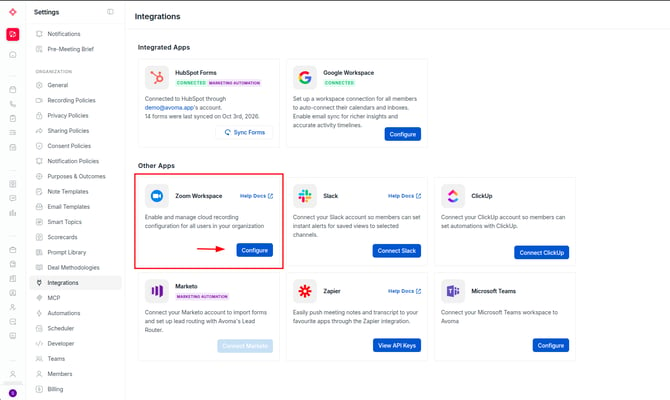
In Settings → Organization → Integrations, click Configure on the Zoom Workspace card.
3. On the Workspace Connection tab, click Connect Zoom Workspace.
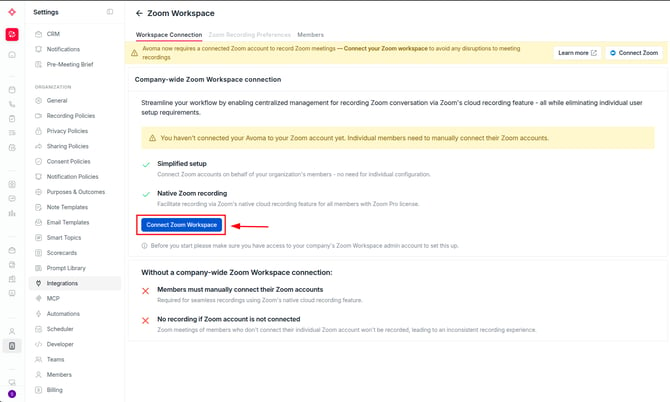
On the Workspace Connection tab, click Connect Zoom Workspace.
Note: Avoma asks for this when some members already connected their own Zoom accounts. They move to the company connection automatically and don't need to do anything.
5. Sign in to Zoom when asked.
6. On Zoom's permission screen, select All users, then click Allow.
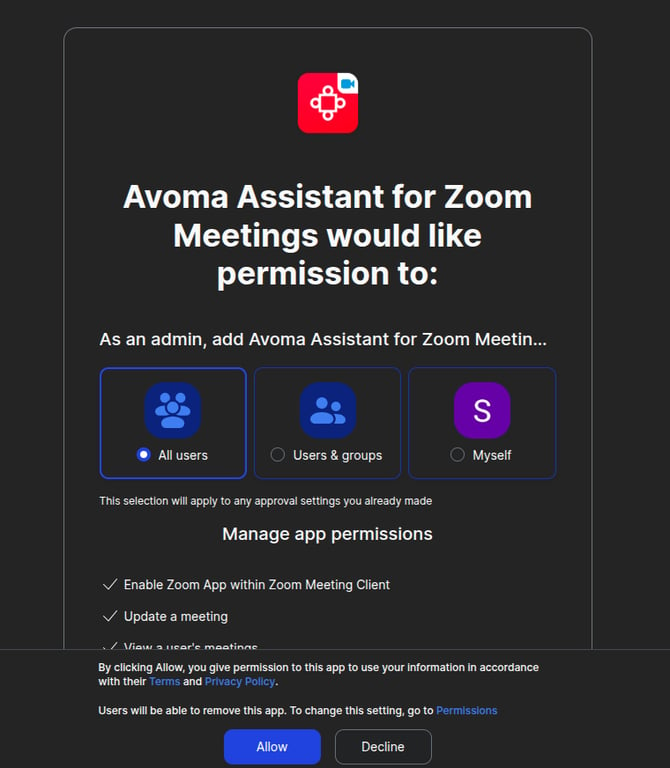
Choose All users so the app is added for everyone in your Zoom account.
Note: If you see Re-connect Zoom on the Integrations or Zoom Workspace page, your workspace is already connected. Click Re-connect Zoom, sign in to Zoom, and click Allow.
Choose how Avoma records
1. Open the Zoom Recording Preferences tab.2. Select one:
- Avoma Assistant — Avoma records the meeting itself, and your notes are ready soon after it ends.
- Zoom Cloud — Zoom records the meeting, and Avoma processes the recording once Zoom makes it available. Needs a paid Zoom license.
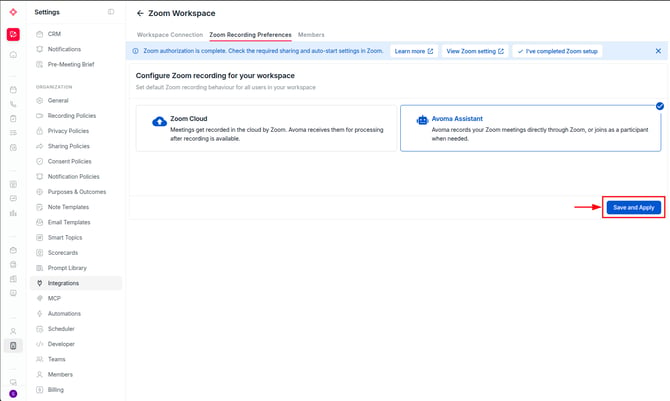
Choose a recording method, then click Save and Apply.
3. Click Save and Apply.
Which one should I choose?
- Zoom Cloud — for teams that don't need real-time features and want recording quality, storage and policies controlled in Zoom itself. Live features such as bookmarks and answer cards also need Zoom Live Streaming set up.
- Avoma Assistant — for teams that want real-time features (live notes, bookmarks, answer cards) and faster notes. Works on any Zoom account, including free Zoom Basic, with no extra Zoom setup for live features.
Caution: If you disconnect the Zoom Workspace, Avoma stops recording Zoom meetings for every member who hasn't connected their own Zoom account.
For everyone: connect your own Zoom account
Note: Skip this section if your admin connected the Zoom Workspace.
To check, go to Settings → Your account → Recording & Conferencing.
If the Zoom Conferencing card says connected via admin, you're done.
Connect Zoom
1. Go to Settings → Your account → Recording & Conferencing. You can also click Connect Zoom on the yellow banner.
2. On the Zoom Conferencing card, click Connect. If you see Re-connect Zoom, click that instead.
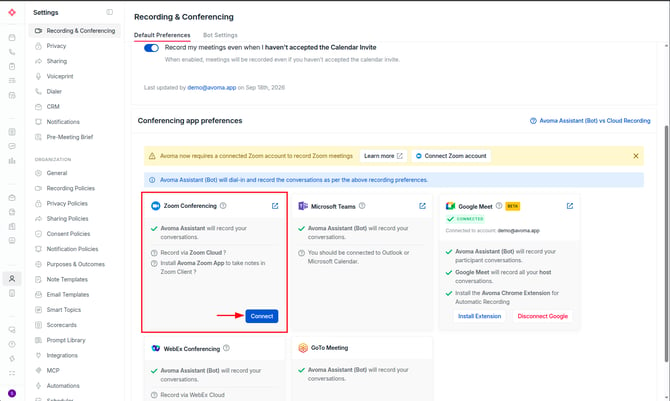
In Settings → Your account → Recording & Conferencing, click Connect on the Zoom Conferencing card.
3. Sign in to Zoom when asked, and click Allow.
4. Check that the card now shows connected.
Choose how Avoma records
1. On the Zoom Conferencing card, click Configure.
2. Select Avoma Assistant or Zoom Cloud. See Which one should I choose?
Note: On a free Zoom account, only Avoma Assistant is available.
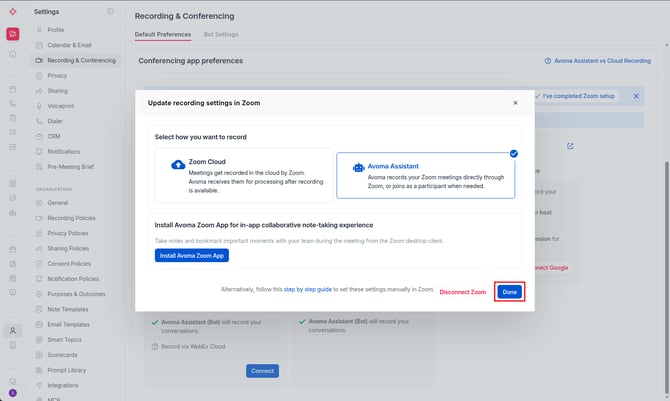
Choose a recording method, then click Done.
3. Click Done.
How Avoma Assistant joins your Zoom meetings
Once Zoom is connected, Avoma Assistant joins your Zoom meetings on behalf of someone from your organization who is in the meeting.
- It joins on behalf of a person. In the Zoom participant list, Avoma Assistant appears under the person from your organization who brought it into the meeting. It uses the name your admin set for it, which by default is your company name followed by "Notetaker" (for example, "Acme Notetaker").
- It joins after that person does. Avoma Assistant can't join before someone from your organization who has Zoom connected is in the meeting.
- It leaves when that person leaves, and rejoins through a teammate if one is there. If another teammate with Zoom connected is still in the meeting, Avoma Assistant rejoins on their behalf, and a few seconds may be missed. If nobody else from your organization is there, recording stops.
- Everything else works as before. The host admits Avoma Assistant if there's a waiting room and allows it to record.
- If nobody from your organization joins, the meeting isn't recorded.
|
Avoma Assistant |
Zoom Cloud |
|
|
Extra participant? |
Yes. It appears under the person who brought it, using your Avoma Assistant name. |
No |
|
What you get |
Notes, transcript, recording |
Notes, transcript, recording |
What happens during the meeting
This works the same whether someone at your company or at another company hosts the meeting.
|
Situation |
What happens |
|
Someone from your organization who has Zoom connected joins |
Avoma Assistant joins after them and appears under their name in the participant list. |
|
A guest joins before anyone from your organization |
Avoma Assistant waits. Recording starts when someone from your organization joins. |
|
Nobody from your organization joins |
The meeting isn't recorded. |
|
The host has a waiting room |
The host needs to admit Avoma Assistant. |
|
Avoma Assistant asks to record |
The host needs to allow it, as before. |
|
The person Avoma Assistant joined for leaves, and a teammate with Zoom connected is still in the meeting |
Avoma Assistant rejoins through that teammate. A few seconds may be missed. |
|
The person Avoma Assistant joined for leaves, and no teammate with Zoom connected is in the meeting |
Avoma Assistant leaves and recording stops. |
|
The host removes Avoma Assistant |
Recording stops for that meeting. |
|
The meeting moves into breakout rooms |
Only the main room is recorded. |
|
Zoom webinars |
Not supported. Avoma doesn't record Zoom webinars. |
What attendees see
Avoma Assistant appears in the Zoom participant list under the person from your organization who brought it, with the name your admin set for it. It posts this chat message: "This meeting is being recorded for note taking purposes." Admins can change both the name and the message.
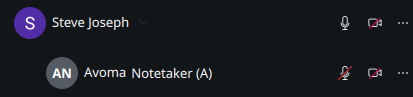
Avoma Assistant in the Zoom participant list, nested under the person who brought it. Here it uses the name "Avoma Notetaker".
Pausing or stopping recording
- From Avoma: you can pause and resume recording at any time. This only changes what Avoma records. Zoom's notice and app label stay on screen. See stop or pause recording.
- From Zoom: the host can stop sharing with Avoma from the Apps that access meeting content panel, or remove Avoma Assistant from the participant list.
If an attendee doesn't want to be recorded, the host can remove Avoma Assistant at any time.
Troubleshooting
Why wasn't my Zoom meeting recorded?
This usually means Zoom isn't connected, nobody from your organization was in the meeting, or Avoma wasn't allowed into the meeting.
- Check for a yellow banner in Avoma, and click Connect Zoom or Re-connect Zoom.
- Confirm you, or a teammate with Zoom connected, were in the meeting, signed in to the Zoom account you connected.
- If someone outside your company hosted the meeting, check whether they left Avoma Assistant in the waiting room or removed it.
Why do I still see "Re-connect Zoom" after reconnecting?
This usually means Zoom's permission screen wasn't completed.
- Refresh the page.
- If the banner is still there, click Re-connect Zoom again and click Allow on Zoom's screen.
Why can't Avoma Assistant join my meeting?
This usually means nobody from your organization with Zoom connected has joined yet, or the host's Zoom account doesn't allow joining from a browser. Avoma Assistant joins through Zoom's web client.
- Join the meeting yourself, signed in to the Zoom account you connected. Avoma Assistant joins after you.
- In the Zoom web portal, go to Settings → Meeting and turn on Show a "Join from your browser" link.
- If another company hosts the meeting, ask their Zoom admin.
- If Avoma Assistant is in the waiting room, the host needs to admit it.
Why was only part of my meeting recorded?
This usually means the person Avoma Assistant joined on behalf of left and no teammate with Zoom connected was still in the meeting, the host removed Avoma Assistant, or the meeting moved into breakout rooms. Only the main room is recorded.
FAQ
I've connected my Google or Outlook calendar. Do I still need to connect Zoom?
Yes. Your calendar tells Avoma when your meetings are. Connecting Zoom gives Avoma permission to access them.
My admin connected the Zoom Workspace. Do I need to do anything?
No. Your Zoom Conferencing card shows connected via admin, which means you're covered.
Why does Avoma Assistant show under my name in Zoom?
Zoom requires meeting assistants to join on behalf of a person in the meeting. Avoma Assistant appears under the person from your organization who brought it in, using the name your admin set for it.
Can Avoma record a meeting I'm invited to but can't attend?
Only if a teammate with Zoom connected attends. Avoma Assistant needs someone from your organization in the meeting.
Does this affect Google Meet or Microsoft Teams?
No. Only Zoom meetings are affected.
Does this work on a free Zoom account?
Yes. Recording with Avoma Assistant works on every Zoom account, including free Zoom Basic. Only the Zoom Cloud option needs a paid Zoom license.
Can Avoma record Zoom webinars?
No. Zoom webinars aren't supported. This setup covers Zoom meetings only.
Can I still use Zoom Cloud recording?
Yes, if you have a paid Zoom license. Select Zoom Cloud when you choose how Avoma records. You still need to connect Zoom.
Which Avoma plans include Zoom recording?
All paid Avoma plans and active trials.
What happens if Zoom gets disconnected?
Avoma stops recording your Zoom meetings until you connect again. If an admin disconnects the Zoom Workspace, each member must connect their own Zoom account to keep recording.
What's next
- Admins using Zoom Cloud: check that every member shows Complete on the Members tab.
- Let your team know that Zoom meetings now need a connected Zoom account, and that Avoma Assistant joins on behalf of whoever from your organization is in the meeting.
Recap
You've connected Zoom to Avoma, chosen how your meetings are recorded, and you know that Avoma Assistant joins on behalf of someone from your organization in the meeting.
Related articles
If you're having any issues, contact our team at help@avoma.com